
Sick of Juggling Five Different Email Apps? One Login Can Cover All of Them
An all-in-one email login app that gathers multiple inboxes onto a single screen with ready-made reply templates, a straightforward fix for anyone bouncing between more than one email account across different providers.
Key Takeaways
- A unified inbox app connects to your existing accounts using standard email protocols - it doesn't replace or re-host your mail, so the underlying accounts keep working normally everywhere else too.
- Use app-specific passwords or OAuth sign-in wherever your provider offers it, rather than your main account password, so access stays easy to limit and revoke later.
- Add accounts one at a time, starting with your highest priority, rather than connecting everything at once and drowning in combined notifications.
- Reply templates save the most time when they're written with a flexible, personalizable structure, not as generic canned responses.
- Heavy users of provider-specific features (advanced Gmail filters, deep Outlook calendar integration) will find those flattened in a unified app - test with a secondary account first.
In This Blog
- One Inbox, Several Accounts
- How a Unified Inbox Actually Works Under the Hood
- What It Actually Offers
- Setting It Up Without Creating a Mess
- Getting the Most Out of Reply Templates
- Why Unified Inboxes Became Common in the First Place
- How This Compares to Just Using Each Provider's Own App
- The Permissions Question, in More Detail
- Common Mistakes to Avoid
- When Something Stops Working
- Who This Is Actually For
About this app
Work email, personal email, an old account you keep meaning to shut down, and maybe a third one that exists purely for online shopping receipts. Hardly anyone is running just one inbox these days - most people are running four, scattered across three different apps that have no idea the others exist.
The real cost of that sprawl isn't the extra taps needed to switch between apps - it's the emails that quietly slip through because they land in the one inbox nobody opens daily. A confirmation buried in the shopping account, a reminder sitting in the old account you keep meaning to close, an important reply in the work account you only check from a laptop. A unified inbox exists purely to close that gap.
One Inbox, Several Accounts
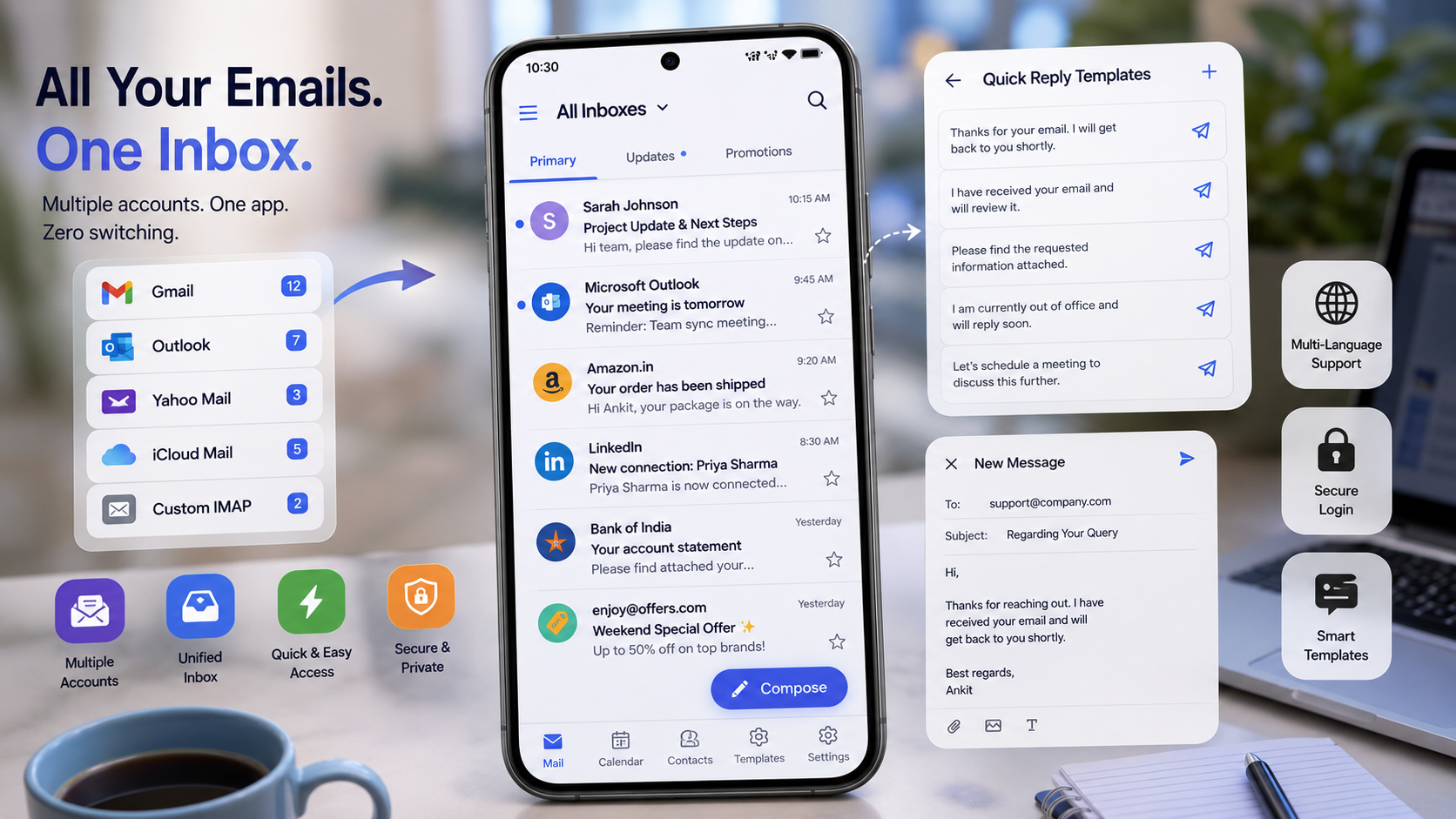
All Email Login - Mail Inbox runs on a fairly simple premise: let people check whatever email accounts they use from one app instead of bouncing between the Gmail app, the Outlook app, and whatever else happens to be installed. It's not attempting to reinvent email - it's just trying to stop four separate apps from opening before the coffee's even ready.
How a Unified Inbox Actually Works Under the Hood
The mechanics here are worth understanding, since they explain both what these apps can do and where the real security considerations sit. A unified email app doesn't host your mail itself - it connects to each of your existing accounts through standard email protocols (typically IMAP for receiving and SMTP for sending), the same underlying tech every email client from Outlook to Apple Mail runs on. Once connected, the app pulls messages from each account and displays them together, but the mail itself still physically lives with your original provider, whether that's Gmail, Outlook, Yahoo, or anywhere else. None of this is unusual or inherently risky - it's the same approach every third-party email client takes - but it does mean the app needs a real level of access to each account you connect.
What It Actually Offers
- Multiple accounts in one place: connect whatever email platforms you already use and check them without switching apps.
- Pre-built reply templates: common responses sit one tap away instead of getting typed out fresh every single time.
- Multi-language support: the interface adapts to your preferred language rather than assuming everyone reads the same one.
- A deliberately simple layout: built for checking and replying, not for managing complex mail rules or filters.
Setting It Up Without Creating a Mess
- Add your highest-priority account first and live with it a day or two before connecting everything else, so you get a feel for how notifications and the combined view behave before your inbox gets crowded.
- Wherever a provider offers app-specific passwords or OAuth-based sign-in instead of your main account password, use that - it limits what the connected app can technically do and makes revoking access later easy without touching your actual password.
- Turn off notifications for lower-priority accounts individually instead of letting every connected account ping you equally; the whole point of consolidating is cutting noise, not multiplying it.
- Set up one or two reply templates for your most common response - something like "I'll get back to you by end of day" or a standard order-inquiry reply - during initial setup instead of scrambling for one mid-task.
Getting the Most Out of Reply Templates
The templated-reply feature sounds like a minor bullet point, but it's genuinely the biggest time-saver for anyone handling repetitive correspondence - customer questions, scheduling requests, the same three sentences typed out for the fifteenth time this week. The trick is treating templates as starting points rather than finished answers: write one with a placeholder-style structure you can quickly personalize with a name or specific detail, instead of something so generic it screams form response. A template reading "Thanks for reaching out - I'll take a look and follow up by [day]" saves real time while still reading like a genuine, personal reply.
It's worth building a small library of these rather than relying on just one - a scheduling response, a polite decline, an initial acknowledgment, and a closing follow-up cover most day-to-day correspondence for a lot of people. Revisit them every few months, too; a template written for a situation that no longer applies just sits there as clutter in a selection menu, and a stale-sounding template reused past its relevance is often more noticeable to the recipient than a fresh reply typed on the spot would have been.
Why Unified Inboxes Became Common in the First Place
None of this idea is new - desktop email clients have offered multi-account inboxes for ages, long before smartphones turned email into something people check dozens of times a day. What's changed is the sheer number of separate accounts an average person now accumulates: a personal account from years back, a current one, a work account, and often a dedicated account just for shopping and subscriptions to keep the inbox that actually matters cleaner. Mobile apps built specifically to consolidate that sprawl are a fairly direct response to a habit most people drifted into rather than chose on purpose - and once you're juggling four or five accounts, checking each one individually stops being a minor annoyance and starts eating real, measurable time every single day.
How This Compares to Just Using Each Provider's Own App
| Approach | Setup effort | Notification noise | Best for |
|---|---|---|---|
| This app (unified) | One-time setup per account | Consolidated, controllable | Several accounts checked daily |
| Each provider's own app | None - already installed | Scattered across apps | One or two accounts, provider-specific features |
| Your phone's built-in mail app | Moderate, built-in support | Consolidated but basic | Simple setups without extra features like templates |
The Permissions Question, in More Detail
Since this comes up constantly with any app that touches email, it's worth going deeper than just "check the permissions." Connecting an account typically grants the app the ability to read your messages, send mail on your behalf, and see your contacts and folder structure, because that's what displaying and managing an inbox actually requires. None of that is unusual - it's the same access any email client needs - but it does turn the app into a meaningful point of trust in your digital life. A few specific things are worth checking: whether the provider's sign-in is a genuine OAuth flow (where you authenticate directly with Google or Microsoft rather than typing your password into the third-party app itself), whether the app has a clearly stated privacy policy covering what it does and doesn't do with your data, and whether you can individually revoke that access later from your email provider's own account security page without needing the app's cooperation.
Common Mistakes to Avoid
- Connecting every account at once on day one, which usually produces an overwhelming combined inbox before you've had a chance to configure notification priorities.
- Skipping the permissions screen during setup - it's genuinely worth reading what access each connected account grants, the same habit worth building with any app that touches your email.
- Deleting an old account's app entirely and leaning solely on the unified view, without first confirming the unified app correctly syncs sent mail and drafts the way you'd expect.
When Something Stops Working
A connected account that suddenly stops syncing is almost always one of a handful of specific causes. The most common is a provider-side security check - Gmail and Outlook both periodically re-verify third-party app access, especially after a password change, and will simply stop delivering mail to a connected app until you re-authenticate. Removing and re-adding that specific account is usually the fix, rather than troubleshooting deeper, since a stale authentication token is the actual issue. Another common cause is a provider tightening its own third-party access policies over time, which occasionally requires re-approving an app's access from your account security settings even when nothing changed on your end. If only one account out of several stops working, that's a strong sign the problem is specific to that account's authentication rather than the unified app itself.
Who This Is Actually For
This is a smaller app by download count - around 5,000 installs and 210 reviews at a 3.79-star average - so it's a niche, less battle-tested tool rather than something with millions of daily users stress-testing it. It runs ads, includes in-app purchases, and carries a 3+ rating. Since it needs access to your email accounts to function, it's worth spending a minute during setup actually reading the permissions being requested, the same way you would with any third-party app that touches an inbox. For someone genuinely juggling multiple email accounts across providers and tired of app-switching, it solves a real, if small, annoyance - just go in with reasonable expectations for a young, modestly sized app rather than a Gmail replacement.
It's also worth being upfront about who this isn't for. If you lean heavily on a provider's specific features - Gmail's advanced filtering and labels, or Outlook's deep calendar integration - a unified inbox app will generally flatten those into a simpler, shared set of features common across providers. For genuinely basic checking and replying across several accounts, that trade-off is a fair one; for power users leaning on provider-specific tools daily, it's worth testing with a secondary account before switching over fully.
The multi-language support deserves a specific mention too, since it's easy to skim past in a feature list but matters a lot for households and workplaces where not everyone reads the same language comfortably. Instead of being locked into whatever language the app happened to ship with, the interface itself adapts - a small but genuinely thoughtful touch for an app this size, given how many niche utility apps skip localization entirely and support only English. Its presence here reads as real design intent rather than a rushed release.
None of this makes the app a dramatic reinvention of email, and it's not trying to be. What it does is remove one very specific, very common piece of daily friction: the habit of opening three or four separate apps just to check whether anything important arrived. For anyone genuinely juggling multiple accounts across providers, that alone is worth the few minutes of setup, permission review, and template-writing it takes to get running properly.
Frequently Asked Questions
Is it safe to connect multiple email accounts to a third-party app like this?
It carries the same general considerations as any third-party email client - check what permissions are requested, use app-specific passwords or OAuth where your provider supports it instead of your main password, and periodically review connected-app access from your email provider's security settings.
Will I still get email if I delete the original provider app?
Generally, yes - the unified app connects directly to your account rather than depending on the provider's own app being installed. Still, it's worth confirming sent mail, drafts, and folders sync the way you expect before relying on the unified app alone.
Can I use different reply templates for different accounts?
That depends on the specific app version, but most template-based email tools let templates be reused across any connected account rather than tying them to just one, since the underlying text isn't account-specific.
Does a unified inbox slow down how quickly I get new emails?
Not in any meaningful way - the app checks each connected account on its own schedule, much like any mail app polls for new messages, so delivery speed is generally comparable to using each provider's own app individually.
What should I do if a connected account suddenly stops receiving mail?
Remove and re-add that specific account first, since a stale authentication token from a provider-side security check is the most common cause. If that doesn't fix it, check your email provider's own account security page for any pending approval requests for third-party access.
Can I still use my provider's web login separately after connecting the app?
Yes - connecting an account to a unified inbox app doesn't disable or replace access through your provider's website or official app; all of them keep working independently since they're just different ways into the same underlying account.