
Can't Find Your Phone in the House? There's an App That'll Whistle Back
How the Find My Phone clap-and-whistle app tracks down a misplaced handset in seconds, plus the flash alerts and call-blocking tools that come bundled with it.
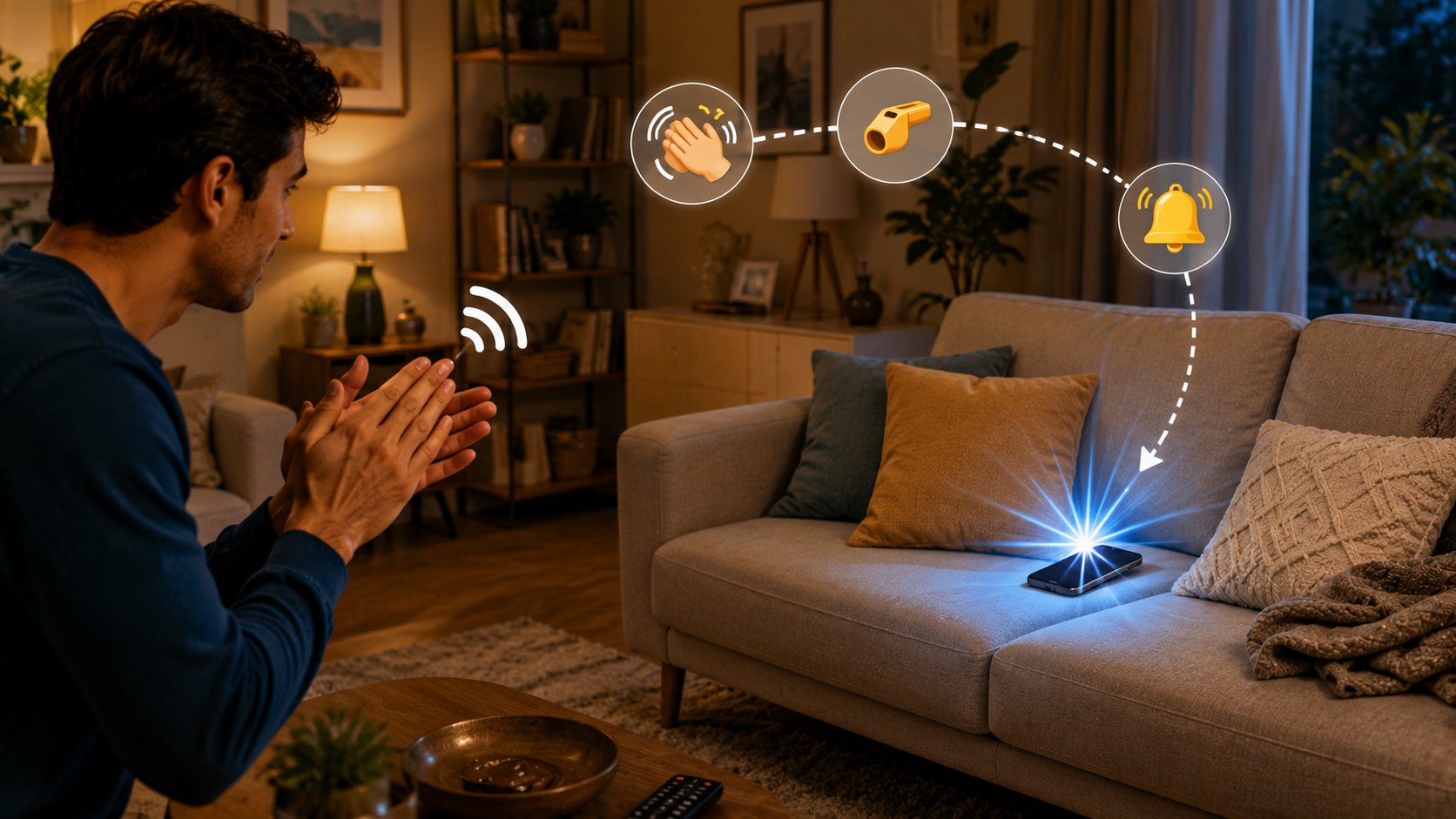
About this app
It's a familiar scene: the phone is somewhere in the house, the ringer's been off since a meeting three hours ago, and you're checking under couch cushions like you're searching for lost car keys. Calling your own number from a second phone would settle it in seconds, except there usually isn't a second phone lying around.
What the app is actually built to do
Find My Phone: Clap & Whistle skips the borrow-a-phone workaround entirely and just waits for a sound cue - a sharp clap or a whistle - before setting off a loud alert plus a flashing light so you can home in on where the thing actually landed. Sensitivity is adjustable, so a slammed door or a barking dog won't set it off, and you can also tune how fast the flash blinks, which helps when you're hunting in a dark room rather than a loud one. Once it's switched on it keeps listening quietly in the background, so there's no need to reopen the app every time the phone goes missing - it's already paying attention.
Getting it set up
- Install it and allow microphone access – it can't listen for a clap or whistle without the mic running, so approve that permission the first time you open it.
- Choose a detection mode – go with Clap to Find or Whistle to Find, whichever sound you can reliably produce on demand.
- Adjust the sensitivity – push it higher in a quiet home, lower it if kids, pets, or a busy street outside are part of your usual background noise.
- Turn on both flash and sound alerts – running them together is what makes the phone easiest to spot, especially after dark.
- Switch on background mode – that way it keeps listening even with the screen off or another app open.
Beyond the basic clap-to-find trick
- Several detection modes – Clap to Find, Whistle to Find, Don't Touch, and Pocket Mode handle different situations, whether you want a sound trigger or a motion-based one.
- Flash alerts on calls and texts – the camera flash lights up for incoming calls or messages, handy if your phone stays on silent most of the day.
- Caller and text announcements – it reads aloud who's calling or texting, so you're not checking the screen every time it buzzes.
- Call blocking – put nuisance numbers on a blocklist and calls from them get filtered out before your phone ever rings.
- Charging and battery alerts – get notified when the phone is plugged in, unplugged, or running low, plus an optional PIN lock during charging.
- A don't-touch-my-phone alarm – pick it up or move it off a table and it sounds an alarm, with tone and volume you can adjust.
How it stacks up against other lost-phone tricks
| Method | Works with phone on silent | Requires a second device | Extra features |
|---|---|---|---|
| Calling your own number | No | Yes | None |
| Built-in "Find My Device" tools | Sometimes | Yes, or a browser | Map-based tracking, remote lock |
| Find My Phone: Clap & Whistle | Yes | No | Flash alerts, call blocking, don't-touch alarm |
The device-finder tools that ship with most phones are the better call for something genuinely lost or stolen - they'll pull up a location on a map and let you lock it remotely. The catch is they need a second device or a browser to kick off, which is a lot of overhead for the everyday case of a phone buried under a jacket on the same couch you're sitting on. That's the gap this app fills: a sound you make with your own hands, answered instantly by the phone somewhere in the room with you.
A few things worth knowing before you install
The app is free and ad-supported, with optional in-app purchases if you want extras, so expect the occasional interruption. It also asks for accessibility permissions to power the flash alerts on incoming notifications - that's a wider-reaching permission than a lot of people are comfortable granting, so it's worth knowing going in. To its credit, the developer states plainly that no data is collected, stored, or shared, which isn't something every utility app in this space can say. It carries an all-ages rating, and with 100K+ downloads, it's clearly found an audience of people who've lost a phone in a couch cushion before.
Battery use is the other practical question worth asking about any app that's constantly listening for a sound trigger in the background. Microphone-based detection is generally lighter than GPS tracking, but if your battery seems to be draining faster than usual, check whether background mode and the always-on listener are the reason - dialing sensitivity down or switching it off overnight is an easy fix if you don't need it running around the clock.
If your phone regularly goes missing somewhere in the house, this is a cheap, low-effort fix - clap, whistle, or just leave it where you put it, and let the app handle the rest.
Dialing In the Right Sensitivity the First Time
- Run your first test in whichever room the phone actually vanishes in most, not a quiet bedroom - a kitchen and a living room have very different levels of background noise.
- Start on a lower sensitivity and work your way up rather than maxing it out right away - crank it too high and it'll fire on doors, dropped items, and pets, which just teaches you to ignore the alert.
- Recheck the setting after anything changes at home, like a new pet or a different routine, since a sensitivity level that worked fine before can suddenly start producing false alarms.
Thinking Twice About the Accessibility Permission
It's worth pausing on the accessibility permission this app asks for rather than tapping approve on autopilot - accessibility access is broader than most permissions, and it's occasionally been misused by less scrupulous apps to read whatever's on your screen. Here, the stated purpose - powering flash alerts on notifications - is a legitimate and common reason to ask for it, and the developer's no-data-collection claim is a reasonable sign of good faith. Even so, it's a good general habit to understand why an app wants a powerful permission before granting it, rather than clicking through every prompt by reflex.