
Handing Someone Your Phone Shouldn't Feel Like a Gamble - Here's How to Hide Photos and Videos Properly
A practical rundown of what Gallery - AI Photo Editor actually delivers when it comes to hiding photos and videos, bringing back accidentally deleted ones, and clearing out duplicate clutter without the usual headache.
Get this app
About this app
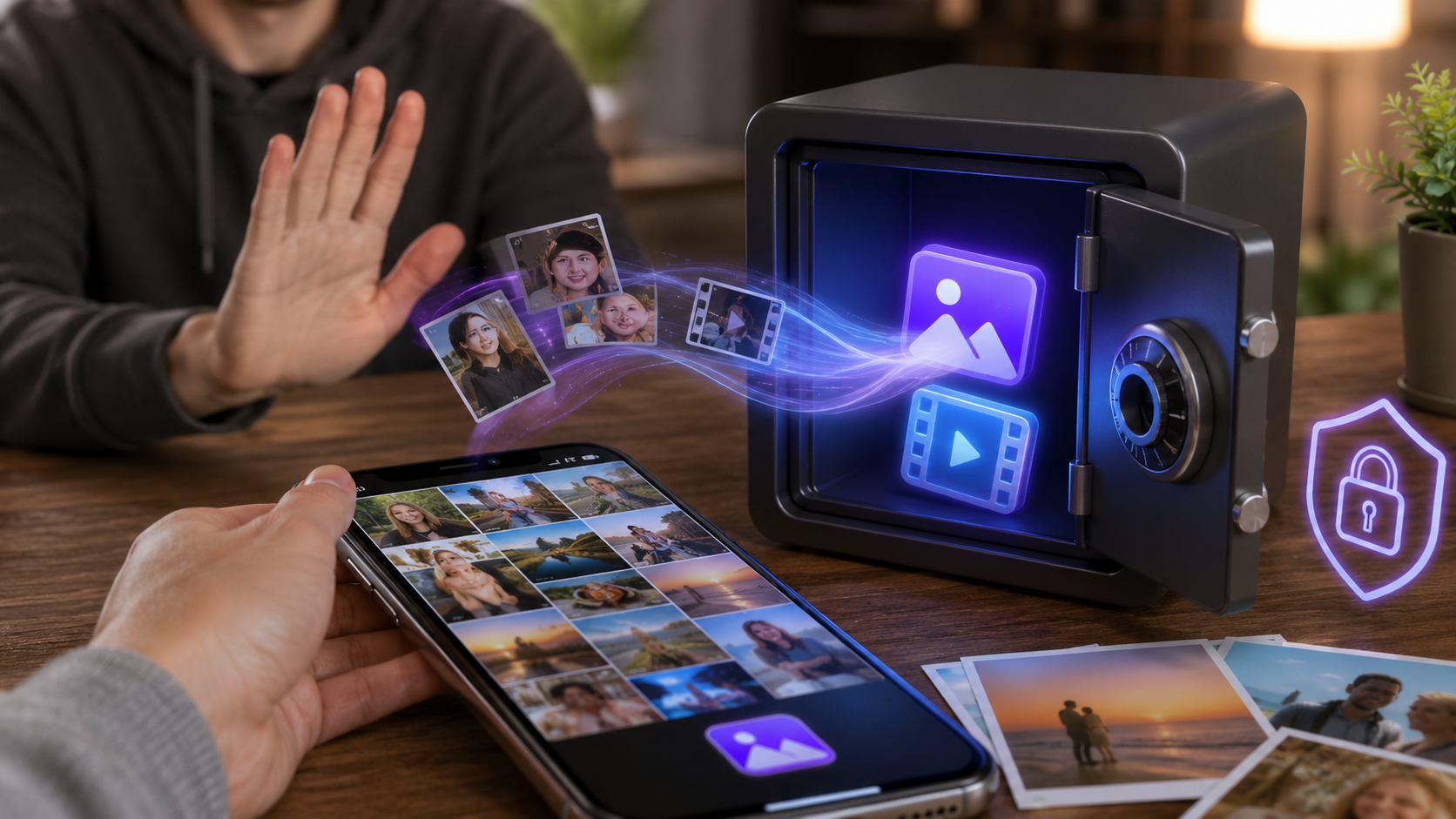
A friend hands you their phone to show off a weekend photo, and a minute later you're doing the same - except your thumb pauses for a beat before unlocking your gallery, because you know precisely what sits a few swipes away. That tiny pause is really the whole reason an app like Gallery - AI Photo Editor exists.
The Actual Problem This Gallery App Is Built Around
Strip away the branding and this is a gallery replacement built on one simple premise: not everything on your camera roll needs to be visible the second someone else picks up your phone. It handles the normal stuff - browsing, organizing, and editing photos and videos - just like any other album app, but it also lets you shift particular files into a locked vault that lives completely apart from the main gallery. Screenshots, old conversations you snapped a picture of, scanned documents, anything you'd rather keep out of sight - file it away once and it's off your mind for good.
Stock gallery apps on Android and iOS were never built with this in mind. They treat everything you capture or save as one continuous, dated stream, fully open to anyone who taps the icon. That works fine right up until a coworker asks to see a work photo, or a kid borrows your phone for a game and swipes one screen too far. A dedicated vault feature exists purely to close that gap - without forcing you to delete a single file you actually want to keep.
What's Actually On Offer
- Hide photos and videos behind a PIN or pattern - pull files out of the visible gallery and into a private vault that doesn't announce itself on the home screen.
- Recover deleted photos - if an image gets wiped by accident, whether by you or someone else, there's a built-in recovery flow so you're not hunting down a separate app for it.
- Find and remove duplicate files - a storage scan flags repeated photos and videos, and clearing those out usually frees up more space than you'd expect on most phones.
- Edit and organize by location and date - pictures fall into a timeline automatically, with basic editing tools like auto-enhance included.
- Jot quick notes in the same app - a small built-in notepad handles lists or reminders, so that's one less separate app to keep around.
Getting the Vault Set Up Correctly
- Find the vault section before moving anything - locate the dedicated vault or "private" area in the app menu rather than trying to hide files one at a time from the main gallery.
- Pick a PIN or pattern different from your phone's unlock code - reusing the same one defeats the purpose, since anyone who unlocks your phone unlocks the vault right along with it.
- Move files in batches - select a group of screenshots or videos at once instead of hiding each one individually, particularly if you're working through months of backlog in one go.
- Confirm originals actually leave the visible gallery - some vault tools quietly leave a copy behind, so verify it's moving files rather than copying them the first time you test it.
- Check back on the vault every so often - files that sit there hidden and forgotten are usually the ones worth deleting permanently once you no longer need them.
Why This Beats a Renamed Folder
| Approach | Visible In Regular Gallery? | Protected By PIN? | Handles Duplicates? |
|---|---|---|---|
| Default phone gallery | Yes | No | No |
| Manually renamed/hidden folder | Sometimes still indexed | No | No |
| Gallery - AI Photo Editor vault | No | Yes | Yes |
Sticking a dot in front of a folder name or nesting it three directories deep used to work as a hiding spot, but most current gallery apps and media scanners dig those files up regardless. A genuine vault feature takes a different route entirely - it relocates files to storage that the system's media indexer never scans in the first place, so there's simply nothing there for a casual swipe-through to find.
A Few Things Worth Knowing First
It's free to download, carries ads plus optional in-app purchases, and is rated for everyone (3+) - meaning there's no age gate keeping a curious kid out of it. Think of the vault as a real privacy feature rather than serious encryption; it's designed to stop casual snooping from a friend, a family member, or anyone who picks up a phone left on a table, not to withstand a determined attacker. If what you're protecting matters because of one specific person with real technical know-how or physical access to your unlocked device, treat this as a first line of defense rather than the entire wall.
It's also worth keeping in mind that a vault app is only as secure as its PIN and whatever backup habits surround it. If your phone backs up to a cloud photo service, double-check whether vaulted files get excluded from that sync - otherwise a photo you think is hidden could still turn up in a cloud gallery on another signed-in device.
For the everyday scenario - keeping a stash of photos and videos away from casual glances while also clearing out duplicate clutter and tidying up the gallery - this handles it without demanding much thought. Set the PIN, shift the files over, and go back to handing your phone around without that split-second flinch.