
How to Read, Edit, and Scan PDFs Without Juggling Five Different Apps
A no-nonsense guide to handling PDFs on your phone with one app instead of five - scanning, converting, signing, and managing documents so you're not scrambling for the right tool every time a file lands in your inbox.
Key Takeaways
- A flat, contrasting surface with even lighting does more for scan quality than anything else you can adjust.
- Turn OCR on whenever you'll need the text searchable or copyable later - without it, a scan is just an image.
- It really can replace a laptop for everyday document tasks, but heavy legal redlining or intricate formatting still calls for a full desktop editor.
- Bundling the scanner, converter, and office viewer into one app cuts out the app-switching that usually happens when a file changes format on you.
About this app
Picture this: you're in a parking lot trying to open a rental agreement someone just emailed you, and your phone either mangles the rendering or insists on routing you through three separate apps before you've even seen the first page. A solid PDF reader exists to close exactly that gap.
What this app is really built for
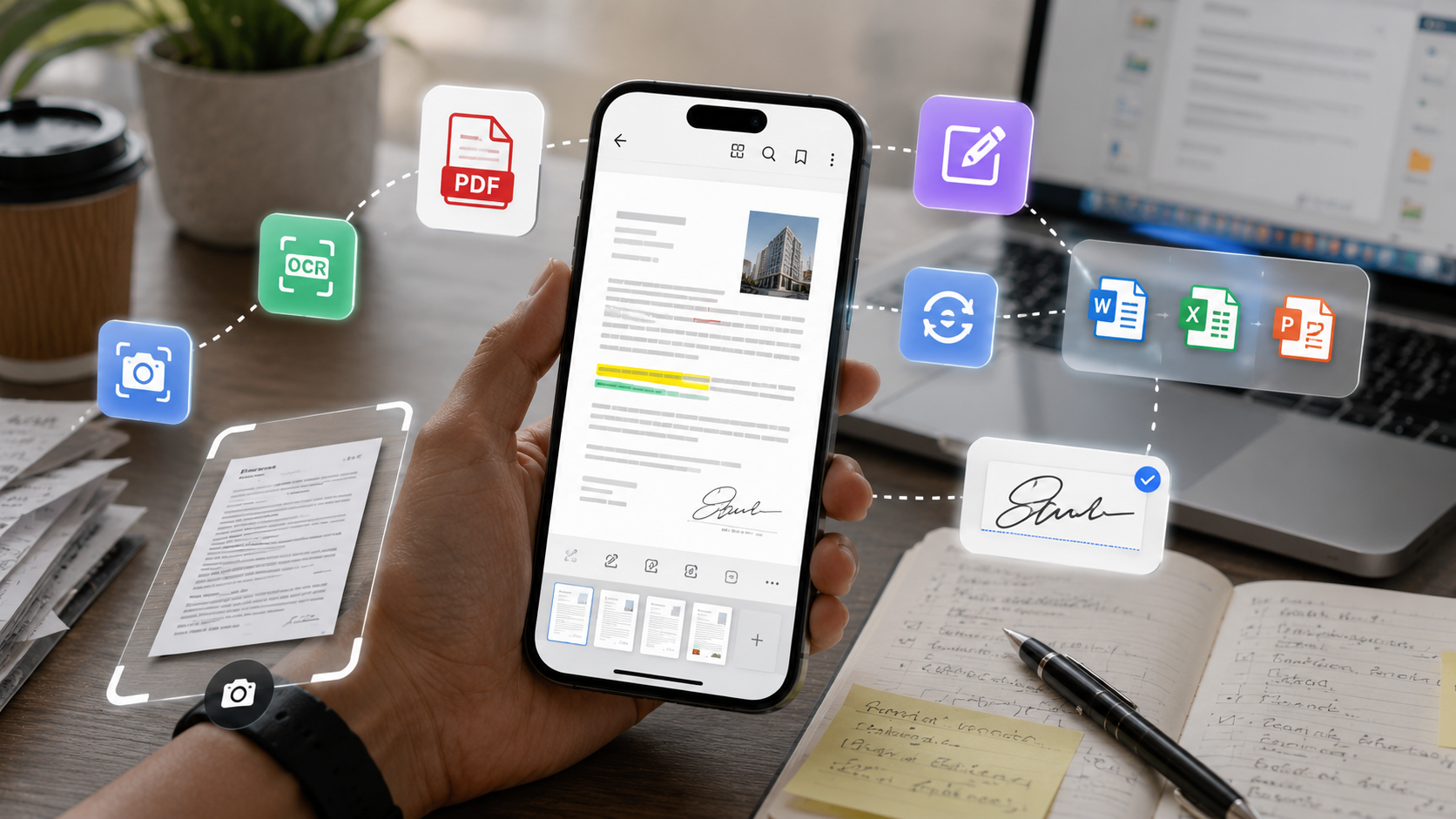
PDF Reader : Edit & View isn't just a viewer - think of it more as a compact office that lives in your pocket. Yes, it opens PDFs cleanly, but it also scans paper documents, edits Word and Excel files, and converts between formats, all without forcing you to email a file to yourself first. Whatever document format shows up on your phone, the pitch is that you shouldn't have to go find a second app to deal with it.
The features people actually reach for
- OCR-powered scanning – aim your camera at a receipt, contract, or scribbled note and walk away with a clean digital copy whose text you can search and copy.
- Converting between formats – turn a Word doc into a PDF before sending it off, or pull a PDF back into something editable when a client wants revisions.
- Merging, splitting, and shrinking files – stitch a stack of scanned pages into a single document, or compress a bulky PDF before it bounces off an attachment size limit.
- Marking up and signing – highlight text, add sticky notes, and put your signature on a contract with a finger instead of hunting down a printer.
- A stripped-down office suite – open and edit Word, Excel, and PowerPoint files right on the phone, which counts for more than you'd think when there's no laptop around.
Tips for a scan that doesn't look like garbage
- Set the document on a flat surface with strong contrast - white page on a dark table, or the reverse - so edge detection crops the page correctly instead of grabbing chunks of background.
- Scan under even lighting and steer clear of direct overhead light, which throws a glare spot in the middle of the page that OCR often reads as blank or garbled.
- Keep the phone directly above the page rather than tilted; even a slight angle distorts the text enough to hurt recognition accuracy, even if it still looks fine to your eye.
- Turn OCR on for anything you'll need to search or copy later - it adds a beat to the process, but without it a scan is just a picture, not a document you can actually work with.
When it can stand in for a laptop, and when it can't
For the routine stuff - signing a lease, filling out a form, turning a photo of a printed page into something you can send as a proper PDF - this app really does mean you can leave the laptop closed. It gets shakier with heavier document work: tracked-change redlining across multiple people, dense legal contracts with intricate formatting, or anything that really calls for a big screen and a mouse for precise edits. Figuring out which bucket a task falls into before you start saves you from getting halfway through something on a phone that a desktop would've knocked out in two minutes.
What to know before installing
It's a free download with ads and optional in-app purchases - pretty standard for something this broad in scope. Expect the occasional ad between actions, with a paid tier if you'd rather not see them. It's rated for all ages and has already crossed a million installs, so the kind of rough edges you might expect from an obscure scanner app have largely been worked out. It's not going to replace a desktop editor for serious legal redlining, but scanning, signing, and converting on the fly was never meant to be that job anyway.
The real payoff isn't any single feature - it's having the scanner, the PDF reader, and the office viewer all under one roof, so a document changing formats on you doesn't mean bouncing between three separate apps.
A Quick Comparison to Just Using Your Camera Roll
| Approach | Searchable text? | Cropped and cleaned up? | Easy to email? |
|---|---|---|---|
| Plain phone camera photo | No | No - background included | As an image attachment, not a document |
| Dedicated scanner with OCR | Yes | Yes - auto-cropped and squared | As a proper PDF |
Where People Usually Get the Signature Feature Wrong
The e-signature tool has one common trap: signing with a fingertip on a small screen tends to produce a shakier result than people expect, and reusing that first rushed attempt on every future document just locks the mistake in. It's worth taking a few extra seconds the first time - sign slowly, zoom in to check it, and save that version as your default rather than rushing a fresh signature each time a document needs one. Most apps in this category let you store a signature once and reuse it, which is the entire point - nail it once and everything after that stays quick.
Frequently Asked Questions
Does the scanned document stay editable, or is it just an image?
Once OCR runs on it, the text inside a scan becomes searchable and copyable, but underneath it's still an image-based scan rather than a native editable file - for true structural edits, the format-conversion tools are the better route.
Can I edit a Word or Excel file without owning Microsoft Office?
Yes - the built-in office suite opens and edits Word, Excel, and PowerPoint files directly with no separate Office subscription needed, though very intricate formatting may not carry over perfectly compared to the original desktop apps.
Will compressing a PDF noticeably reduce quality?
Text-heavy PDFs compress with barely any visible quality loss, since text data is already compact. PDFs full of high-resolution images will show more noticeable compression, so it's worth checking the result before sending anything where image quality actually matters.