Casting Your Phone to a Smart TV Without a Single Cable or Dongle
A hands-on walkthrough of mirroring an Android phone onto a smart TV over Wi-Fi, covering what casts cleanly, what does not, and the one thing it quietly leaves behind: the audio.
Get this app
About this app
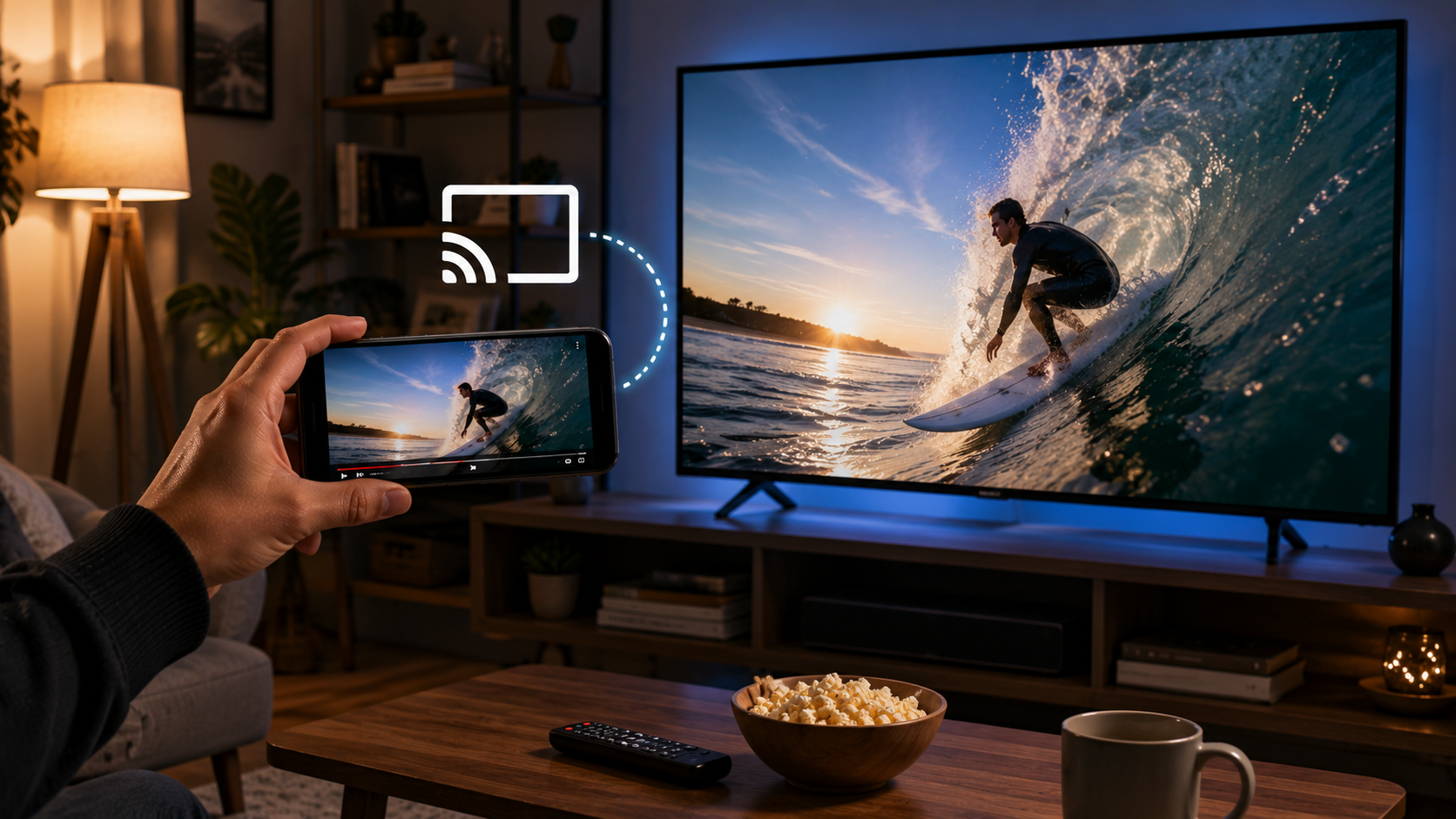
Everyone in the room wants to watch the clip someone just pulled up on their phone, so you all huddle around a six-inch screen like it's a campfire. Meanwhile a perfectly good smart TV sits on the wall doing nothing, because nobody quite remembers how to get a phone's picture onto it. Skip the HDMI cable and skip ordering a Chromecast that won't arrive for three days - an app that talks to the TV over the Wi-Fi you already have gets you there faster.
What's actually happening when you mirror a screen
Screen Mirroring: Cast Smart Tv links your phone and TV on the same Wi-Fi network, then streams a live copy of your display to the television. No cable needed, and no extra streaming stick if the TV already supports casting on its own. Fire up a video, flip through photos, or run a slideshow, and it lands on the big screen with barely any delay. Under the hood, this leans on the same casting protocols already built into most smart TVs - the app just wraps the whole handshake into a one-tap flow so you skip digging through the television's own settings menu.
Pairing for the first time
- Get both devices on the same Wi-Fi network – this trips up more mirroring attempts than anything else, so rule it out before you troubleshoot anything fancier.
- Launch the app and let it look around – it scans the network for smart TVs and other casting-ready devices.
- Tap your TV once it shows up in the list – pairing usually needs a one-time confirmation tap on the TV itself.
- Hit start mirroring – one button push, and your phone screen should land on the TV within a few seconds.
- Approve the screen-capture prompt – Android asks for this once per session, and without it the app has nothing to stream.
What it does well
- One-tap pairing – once the TV shows up on the network, connecting and starting the mirror takes a single button.
- Casting photos and videos – send your camera roll to the TV for a slideshow instead of handing the phone around the room.
- Whole-screen mirroring – any app open on your phone gets mirrored, including games and anything without its own casting support.
- Wide TV compatibility – built to work across many smart TV brands instead of tying you to one ecosystem.
Mirroring the whole screen vs. using an app's own cast button
Full-screen mirroring and the built-in "cast" icon some apps already carry are not the same thing, and they show up on the TV differently - worth knowing before you assume one will behave like the other.
| Method | What lands on the TV | Where it fits best |
|---|---|---|
| Full-screen mirror (this app) | A mirror of your entire phone screen, notifications and UI included | Games, apps with no casting of their own, slideshows |
| Native app cast button | Just the media itself, usually in better quality | Streaming apps that already support it |
| HDMI cable | An exact, wired copy of the screen | When Wi-Fi is spotty or missing |
When an app already has its own cast icon, tapping that instead of mirroring the whole screen usually looks cleaner on the TV - your keyboard, notification pop-ups, and battery indicator stay off the big screen entirely. Full mirroring is really for the apps and content that never gave you that cast button in the first place.
A few things worth knowing upfront
It runs ads and sells in-app purchases, and both devices need an active internet connection for any of this to work - there's no Bluetooth-only offline mode hiding in here. One thing to flag clearly: the app mirrors the picture but not your phone's audio, so if you're expecting sound to travel with the video, it won't happen. A few older smart TVs with limited browsers also don't cooperate well with it. It's rated for all ages, which makes sense given it's basically just a display utility.
When something goes wrong
- TV never shows up during the scan – confirm both devices sit on the same network, not a guest Wi-Fi that keeps devices isolated from each other.
- Picture stutters or lags – shrink the distance between phone, router, and TV, or move closer to the router; mirroring eats bandwidth fast.
- Session drops partway through – a background app or the phone dozing off can kill the stream; keep the screen awake during longer sessions.
- TV stays silent – that's expected, not broken; send audio through a separate speaker or the TV's own volume if sound matters to you.
For the narrow job of throwing your phone screen onto something bigger without buying anything new, this kind of mirroring app does exactly what it says on the tin. Just have a speaker or the TV's own volume ready if you care about sound.
Where a Chromecast still beats a mirroring app
Let's be honest about when the free, no-shopping route stops winning. Dedicated casting hardware typically handles picture and sound together, runs at higher quality with less lag because it's purpose-built rather than a phone multitasking, and it doesn't force your phone to stay awake and tethered for the whole show. For a quick one-off - showing a few friends a clip already open on your phone - mirroring is more convenient. But for something you do every night, like casting a streaming app on repeat, a small one-time hardware buy usually pays itself back in reliability alone.
Working around the missing-audio problem
- Check first whether the app you're mirroring already has its own cast button - plenty of popular video and music apps carry sound over automatically that way, which sidesteps the mirroring app's limitation entirely.
- When there is no cast button, pair a Bluetooth speaker directly to the phone so audio travels with you instead of depending on the TV.
- If the TV accepts Bluetooth audio input, some setups let you pair the phone's sound to the TV speakers on a separate connection from the video mirroring, which closes the gap using hardware you likely already own.