
Wondering Why Everyone Else's Instagram Bio Looks Fancier Than Yours? It's the Keyboard
A stylish fonts keyboard app that adds cursive text, symbol styles, and a large emoji library to everyday typing - the quiet trick behind all those elaborate Instagram bios and captions.
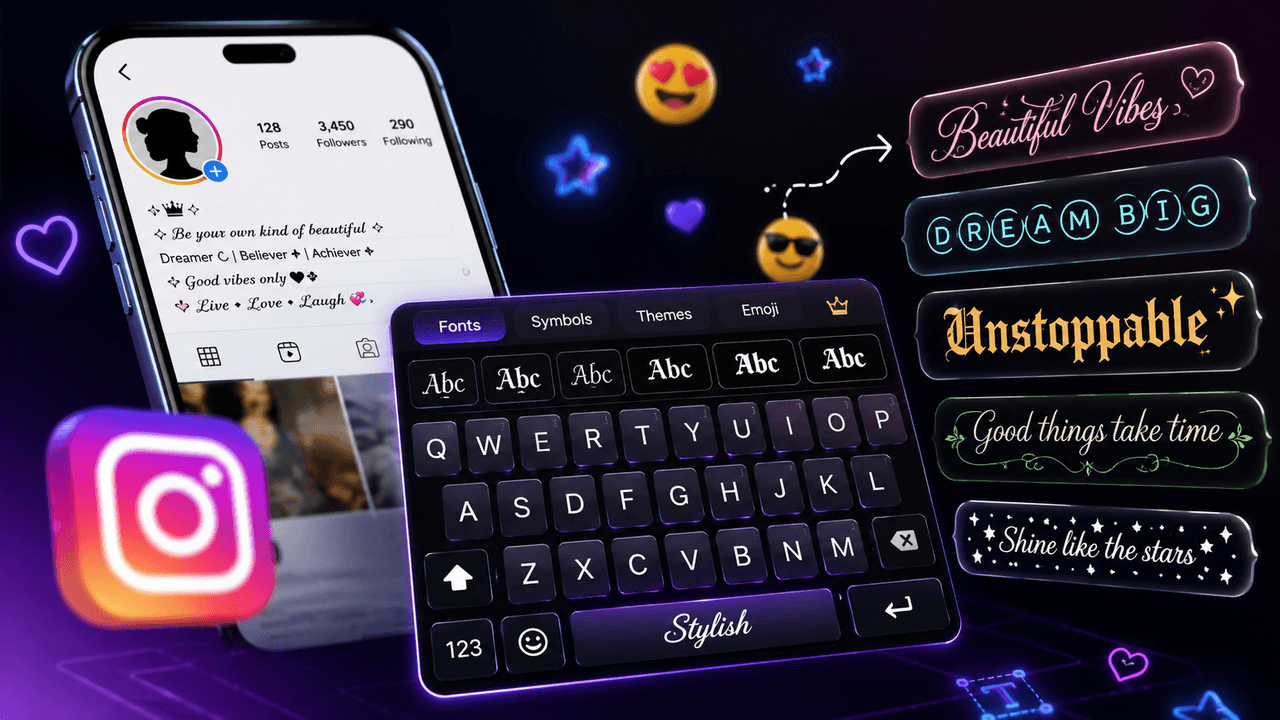
About this app
At some point everyone's seen a caption or bio written in some elaborate cursive or bold unicode style and wondered how someone typed that on an ordinary phone keyboard. The honest answer usually isn't talent - it's a fonts keyboard app doing the work behind the scenes. No copy-pasting from a website, no memorizing symbol combinations, just typing as normal while the keyboard itself handles the styling.
A Keyboard Replacement, Not Just a Font Pack
Fonts Keyboard - Stylish Fonts works by replacing your system keyboard entirely rather than being a separate app you copy text out of. Once enabled in phone settings, the stylish fonts, symbols, and emoji show up directly inside whatever app is open - Instagram, WhatsApp, plain texts, all of it - instead of bouncing between a font generator website and the clipboard. That distinction matters more than it sounds. A font generator app confined to its own screen means switching apps, typing there, copying the result, then pasting it back into Instagram. A keyboard replacement skips all of that, because the styled text gets generated right where you're typing.
Getting It Set Up
- Step 1: Install the app and open it once to reach the setup screen.
- Step 2: Enable the keyboard under your phone's language and keyboard settings, the same spot any third-party keyboard gets added.
- Step 3: Switch your active keyboard over to Fonts Keyboard from the keyboard picker (the small globe or keyboard icon while typing).
- Step 4: Choose a font style or theme from the in-keyboard menu before typing out a caption or bio.
What You Actually Get
- 100-plus font styles: cursive writing, symbol-based text, and stylized fonts you can switch between mid-message.
- A 200-plus emoji collection: a noticeably bigger set than most default keyboards ship with.
- 100-plus keyboard themes: change the visual background and overall look of the keyboard, including personal gallery photos.
- Typing customization: tweak auto-correction, auto-capitalization, and typing sensitivity to match how you actually type.
- Works system-wide: once enabled, the fonts show up anywhere you type, not just inside one app's text box.
Fonts Keyboard vs. a Separate Font Generator App
| Fonts Keyboard (keyboard replacement) | Standalone font generator app | |
|---|---|---|
| Where it works | Any app, system-wide | Only inside its own screen |
| Workflow | Type directly in styled font | Type, copy, switch apps, paste |
| Extras | Themes, emoji library, typing settings | Usually just font conversion |
| Permission footprint | Sees everything typed system-wide | Limited to its own text field |
One Thing Worth Pausing On
Making any third-party app your system keyboard deserves a moment of thought, since keyboards technically sit in a position to see everything you type - so it's reasonable to check what permissions it's requesting before flipping that switch in settings. That said, this one has built up a real track record: more than 5 million downloads and a rating just under 4.0 from close to 19,000 reviews. It runs ads, includes in-app purchases, and carries a 3+ rating.
Who This Actually Helps
- Anyone tired of copy-pasting fonts: cuts out the website-to-clipboard-to-app routine entirely.
- Bio and caption writers: makes it fast to test a few font styles before settling on one for a profile bio.
- People messaging across several apps: since the keyboard is system-wide, the same styled fonts show up in texts, DMs, and notes without reinstalling anything per app.
- Anyone who's bored of their default keyboard theme: the theme library alone is reason enough for some people to keep it installed even if they barely touch the fonts.
If your captions and bios have been looking plain, this is a low-effort fix - set it up once as your keyboard and the fancier fonts are just there, everywhere you type, from then on.
Making Sure Styled Text Actually Displays Right for Everyone
One thing worth knowing before leaning too hard on stylized fonts: these aren't real font files - they're unicode characters that resemble a styled alphabet but are technically an entirely different set of symbols. Most modern phones and platforms render them just fine, but very old devices or certain apps with strict text filtering can occasionally show the wrong characters, boxes, or nothing at all instead of the intended style. For a bio someone reads once and scrolls past, that's rarely an issue. For something more permanent, like a business name or a username you want people to reliably search and find, it's worth double-checking how the text actually renders on a couple of different devices first.
Where a Fancy Font Helps and Where It Gets in the Way
- Bios and one-line captions: this is the sweet spot - short, decorative, read once, and the novelty is basically the whole point.
- Usernames and handles: proceed with caution here, since stylized unicode characters don't always match what someone types when searching for you, which can make you harder to find rather than more memorable.
- Long captions or paragraphs: stylized fonts get noticeably harder to read at length, so save the effect for a short line rather than an entire block of text.
- Anything accessibility-sensitive: screen readers generally handle stylized unicode text worse than plain text, so skip it for anything meant to be read aloud or navigated with assistive tools.