Lost the Remote Again? Turn Your Phone Into the Only Remote Your TV Setup Needs
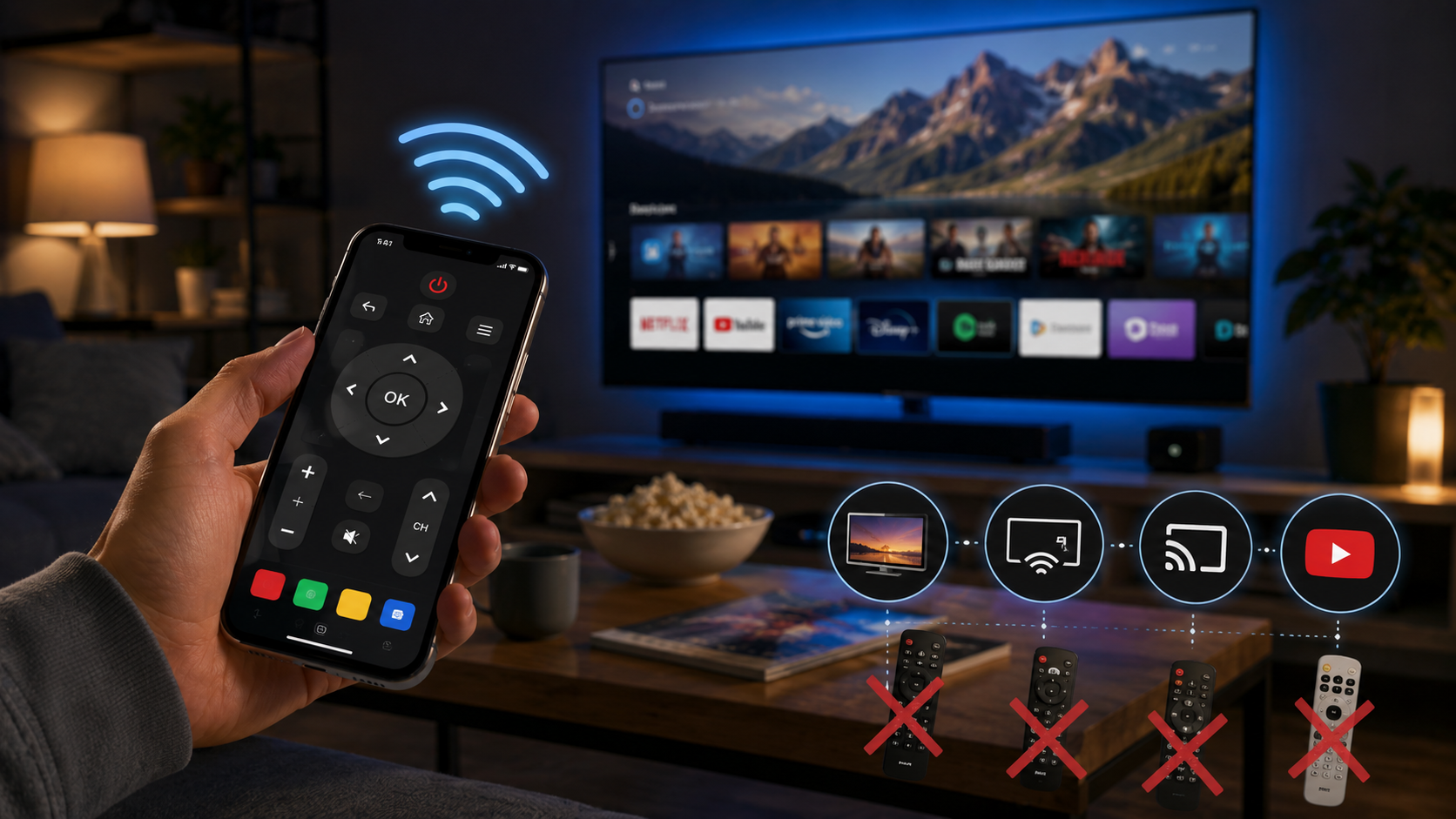
Smart Remote Control for TV swaps out missing remotes and a pile of clashing device controllers for a single phone app that covers Smart TV control, screen mirroring, and Chromecast casting.
Get this app
About this app
It plays out the same way every time - the remote's wedged somewhere between the couch cushions, buried under the coffee table, or sitting in a drawer nobody remembers putting it in, while the TV just sits there, on, waiting. Eventually you give up the search and accept that the phone's going to have to handle it.
What This App Is Really Standing In For
Smart Remote Control for TV isn't chasing the idea of a fancier remote - it wants to be the only one left in the house. Rather than a drawer stuffed with three or four remotes for a TV, a soundbar, and a set-top box, it packs volume, channel, and menu navigation for your Smart TV into one app, right alongside screen mirroring and Chromecast. The pitch is simple: one app covering most of the TV-related jobs you'd normally grab a separate remote for.
How It Actually Connects to a TV
The app doesn't lean on just one connection method, since not every TV supports the same kind of control. On the network side, it talks to smart TVs over Wi-Fi much like a manufacturer's own remote app would, finding the TV automatically as long as the phone and TV share the same network. For older or non-smart sets, it can fall back on an IR blaster if the phone has one - a hardware feature that's showing up less often on newer Android phones, so it's worth confirming before you count on full IR functionality. Setup usually just means opening the app, letting it scan for nearby TVs, and picking the right one off a list rather than typing a network address in by hand.
What It Actually Covers
- Universal Smart TV control - volume, channels, and menu navigation across a broad spread of brands rather than being locked to one manufacturer's ecosystem.
- Screen mirroring - whatever's on your phone's screen shows up on the TV too, handy for pulling up photos, a presentation, or anything the TV doesn't natively support.
- Chromecast support - cast photos, videos, and audio to the TV with a single tap, no need for the TV's own remote at all.
- YouTube casting - push video straight from your phone onto the big screen instead of hunting it down again inside the TV's own app.
- IPTV and video casting - stream channels and video content directly from phone to television for a bigger-screen setup.
Getting It Running the First Time
- Get both devices on the same Wi-Fi network - the app and the TV need to share a network to find one another, so a guest network or a phone stuck on mobile data won't connect.
- Open the app and let it scan - most universal remote apps auto-detect nearby smart TVs instead of requiring a manual IP entry.
- Pick the TV from the list - when more than one TV turns up, the brand and room labels usually make it obvious which is which.
- Grant whatever permissions it requests - local network access and, for screen mirroring, screen-capture permission are both required for the full feature set to function.
- Test volume and channel first - confirming the basics work before leaning on it for casting saves you troubleshooting down the line.
Where It Delivers, and Where It Falls Short
| Situation | How well it tends to work |
|---|---|
| Modern smart TV on the same Wi-Fi | Generally reliable - this is the core use case the app is built for. |
| Older non-smart TV with no network features | Depends entirely on the phone having a working IR blaster. |
| Casting a YouTube video or photos | Works well and is one of the more consistently praised features. |
| Full replacement for a lost original remote | Fine for volume, channels, and menus; some TV-specific settings menus may not map over perfectly. |
| Public or guest Wi-Fi with device isolation enabled | Often fails, since the app and TV can't see each other on isolated networks. |
What to Know Going In
This app has a genuinely huge install base - tens of millions - a fair sign that it holds up across a wide spread of TVs, though the rating sits in solidly average territory, which usually points to results varying quite a bit by TV brand and Android version. It carries ads and in-app purchases, standard fare for a free utility like this, and it's rated for everyone. Universal remote apps of this kind lean heavily on whether your particular TV supports IR blaster or network-based control, so it's worth putting it through its paces during a return window if you're counting on it to fully replace a broken physical remote.
A handful of practical habits smooth out the experience. Keep the phone's Wi-Fi connection steady instead of letting it hop between networks, since a dropped connection is the most common reason the remote suddenly stops responding mid-show. If ads get in the way during regular use, that's generally what the in-app purchase option is there for. And if one connection method can't find the TV, try the other - a TV invisible to network discovery might still respond to IR, and the reverse holds too.
For the everyday moment - TV's on, remote's nowhere to be found, and all you want is the volume down before ads blast through the house - having one app that also mirrors your screen and casts Chromecast content is a fair trade for finally clearing out that drawer of mismatched remotes.