
We have all been there. You are right in the middle of an important video call, or you are about to reach the climax of a movie you have been streaming, and suddenly everything stops. The dreaded buffering wheel appears.
Your connection drops. You scramble to turn your device’s Wi-Fi off and back on, hoping for a quick fix.
Dealing with poor internet & Wi-Fi can feel incredibly frustrating, especially when you are paying a premium for a high-speed plan. When this used to happen to me, I assumed my internet service provider was simply failing to deliver the speeds they promised.
However, after spending countless hours troubleshooting and testing different setups, I realized the problem was almost entirely within my own home network.
Optimizing your home internet & Wi-Fi setup often helps fix these daily frustrations. You do not need a degree in computer science to get this right. With a few practical adjustments, you can drastically improve your connection.
The Big Mix-Up: Internet vs. Wi-Fi
Before diving into the fixes, we need to clear up the most common point of confusion. Many people use the terms “internet” and “Wi-Fi” interchangeably, but they are entirely different things. Understanding this difference is the first step to fixing your connection issues.
What is the Internet?
Think of the internet as the main water line coming from the city into your house. Your Internet Service Provider (ISP) is the water company. They deliver the connection to your modem through a physical cable.
If there is an outage in your neighborhood, your “water line” is cut off. No matter what you do inside your house, you will not have internet until the provider fixes it.
What is Wi-Fi?
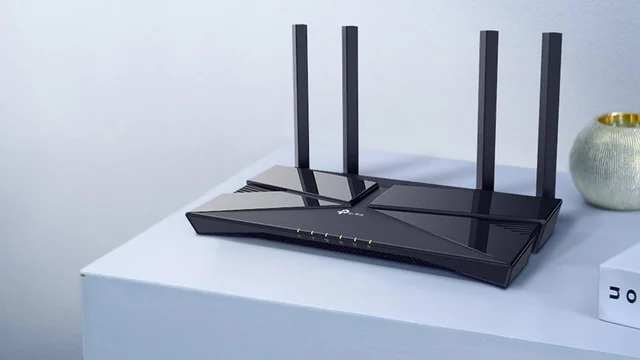
If the internet is the water coming into your house, Wi-Fi is the sprinkler system distributing that water across your yard. Your router acts as the sprinkler, taking the internet from the modem and broadcasting it wirelessly through the air.
Often, the internet coming into your home is perfectly fine and fast. The real issue is that your “sprinkler system” is weak, blocked, or not reaching the corners of your house.
Why Is My Wi-Fi So Slow? Common Culprits
If you are paying for a 500 Mbps internet plan but only getting 30 Mbps in your bedroom, you are experiencing signal loss. Wi-Fi signals are actually radio waves, and they are incredibly fragile.
Here are the most common things that can disrupt your Wi-Fi signal:
- Physical Distance: The farther you are from the router, the weaker the signal becomes.
- Thick Walls: Concrete, brick, and plaster walls are notorious for absorbing Wi-Fi signals.
- Metal Objects: Refrigerators, metal shelving, and even mirrors can bounce signals in the wrong directions.
- Electronics: Microwaves, cordless phones, and baby monitors often operate on the same frequencies as Wi-Fi, causing invisible traffic jams.
- Water: Oddly enough, large bodies of water absorb Wi-Fi waves. If you have a massive fish tank between your router and your laptop, it may be killing your speed.
Step-by-Step Guide to Fixing Your Router Placement
The single biggest mistake people make with their home network is hiding their router. Because routers are often ugly plastic boxes with blinking lights, we tend to shove them behind the TV, inside a media cabinet, or down in the basement.
Moving your router is a free adjustment that can completely transform your home connectivity.
1. Find a Central Location
Your router broadcasts its signal in a 360-degree sphere. If you put it in the far corner of your basement, half of your signal is being broadcast into the dirt outside. Try to place your router as close to the center of your home as possible.
2. Elevate Your Equipment
Wi-Fi waves tend to travel slightly downward as they expand. Placing your router on the floor means you are wasting a lot of signal on the ground. Put it on a bookshelf, a high table, or mount it on a wall to give the signal a clear path to travel.
3. Clear the Clutter
Keep the router out in the open. Do not put it inside a cabinet or behind a large smart TV. The less physical material the signal has to punch through immediately after leaving the router, the stronger it will be when it reaches your phone or laptop.
The 2.4 GHz vs. 5 GHz Debate: Which Should You Use?
If you look at your phone’s Wi-Fi settings, you might see two network names for your house. One might say “HomeNetwork_2.4” and the other “HomeNetwork_5”.
Most modern routers broadcast two different frequencies. Choosing the right one can make a massive difference in your daily internet experience.
The 2.4 GHz Band: The Marathon Runner
The 2.4 GHz frequency is excellent at traveling long distances and punching through walls. However, it is generally much slower, and the network can easily get congested because smart home devices, microwaves, and older tech all use this band.
Best for: Smart home devices, security cameras, and browsing the web from the backyard.
The 5 GHz Band: The Sprinter
The 5 GHz frequency is incredibly fast and can carry a lot of data. It is much less congested than the 2.4 GHz band. The downside is that it has a very short range and struggles to pass through thick walls.
Best for: Gaming consoles, smart TVs, heavy video streaming, and laptops located in the same room as the router.
Upgrading Your Gear: Is It Time to Ditch the ISP Router?
When you sign up for internet service, your provider usually rents you a combo unit—a modem and a router mashed into one box. You often pay a monthly rental fee for this equipment.
While these standard boxes are okay for small apartments, they often struggle to cover larger homes or handle households with dozens of connected devices. Investing in your own router can improve your range and save you money on rental fees over time.
What to Look For in a New Router
If you decide to upgrade, you want to look for modern standards. Ensure the router supports at least Wi-Fi 6.
Wi-Fi 6 is a recent wireless standard designed specifically to handle modern homes where multiple phones, tablets, TVs, and smart devices are all asking for data at the exact same time. It manages network traffic much more efficiently than older models.
Mesh Wi-Fi Systems: The Ultimate Solution for Large Homes
If you live in a multi-story house or a home with brick walls, a single router might never be enough, no matter how powerful it is. This is where Mesh Wi-Fi systems come into play.
A mesh system replaces your single router with multiple units (often called nodes). You connect the main node to your modem, and then you place the other nodes around your house.
Instead of just repeating a weak signal like old Wi-Fi extenders used to do, mesh nodes communicate with each other seamlessly. They create a massive, invisible blanket of Wi-Fi across your entire property. As you walk through your house, your phone automatically connects to the closest node without skipping a beat.
The Forgotten Hero: Ethernet Cables
We live in a wireless world, so it is easy to forget about physical cables. However, hardwiring your devices is the absolute best way to guarantee maximum speed and stability.
An Ethernet cable connects your device directly to your router, completely bypassing the unpredictable nature of Wi-Fi waves.
You cannot hardwire a smartphone, but you absolutely should try to hardwire stationary devices. If you have a gaming console, a desktop computer, or a main living room Smart TV near the router, plug them in with an Ethernet cable.
By taking these heavy bandwidth users off the Wi-Fi network, you instantly free up more wireless space for the mobile devices in your house that actually need it.
Security Matters: Keeping Your Home Wi-Fi Safe
Your home network is the gateway to your personal life. If someone gains access to your Wi-Fi, they can potentially snoop on your traffic or use your internet for malicious activities. Securing your network is crucial.
Change the Default Passwords
Never keep the default password that came printed on the sticker on the back of your router. Change both the network password (the one you use to connect your phone) and the admin password (the one used to change the router settings).
Set Up a Guest Network
Almost all modern routers allow you to create a secondary “Guest Network.” This broadcasts a separate Wi-Fi name with its own password.
When friends or family come over, give them the guest password. This allows them to use your internet, but it prevents them (and any malware potentially hiding on their phones) from accessing your main network, computers, and smart home devices.
Common Mistakes People Make with Home Networks
To sum up the best practices, let’s look at the most frequent errors people make when managing their home internet and Wi-Fi:
- Ignoring Firmware Updates: Just like your smartphone, your router has an operating system. Manufacturers release updates to fix security flaws and improve performance. Check your router’s app every few months to ensure it is up to date.
- Paying for Speed You Do Not Need: If you only use the internet to check emails and watch occasional YouTube videos, you do not need a Gigabit internet plan. A 100 Mbps to 300 Mbps plan is more than enough for an average household. Save your money.
- Using Old Cables: If you upgrade to a Gigabit internet plan but connect your modem to your router with an ancient, damaged Cat5 Ethernet cable from 2005, your speeds will be severely restricted. Always use modern Cat6 or higher cables for physical connections.
- Forgetting to Restart: Sometimes, routers just get overwhelmed. The memory fills up, or the software experiences a minor glitch. Simply unplugging the router from the wall, waiting 30 seconds, and plugging it back in often resolves mysterious connection drops.
Final Wrap-Up
Mastering your home internet & Wi-Fi setup does not have to be an intimidating technical chore. By understanding the difference between the internet coming into your home and the Wi-Fi bouncing around your rooms, you can easily pinpoint where your connection is failing.
Start with the basics. Move your router out into the open, elevate it, and keep it away from microwaves and thick walls. Use your 5 GHz band for high-speed tasks, and consider hardwiring your heavy devices. If all else fails and you have a larger home, upgrading to a modern Mesh Wi-Fi system can finally give you the seamless, frustration-free connection you deserve.
Taking an hour this weekend to audit and adjust your home network setup can dramatically improve your daily digital life, making buffering wheels and dead zones a thing of the past.
Frequently Asked Questions (FAQs)
Why does my Wi-Fi speed drop at night?
Network congestion is the most common reason for nighttime slowdowns. In the evening, your neighbors are likely coming home, turning on their TVs, and streaming high-definition video. If you live in a densely populated area, the heavy demand on your internet provider’s local infrastructure can temporarily slow down speeds for the whole block.
Will a Wi-Fi extender fix my dead zones?
Wi-Fi extenders can help reach dead zones, but they often come with a catch. Traditional extenders take an existing, often weak signal and push it further, which usually cuts your bandwidth in half. If you just need to get a weak signal to a garage for a smart light bulb, an extender is fine. For streaming and working, a Mesh Wi-Fi system is a far superior choice.
Do I need a Wi-Fi 6 router?
If your current router is more than four or five years old, and you have multiple people in your house using smart devices, phones, and laptops simultaneously, upgrading to Wi-Fi 6 can greatly improve your experience. It is specifically designed to handle network traffic from dozens of devices at once without lagging.
How often should I restart my router?
There is no hard rule, but restarting your router once every month or two can help clear its memory and resolve minor software glitches. If you notice your network feeling sluggish or devices randomly disconnecting, a quick 30-second restart is the best first step for troubleshooting.
Can my internet provider see what I am doing on my Wi-Fi?
Your Internet Service Provider handles all the traffic flowing in and out of your home. While they cannot easily see the exact content of encrypted messages or secure banking pages, they can see which websites you are visiting and how much data you are consuming. If privacy is a concern, using a reputable Virtual Private Network (VPN) can help encrypt your browsing activity.