
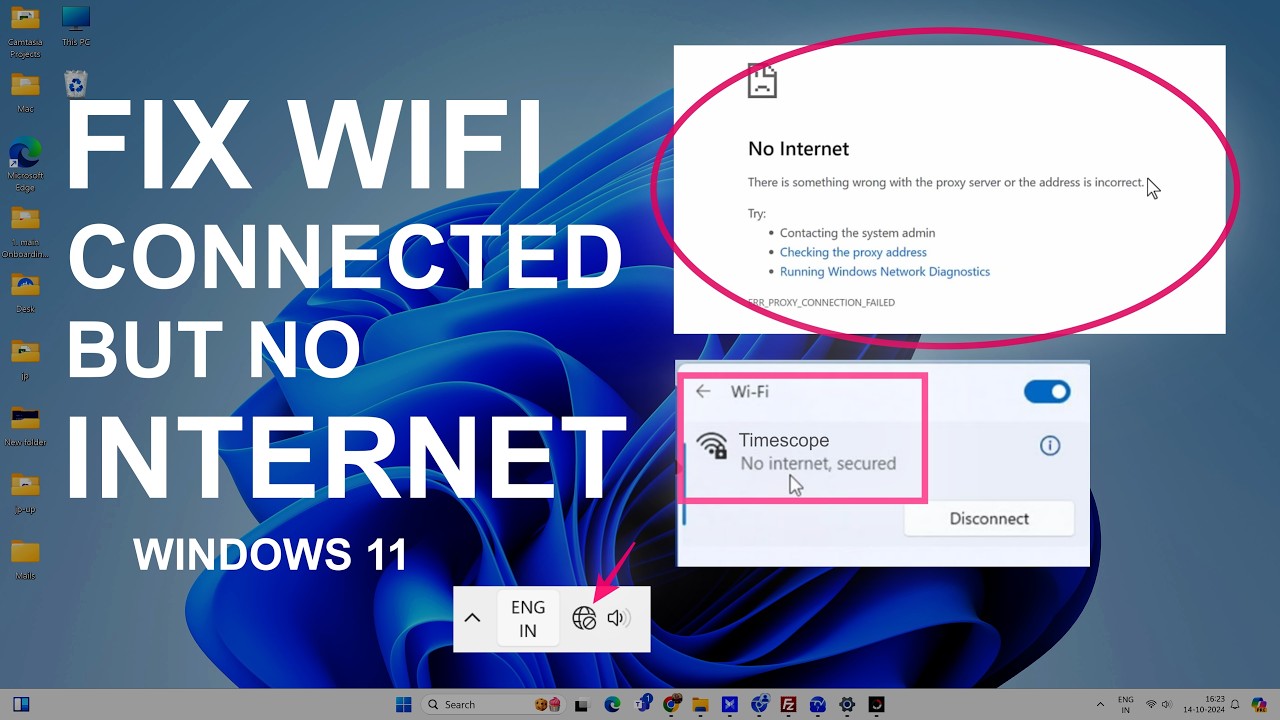
Seeing “Connected, No Internet” in Windows usually means your PC has successfully connected to a local network, but Windows cannot confirm normal Internet access.
That does not always mean your Wi-Fi adapter is broken. The problem can be with the router, Internet service, IP address, DNS, proxy settings, network adapter, or even Windows’ own connectivity check.
The safest approach is to work from the outside in: first determine whether the problem affects your whole network or only this PC, then check Windows’ network configuration, and only after that move to deeper repairs.
What “Connected, No Internet” Actually Means
Windows uses a component called the Network Connectivity Status Indicator (NCSI) to determine whether a computer has network and Internet connectivity.
NCSI uses network probes to check whether the computer can reach the Internet. Windows can therefore display a No Internet status when the computer is connected to the router but the Internet connection cannot be confirmed. Microsoft also notes that the indicator itself should not always be treated as absolute proof that Internet access is unavailable, because the connectivity probe can fail even when some Internet traffic works.
This creates an important distinction:
Connected to Wi-Fi or Ethernet means your PC has a connection to the local network.
Connected, No Internet means Windows cannot confirm that the local network currently provides usable Internet connectivity.
For example, your PC might communicate with your router while the router has lost its connection to your ISP. Alternatively, the Internet may work in a browser while Windows’ connectivity test is being blocked or interrupted by a proxy, firewall, corporate network configuration, or another network condition.
Common Symptoms
The exact symptoms can help narrow down where the problem is.
You may see:
- The Wi-Fi icon shows Connected, No Internet.
- Ethernet shows as connected, but websites do not load.
- Some websites work while others fail.
- Your browser works, but Windows Update says there is no Internet.
- Other devices on the same Wi-Fi network also cannot get online.
- Other devices work normally, but your Windows PC does not.
- The connection works briefly and then changes to No Internet.
- Windows reconnects to Wi-Fi but repeatedly loses Internet access.
- You can access your router’s local administration page but not websites on the Internet.
These differences matter. If every phone, tablet, and computer on the same network is offline, changing Windows settings is unlikely to solve the underlying problem.
If only one Windows PC is affected while other devices work normally, the investigation should focus more heavily on that PC’s network configuration, adapter, DNS, proxy, VPN, or software.
Possible Causes
There is no single cause behind the Connected, No Internet message.
1. The router or ISP has lost Internet access
Your PC can maintain a perfectly normal connection to the router even when the router itself cannot reach the Internet.
This is one of the first things to rule out.
2. Windows did not receive a usable IP configuration
Your PC normally receives network configuration automatically through DHCP, including an IP address and other network information.
If that process fails, Windows may not have the information required to communicate correctly beyond the local network.
Microsoft specifically notes that an address beginning with 169.254.x.x can indicate that Windows could not obtain an IP address from the router.
3. DNS is not working correctly
DNS (Domain Name System) translates names such as example.com into IP addresses.
If the network connection itself works but DNS resolution fails, websites can appear unreachable even though the PC is connected to the network.
A DNS cache problem can sometimes also contribute to connection failures.
4. A proxy is interfering with the connection
A proxy server sits between your PC and the Internet.
Organizations may intentionally require proxy settings, but an incorrect manual proxy configuration can prevent normal Internet access. Windows provides proxy settings under Settings > Network & internet > Proxy.
5. A VPN or security application is interfering
VPN software changes how network traffic is routed. Security software can also inspect or filter traffic.
If the problem started immediately after installing or changing networking software, that timing is useful evidence.
Do not permanently disable security software simply because the connection is failing. First determine whether the problem is actually related to it.
6. The Wi-Fi connection itself is unstable
Weak signal, interference, or problems with a particular Wi-Fi frequency can cause repeated connectivity problems.
If your router offers separate 2.4 GHz and 5 GHz networks, Microsoft recommends trying another available frequency when troubleshooting Wi-Fi connectivity.
7. The network adapter or driver has a problem
The network adapter is the hardware Windows uses to communicate over Wi-Fi or Ethernet.
A driver problem can appear after an update, hardware change, or software installation. Microsoft recommends considering adapter-driver troubleshooting when earlier connection steps have not resolved the problem.
8. Windows’ connectivity check is failing
Sometimes the Internet is usable even though Windows displays No Internet.
NCSI relies on network probes, and those probes can be affected by proxies, captive portals, enterprise network policies, DNS problems, or other network conditions. Microsoft specifically warns that an NCSI failure does not necessarily mean all Internet access is unavailable.
Checks to Perform First
Before changing network settings, perform these checks.
Check 1: Test another device on the same network
Connect a phone, tablet, or another computer to the same Wi-Fi network.
Try opening a few normal websites.
If all devices are offline, the likely problem is somewhere between the router and the ISP.
If other devices work normally, focus your troubleshooting on the Windows PC.
This simple comparison can save you from changing Windows settings when the actual problem is outside the computer.
Check 2: Try a different website
Do not test only one website.
Open two or three unrelated websites. If one site fails while others load, the problem may be specific to that website or service rather than your Internet connection.
Check 3: Restart the router and PC
If other devices are also affected, restart the router according to the manufacturer’s normal procedure.
For the PC, save your work and select:
Start > Power > Restart
Microsoft also recommends restarting Windows as part of general connection troubleshooting.
Check 4: Look at Windows network status
Open:
Start > Settings > Network & internet
Check whether Windows reports a problem with Wi-Fi or Ethernet. Microsoft identifies Network & internet settings as the central place to check the current network connection.
Check 5: Temporarily disconnect a VPN
If a VPN is active, disconnect it and test the connection again.
If Internet access immediately returns, the VPN configuration deserves further investigation.
Do not uninstall the VPN yet. First determine whether it is actually involved.
Step-by-Step Solutions
Step 1: Run Windows’ Network Troubleshooter
On current Windows 11 versions, Microsoft recommends starting with the automated Network and Internet troubleshooter through the Get Help app. It can run diagnostics and attempt to correct common problems automatically.
Open the Get Help app and search for:
Network and Internet troubleshooter
Follow the diagnostic steps provided.
If the troubleshooter identifies a problem, apply the suggested fix and test the connection again.
If it cannot find a problem, continue rather than repeatedly running the same diagnostic.
Step 2: Turn Wi-Fi Off and Back On
For a Wi-Fi connection:
- Open Settings > Network & internet > Wi-Fi.
- Turn Wi-Fi off.
- Wait several seconds.
- Turn Wi-Fi back on.
- Reconnect to your normal network.
- Test a few websites.
This is a low-risk way to force Windows to re-establish the wireless connection.
Microsoft includes turning Wi-Fi off and back on among its general troubleshooting steps.
If you are using Ethernet, check that the cable is firmly connected at both ends. If another Ethernet cable is available, testing it can help determine whether the original cable is faulty.
Step 3: Check Whether Windows Has a Valid IP Address
An IP address identifies your computer on the network.
To inspect your current configuration:
- Open Start.
- Search for Command Prompt.
- Select Run as administrator.
- Enter:
ipconfig
Look for the adapter you are actually using.
If the IPv4 address starts with 169.254, Windows may have failed to obtain an address from the router. Microsoft identifies this type of address as an indication that Windows could not get an IP address from the router.
Do not manually enter a random IP address just to make the warning disappear.
If your network normally uses automatic addressing, DHCP should generally remain enabled unless you have a specific network configuration that requires manual addressing.
Step 4: Release and Renew the IP Configuration
If the PC has a network connection but its IP configuration appears problematic, renew it.
Open Command Prompt as administrator and run:
ipconfig /release
Then:
ipconfig /renew
The first command releases the current DHCP configuration, while the second asks the network for a new configuration.
After the commands finish, wait a few seconds and test your Internet connection.
Microsoft includes these commands in its Windows network troubleshooting procedure.
Step 5: Flush the DNS Cache
If the IP configuration looks normal but websites still fail to load, clear Windows’ local DNS resolver cache.
Open Command Prompt as administrator and run:
ipconfig /flushdns
You should receive a message indicating that the DNS Resolver Cache was successfully flushed.
Then close and reopen your browser and test several websites.
Flushing the cache does not erase your personal files or browser bookmarks. It simply clears locally cached DNS information.
Microsoft includes this command in its standard Windows network troubleshooting sequence.
Step 6: Reset the Windows Network Stack
If the basic IP and DNS checks did not help, Microsoft recommends a set of network commands that can reset parts of the Windows networking configuration.
Open Command Prompt as administrator and run these commands in this order:
netsh winsock reset
netsh int ip reset
ipconfig /release
ipconfig /renew
ipconfig /flushdns
The commands address different parts of the network configuration, including Winsock, TCP/IP, DHCP addressing, and the DNS resolver cache.
Restart Windows after completing the commands, especially if Windows reports that a restart is required.
Then test the connection again.
This is preferable to randomly changing registry settings because these commands are part of Microsoft’s documented network troubleshooting process.
Step 7: Check Proxy Settings
An incorrect proxy can interfere with Internet traffic or with Windows’ connectivity checks.
Open:
Start > Settings > Network & internet > Proxy
Review the Manual proxy setup section.
If you personally configured a proxy, keep the configuration required by your network.
If you are on a normal home connection and a manual proxy is enabled unexpectedly, turning off the manual proxy may resolve the problem.
However, do not disable an organization’s required proxy configuration just because an article tells you to. Business, school, and managed networks may depend on specific proxy settings. Microsoft notes that organizations can require proxy servers and that users who do not know the required configuration should contact their IT department.
Step 8: Check the IP Assignment Setting
Windows normally uses DHCP to obtain IP and DNS information automatically.
In Windows 11, you can check this from the network settings:
Settings > Network & internet > Wi-Fi
Then open the properties for the network you are connected to and locate IP assignment.
For Ethernet, open:
Settings > Network & internet > Ethernet
Microsoft recommends Automatic (DHCP) for networks that use automatic addressing. With DHCP, the router or access point supplies the IP and DNS settings.
Do not switch to manual IP settings unless you know what addresses your network requires.
Entering an incorrect IP address, subnet, gateway, or DNS server can create another connectivity problem.
Step 9: Try Another Wi-Fi Band
If your router provides both 2.4 GHz and 5 GHz Wi-Fi networks, try the other available band.
For example, if the PC is currently connected to the 5 GHz network, try the 2.4 GHz network if it is available.
This is particularly useful when the connection is unstable or the problem occurs only in a particular location.
Microsoft recommends trying another available Wi-Fi frequency during troubleshooting.
Step 10: Check for Windows and Network Adapter Updates
If the connection problem began after a Windows update, driver update, or hardware change, check whether a newer driver is available from your PC manufacturer.
If you can access the Internet through another device, visit the manufacturer’s support site and identify the correct network adapter driver for your exact PC model.
Avoid downloading drivers from random driver-download websites.
Microsoft also recommends keeping Windows updated as part of network troubleshooting.
Step 11: Reinstall the Network Adapter Driver Only When Necessary
This is more advanced than the earlier steps.
Microsoft documents the following procedure when previous troubleshooting has failed:
- Search for Device Manager.
- Open Device Manager.
- Expand Network adapters.
- Find the affected network adapter.
- Right-click it and select Uninstall device.
- Follow the available uninstall options.
- Restart the PC.
Windows can reinstall the network adapter driver after the restart.
However, Microsoft recommends having a backup driver available first, particularly when the PC cannot access the Internet. The manufacturer driver may need to be downloaded on another computer and transferred by USB.
Do not use this step as your first response to a simple Connected, No Internet message.
Step 12: Use Network Reset as a Last Resort
Network reset should come near the end of the troubleshooting process, not the beginning.
In Windows 11, open:
Settings > Network & internet > Advanced network settings > Network reset
Then select Reset now and confirm.
Microsoft states that network reset removes installed network adapters and their settings, then reinstalls the adapters after the PC restarts. It can also affect VPN software and virtual switches, and known networks may be assigned the Public network profile afterward.
Because it changes more settings than the earlier troubleshooting steps, use it only when simpler fixes have failed.
What NOT to Change, Delete, or Disable
Troubleshooting an Internet connection does not require changing everything you can find in Windows.
Avoid these unnecessary actions:
Do not edit the registry just to remove the “No Internet” icon
NCSI has specific configuration and probe behavior. Changing registry values without understanding the network environment can make diagnosis harder.
Microsoft specifically advises against disabling active NCSI probing as a solution to connectivity-status problems.
Do not randomly change DNS servers
Changing DNS can sometimes help with a DNS-specific problem, but it is not a universal solution for every Internet failure.
First determine whether the problem is actually DNS-related.
Do not enter a random static IP address
A manually entered IP address, subnet, gateway, or DNS server must match the network configuration.
An incorrect value can prevent communication with the router or Internet.
Do not disable Windows security protections permanently
Do not permanently turn off Windows Firewall, antivirus protection, or other security controls simply because a connection is not working.
If security software appears to be involved, investigate the specific configuration or consult the software’s documentation.
Do not uninstall the network driver without preparation
If the driver is removed and Windows cannot reinstall it automatically, you could temporarily lose network connectivity.
Have the correct driver available first, especially on a PC that has no other way to get online.
Do not use Network Reset as the first fix
Network Reset changes installed network adapters and settings and can require VPN or virtualization software to be configured again.
How to Verify the Fix
Do not judge the repair only by whether the taskbar icon changed.
Perform several practical tests.
1. Check Windows network status
Open:
Settings > Network & internet
Confirm that Windows now reports an Internet connection.
2. Test multiple websites
Open several unrelated websites in your browser.
If only one website fails, your Windows connection may already be working.
3. Test a different application
Try an application that requires Internet access, such as Windows Update or another trusted online service.
This can reveal whether the problem affects Windows generally or only your browser.
4. Check the connection after several minutes
A connection that works for 10 seconds and then returns to No Internet has not necessarily been fixed.
Leave the PC connected for a while and check whether the connection remains stable.
5. Compare with another device
If another device continues to work normally on the same network while your PC remains offline, continue troubleshooting the Windows PC.
If every device loses access, investigate the router or ISP instead.
What to Do If Windows Still Says “Connected, No Internet”
If the basic troubleshooting has failed, narrow the problem down rather than repeating every step.
If all devices on the network are offline, check the router, modem, service status, and ISP connection.
If only your Windows PC is affected, focus on its IP configuration, DNS, proxy/VPN settings, network adapter, and driver.
If websites work but Windows still says No Internet, the issue may involve Windows’ connectivity detection rather than complete loss of Internet access. Microsoft explains that NCSI relies on active and passive probes and that a failed probe does not necessarily mean all Internet traffic is unavailable.
On managed business or school networks, contact the network administrator before changing proxy, DNS, IP, or connectivity-detection settings. Enterprise configurations can intentionally control these settings.
For deeper NCSI investigation, administrators can also review the NCSI logs in Event Viewer under:
Applications and Services Logs > Microsoft > Windows > NCSI
Microsoft documents this as an advanced diagnostic method for connectivity-status problems.
Prevention
You cannot prevent every Internet outage, but a few habits can make future problems easier to diagnose.
Keep Windows and network drivers reasonably current.
Avoid changing IP, DNS, proxy, or network adapter settings unless you understand why the change is necessary.
Keep your router’s firmware maintained according to the manufacturer’s recommendations.
When a problem appears, check another device on the same network before changing Windows settings. This quickly separates a local PC problem from a wider network problem.
If you use a VPN, proxy, Hyper-V virtual switch, or other networking software, remember that these components can change how Windows communicates with the network.
Most importantly, change one thing at a time when troubleshooting. If you simultaneously change DNS, reset the adapter, reinstall a driver, and reboot the router, you may fix the problem without knowing which change actually mattered.
Frequently Asked Questions
Why does Windows say “Connected, No Internet” when Wi-Fi is connected?
Windows can be connected to the local Wi-Fi network while Internet access is unavailable or cannot be confirmed. Windows uses NCSI network probes to determine Internet connectivity, so the status can also appear when the probe itself cannot complete successfully.
Is “Connected, No Internet” always caused by my PC?
No. The router or ISP may be offline even though your PC remains connected to the router.
Testing another device on the same network is one of the quickest ways to determine whether the problem is local to the PC.
Should I restart my router when Windows says No Internet?
If other devices on the same network also cannot access the Internet, restarting the router can be a reasonable troubleshooting step.
If other devices work normally, focus first on the affected Windows PC.
Can DNS cause a “Connected, No Internet” problem?
Yes. DNS is responsible for resolving domain names to IP addresses. If DNS resolution is failing, websites may not load even when the underlying network connection is available.
Flushing the DNS cache with ipconfig /flushdns is one of Microsoft’s documented troubleshooting steps.
Should I change my DNS server to fix the problem?
Not automatically.
Changing DNS can be useful when you have identified a DNS-related problem, but it will not fix a disconnected router, failed Wi-Fi adapter, incorrect proxy, or ISP outage.
What does a 169.254.x.x IP address mean?
A 169.254.x.x address can indicate that Windows was unable to obtain an IP address from the router through DHCP. Microsoft specifically identifies this type of address when explaining limited Windows connectivity troubleshooting.
Will Network Reset delete my personal files?
Network Reset is intended to reset network adapters and their network settings rather than delete personal files. However, it can remove network configuration, require VPN or virtual networking software to be configured again, and change network profiles. Microsoft therefore recommends using it as a later troubleshooting step.
Why does the Internet work even though Windows still says “No Internet”?
Windows’ Internet status depends partly on NCSI connectivity probes. A probe can fail because of network configuration, proxy behavior, captive portals, enterprise policies, or other conditions even when some Internet traffic works. Microsoft therefore recommends not treating the NCSI indicator alone as definitive proof that Internet access is completely unavailable.
Official and Reliable Sources
For further troubleshooting and technical details, these Microsoft resources are the most relevant references:
- Microsoft Support: Fix Wi-Fi connection issues in Windows
- Microsoft Support: Fix Ethernet connection problems in Windows
- Microsoft Learn: Network Connectivity Status Indicator overview
- Microsoft Learn: NCSI troubleshooting guidance
- Microsoft Support: Use a proxy server in Windows
- Microsoft Support: Essential network settings and tasks in Windows
Final Takeaway
When Windows says “Connected, No Internet,” do not immediately reset the entire network or start changing advanced settings.
First determine whether the Internet works on another device. Then check the Windows connection, IP configuration, DNS, proxy, and Wi-Fi or Ethernet connection. If necessary, use Microsoft’s documented network commands before moving to driver troubleshooting or Network Reset.
The key is to identify where the connection stops working rather than treating the status icon as the problem itself. That approach reduces unnecessary changes and makes it much easier to find the actual cause.