
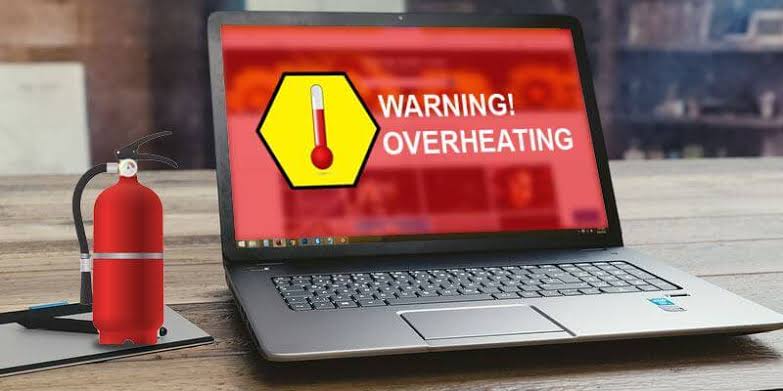
A laptop that feels hot while you are only browsing the web, reading documents, or sitting at the desktop can be confusing. If you are not running a game or another demanding program, it is reasonable to wonder what is using the processor.
Some warmth is normal. Laptops generate heat whenever the processor, graphics hardware, storage, or other components are working. The important question is whether the heat is caused by normal background activity, an unnecessary process, poor airflow, an aggressive power setting, or a hardware problem.
Windows provides several tools that can help identify the cause without immediately installing third-party cleaning or temperature-monitoring software.
What Does “Hot While Doing Nothing” Actually Mean?
A laptop can appear idle while Windows is still performing work in the background.
For example, Windows or an installed application may be:
- Installing or checking for updates
- Synchronizing files
- Scanning files for malware
- Indexing files for search
- Running a browser process in the background
- Syncing cloud storage
- Performing maintenance tasks
- Running software that starts automatically
- Using CPU resources because of an application problem
Microsoft notes that startup applications and background activity can affect system performance and power usage.
The goal is therefore not simply to make the laptop colder. The goal is to find why it is generating more heat than expected.
Signs That the Heat May Need Investigation
Pay closer attention if your laptop:
- Gets noticeably hot shortly after startup
- Has fans running loudly while no demanding program is open
- Becomes hot while sitting idle on the desktop
- Gets hot immediately after waking from sleep
- Loses battery unusually quickly
- Becomes slower as it gets hotter
- Shows consistently high CPU usage
- Shows one process repeatedly consuming significant resources
- Gets hot even after a restart with no major programs open
- Shuts down, restarts, or becomes unstable because of heat
Heat by itself does not identify the cause. The pattern matters.
First Check: Find Out What Is Using the CPU
Before changing settings, check what Windows is actually doing.
Press Ctrl + Shift + Esc to open Task Manager.
Select Processes, then look at the CPU column.
Give the list a moment to update. Do not immediately assume that the process at the top is the problem because processes can briefly use CPU resources while Windows is collecting or displaying information.
Watch the list for several minutes.
Look for a process that repeatedly remains near the top rather than something that spikes briefly and then drops.
Also check:
- CPU
- Memory
- Disk
- GPU
Microsoft recommends using Task Manager to identify processes that are consuming system resources when troubleshooting Windows performance problems.
If One Application Is Using a Lot of CPU
The next step is to identify that application.
If you recognize it and are not using it, close the application normally.
Then wait and see whether CPU activity and fan noise decrease.
If the same application repeatedly returns to high usage, check for:
- An available application update
- An update from the application’s developer
- Background synchronization settings
- Extensions or add-ons
- A damaged installation
- A known issue with the current application version
Do not randomly end Windows system processes simply because their names look unfamiliar.
Check Startup Applications
Some applications start automatically when you sign in to Windows and continue running even when you are not actively using them.
Microsoft provides two straightforward ways to manage startup applications.
Windows 11
Go to:
Start > Settings > Apps > Startup
Review the applications listed there.
You can turn off automatic startup for programs you do not need immediately after signing in.
You can also open:
Task Manager > Startup apps
Task Manager provides additional information about startup impact, which can help you identify programs that are contributing to unnecessary background activity.
Do not disable every startup entry.
Some applications provide useful services, security functions, hardware controls, or synchronization that you may actually need.
The goal is to reduce unnecessary background activity, not to make Windows start with every non-Microsoft service disabled.
Check Background App Activity
Some applications continue performing tasks when you are not actively using them.
On Windows 11, supported applications can have their background activity managed through:
Settings > System > Power & battery > Battery usage
Find the application, select its additional options, and look for Manage background activity when available.
Microsoft explains that background activity can allow applications to synchronize information, send notifications, and stay updated, but it can also increase power usage.
If an application does not need to operate in the background, reducing its background activity may help.
Keep in mind that not every application exposes the same controls.
Check Windows Power Mode
Power settings can affect how aggressively the laptop uses its hardware.
On Windows 11, go to:
Start > Settings > System > Power & battery
Look for Power mode.
Windows provides options such as:
- Best power efficiency
- Balanced
- Best performance
Microsoft specifically notes that Best performance can increase power consumption and may cause a laptop to run warmer.
If your laptop is getting unusually warm during light work, check whether it is set to Best performance when you do not actually need maximum performance.
For normal browsing, documents, email, and similar tasks, a more balanced power mode may be more appropriate.
Check Whether Windows Is Installing Updates
Windows can perform update-related work in the background.
Go to:
Start > Settings > Windows Update
Check whether Windows is downloading or installing updates.
Microsoft recommends keeping Windows and available drivers updated because updates can include fixes and performance improvements.
If the laptop became warm shortly after an update or restart, give Windows some time to finish its work before assuming that a permanent problem exists.
If the high activity continues for a long time, continue troubleshooting rather than repeatedly restarting the computer.
Check for Malware
Unexpected background activity can sometimes be caused by unwanted or malicious software.
Microsoft lists unusual slowdowns and significant battery-life decreases among possible signs that an unknown process may be consuming device resources.
To perform a quick scan in Windows:
Start > Settings > Privacy & security > Windows Security > Virus & threat protection > Quick scan
If you have stronger reasons to suspect malware, use the available scan options for a deeper scan.
Microsoft also provides Microsoft Defender Offline for situations where a threat may be difficult to detect while Windows is running.
Do not install several unrelated antivirus programs just because the laptop is hot. Running multiple security products can introduce additional background activity and conflicts.
Check Your Browser
A browser can use significant system resources even when it looks like you are doing very little.
Check whether you have:
- Many tabs open
- Browser extensions you no longer use
- Web applications running continuously
- Video or audio playing in a background tab
- Multiple browser windows open
Open Task Manager and expand the browser’s processes if necessary.
Close unnecessary tabs and extensions, then watch CPU usage again.
If the temperature drops after closing the browser completely, reopen it gradually and determine whether a particular tab, extension, or web application is responsible.
Check Whether Cloud Sync Is Running
Cloud-storage applications can perform substantial work in the background.
For example, a synchronization application may be:
- Uploading new files
- Downloading changes
- Processing a large folder
- Synchronizing many small files
- Rebuilding its local index
If the laptop becomes hot shortly after adding or changing a large number of files, synchronization may explain the activity.
Check the sync application’s status before disabling it.
Do not delete synchronized files simply because the laptop is warm.
Check Storage and Free Space
A nearly full system drive can contribute to Windows performance problems.
Open:
Start > Settings > System > Storage
Review the available space on the system drive.
Windows also provides Storage Sense for managing temporary files and other unnecessary data. Microsoft includes freeing storage among its recommended Windows performance troubleshooting steps.
However, do not assume that low storage is automatically the cause of overheating.
Treat it as one possible contributing factor and continue checking CPU and background activity.
Make Sure Air Can Reach the Laptop
Software is only part of the problem.
A laptop needs to move heat away from its internal components. If the air intake or exhaust is obstructed, temperatures can rise even when the workload is relatively modest.
Check the physical setup.
Avoid using the laptop on:
- A bed
- A thick blanket
- A soft cushion
- Clothing
- Other surfaces that can block ventilation openings
Place it on a firm, stable surface whenever possible.
Also inspect the visible ventilation openings for heavy dust buildup.
If the vents appear heavily blocked or the fan sounds abnormal, professional cleaning may be safer than disassembling the laptop yourself, particularly if the device is still under warranty.
Check Whether the Fan Is Running Normally
A fan that constantly runs at high speed can be a clue, but it does not tell you exactly what is wrong.
The fan may be responding correctly to:
- High CPU activity
- GPU activity
- Background tasks
- Warm internal components
- A high-performance power profile
- Restricted airflow
If the fan becomes loud while Task Manager shows sustained high CPU or GPU usage, investigate the process first.
If the fan runs loudly while resource usage remains unusually low, the issue may be related to cooling, firmware, sensors, drivers, or hardware.
That is a point where hardware-specific diagnosis may be more appropriate.
Check Windows and Optional Driver Updates
Go to:
Start > Settings > Windows Update
Install available updates.
Microsoft also notes that optional driver updates may sometimes be available:
Settings > Windows Update > Advanced options > Optional updates
Review the available driver updates and install appropriate ones rather than selecting every optional item without checking what it is.
For laptop-specific drivers, firmware, BIOS updates, and thermal-control utilities, the laptop manufacturer’s support page may also be relevant.
Do not install a BIOS or firmware update from an unofficial source.
Restart and Test the Laptop Properly
A restart provides a useful diagnostic test.
Save your work and select:
Start > Power > Restart
After Windows starts again, do not immediately open every application.
Instead:
- Wait for Windows to finish loading.
- Leave the desktop idle for several minutes.
- Open Task Manager.
- Watch CPU, memory, disk, and GPU activity.
- Listen to the fan.
- Check whether the laptop is still getting unusually warm.
- Open applications one at a time.
This can help distinguish a persistent system problem from a particular application or background process.
Microsoft also recommends restarting when troubleshooting Windows performance issues.
What If CPU Usage Is Low but the Laptop Is Still Very Hot?
This is an important situation.
Low CPU usage does not automatically mean the laptop should be cold.
Other components and conditions can contribute to heat, including:
- GPU activity
- Charging and battery behavior
- Restricted airflow
- Dust accumulation
- Fan problems
- High ambient temperature
- Power-management behavior
- Hardware or firmware problems
Look at the GPU section in Task Manager as well as CPU usage.
If the laptop remains very hot despite low CPU/GPU activity and good airflow, software troubleshooting may not be enough.
What Not to Change or Delete
Avoid common “fixes” that create new problems.
Do not:
- Delete random files from Windows folders
- Delete unknown processes
- Disable Windows services without understanding them
- Edit the registry just to reduce temperature
- Disable security protection permanently
- Install several PC-cleaning utilities
- Change advanced BIOS settings without a specific reason
- Block Windows updates because the laptop gets warm
- Remove device drivers at random
- Open the laptop if you are not comfortable working with hardware
A temperature problem should be diagnosed before making major system changes.
When the Laptop May Have a Hardware Problem
Consider professional hardware inspection when:
- The laptop becomes extremely hot during light use
- The fan does not appear to operate correctly
- The fan makes grinding or unusual noises
- The laptop shuts down unexpectedly
- Performance repeatedly drops after the laptop heats up
- The laptop remains hot after a clean restart
- CPU and GPU usage remain low while heat is still excessive
- The problem appeared suddenly without a software change
- The cooling vents are heavily obstructed internally
A technician can inspect the cooling system, fan, thermal interface, internal dust, battery condition, and other hardware-specific causes.
Do not assume that replacing thermal paste is automatically the answer. The correct repair depends on the laptop model and the actual cause.
How to Verify That the Problem Is Fixed
After making a change, do not judge the result immediately.
Use the laptop normally for a while and compare its behavior.
Check:
- CPU usage while idle
- GPU usage while idle
- Fan noise
- Battery drain
- Surface temperature
- Performance
- Whether the same process becomes active again
A useful test is to restart the laptop and leave it idle before opening your normal applications.
Then open your usual programs one at a time.
If the laptop stays relatively quiet and cool until a particular program starts, you have a much stronger clue about the cause.
A Simple Diagnosis Path
If one application causes the laptop to heat up, investigate that application first.
If the browser causes the heat, check tabs, extensions, and web applications.
If the laptop heats immediately after startup, inspect startup applications and background processes.
If Windows is updating, allow the update process to finish and then reassess.
If CPU usage stays high, identify the process responsible.
If CPU usage is low but GPU usage is high, investigate graphics-related applications or drivers.
If CPU and GPU usage are both low but the laptop remains very hot, check airflow, fans, charging behavior, and hardware.
If the laptop becomes hot and then slows down or shuts down, treat the issue more seriously and consider hardware inspection.
How to Prevent Unnecessary Heat
You do not need to keep every background feature disabled.
Instead:
- Keep Windows and important drivers updated.
- Remove applications you no longer use.
- Review startup applications occasionally.
- Keep unnecessary background activity under control.
- Use a balanced power setting for everyday work when appropriate.
- Keep ventilation openings clear.
- Use the laptop on a firm surface.
- Avoid leaving unnecessary browser tabs and applications running.
- Run security scans when there are signs of suspicious activity.
- Restart the laptop periodically.
- Pay attention to changes in fan behavior and battery life.
Microsoft recommends managing startup applications, background activity, available storage, updates, and resource usage as part of Windows performance troubleshooting.
Frequently Asked Questions
Is it normal for a laptop to get warm when idle?
Some warmth is normal because the laptop may still perform background tasks and because its components generate heat whenever they are powered. Persistent or excessive heat deserves investigation.
Why does my laptop fan run when I am not doing anything?
Windows or an application may be performing background work. Check Task Manager for CPU, GPU, memory, and disk activity before assuming the fan itself is defective.
Can startup apps make a laptop hot?
Yes. Applications that automatically start with Windows can continue running in the background and consume system resources. Windows allows you to review and disable unnecessary startup applications.
Can malware cause a laptop to become hot?
It can. Malware or unwanted software may consume processor and other system resources. Microsoft recommends scanning with Microsoft Defender when malware is suspected.
Should I use Best performance mode to fix overheating?
No. Best performance is designed to maximize performance and can increase power consumption and heat. If your laptop is already running warm during light work, check the current power mode rather than automatically increasing it.
Should I buy a cooling pad?
A cooling pad may help some laptop designs, but it should not be the first diagnostic step. First determine whether software activity, airflow, power settings, or a hardware problem is causing the heat.
When should I take the laptop to a technician?
If the laptop becomes extremely hot during light use, shuts down unexpectedly, has abnormal fan behavior, or stays hot despite low resource usage and good ventilation, professional inspection is reasonable.
Official Sources
For current Windows guidance, consult Microsoft’s documentation on:
- Windows performance troubleshooting and resource usage
- Startup applications in Windows
- Background app activity
- Windows 11 power settings
- Microsoft Defender malware scanning
Final Takeaway
A hot laptop does not automatically mean the hardware is failing.
The better approach is to identify what is generating the heat.
Start with Task Manager. Check CPU and GPU activity, review startup and background applications, check Windows updates, inspect the power mode, run a malware scan when appropriate, and make sure the laptop has clear airflow.
If the laptop remains unusually hot even when resource usage is low, the problem may be related to cooling hardware, firmware, or another physical issue. At that point, further software tweaking may not solve the underlying cause.
The key is to diagnose before changing or deleting anything. That approach is safer, more useful, and much more likely to identify the real reason your laptop is getting hot.