
When Windows says your storage is almost full, it can be tempting to start deleting large folders until enough space appears.
That approach can create a bigger problem.
Some files are safe to remove, while others may contain personal documents, application data, recovery information, or files required by Windows. The safer approach is to first identify what is using the most storage and then clean the categories Windows specifically identifies as removable.
Windows provides built-in tools for this. Storage settings can show where space is being used, while Storage Sense and Cleanup recommendations can help remove temporary or unnecessary data. Microsoft also recommends freeing storage when low disk space is affecting performance or preventing Windows updates.
Start by Checking How Much Space Is Available
Before deleting anything, find out how much storage remains.
Open:
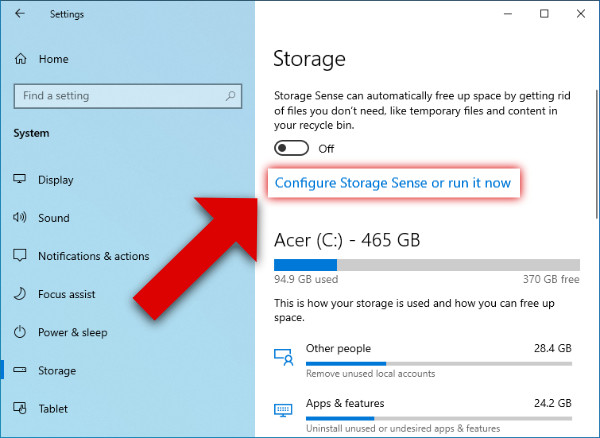
Start > Settings > System > Storage
Windows will show how the storage on your drive is being used.
You may see categories such as:
- Installed apps
- Temporary files
- System & reserved
- Documents
- Pictures
- Videos
- Other files
Storage settings are useful because they show where your space is going instead of forcing you to search through folders manually.
You can also open File Explorer > This PC to see the available space on your drives.
If the C: drive is nearly full, concentrate on that drive first.
Check What Is Actually Taking Up Space
Do not begin by deleting random files.
Look at the categories in:
Settings > System > Storage
Pay particular attention to:
Temporary files
These can include temporary system and application data that Windows considers removable.
Installed apps
Large applications and games can consume significant amounts of storage.
Large or unused files
These may include personal files that you have forgotten about.
System & reserved
This space is used by Windows for the operating system and other system functions.
Do not manually delete files from this category simply because it is large.
Windows reserves some storage for temporary files, caches, and other system operations, and that reserved space helps Windows manage updates and other tasks.
Use Cleanup Recommendations Before Manually Deleting Files
Windows 11 provides Cleanup recommendations, which can help identify categories of data that may be removed.
Go to:
Start > Settings > System > Storage > Cleanup recommendations
Depending on your Windows installation, you may see categories such as:
- Temporary files
- Large or unused files
- Files synced to the cloud
- Unused apps
- Previous Windows installation files
Review each category before selecting anything.
Windows shows how much space each cleanup category can free up, allowing you to decide what should actually be removed.
This is safer than searching system folders manually because you can review the categories before cleanup.
Safely Remove Temporary Files
Temporary files are one of the first places to look when storage is low.
Go to:
Start > Settings > System > Storage > Temporary files
Windows will calculate the available cleanup options.
Review the list carefully.
Temporary files and other disposable system data can often be removed without affecting your personal documents.
However, do not blindly select every category without reading what Windows says will be removed.
One category deserves particular attention: Downloads.
Your Downloads folder can contain installers, documents, photographs, ZIP files, videos, and other files that you may still need.
If Windows identifies Downloads as something that can be cleaned, inspect it manually before removing anything important.
Be Careful With the Downloads Folder
The Downloads folder is one of the easiest places to accidentally delete something important.
Open:
File Explorer > Downloads
Change the view to Details and sort the files by size if you are looking for large items.
Review the contents before deleting anything.
You may find:
- Old installers
- ZIP archives
- Large videos
- Duplicate downloads
- PDF files
- Images
- Documents
- Files you still need
If you are uncertain about a file, do not delete it just because it is large.
Move important files to another location instead.
Microsoft specifically warns that Storage Sense does not normally touch Downloads unless you configure it to do so, which is useful when you want automatic cleanup without automatically removing files from this folder.
Turn On Storage Sense
Storage Sense is Microsoft’s built-in automatic storage-management feature.
Go to:
Start > Settings > System > Storage
Then turn Storage Sense on.
You can select Storage Sense to review its settings.
It can automatically remove unnecessary temporary files and manage items in the Recycle Bin according to your selected settings.
The default behavior is designed to be relatively conservative.
For example, Storage Sense does not automatically clean your Downloads folder or cloud content unless you configure it to do so.
That makes it useful for maintaining free space without constantly deleting personal files manually.
Review Storage Sense Settings Before Enabling Automatic Cleanup
Automatic cleanup is convenient, but you should understand what it is allowed to remove.
Open:
Settings > System > Storage > Storage Sense
Review options related to:
- How often Storage Sense runs
- Recycle Bin cleanup
- Downloads cleanup
- Cloud content
Be especially careful with the Downloads setting.
If you regularly keep important files there, do not configure Windows to automatically remove them simply because they have not been opened recently.
Storage Sense also has options for cloud files. In supported OneDrive configurations, files can be made online-only instead of keeping their full local copies. Microsoft notes that this does not permanently delete those cloud files, and files marked Always keep on this device are exempt from Storage Sense management.
Empty the Recycle Bin After Reviewing It
Deleting a file normally moves it to the Recycle Bin rather than immediately freeing all of its disk space.
If you have already reviewed the Recycle Bin and are certain that you no longer need those files, emptying it can release the space.
Right-click the Recycle Bin and select:
Empty Recycle Bin
Do not do this automatically if the Recycle Bin may contain files you recently deleted by mistake.
Once it is emptied, recovering those files becomes more difficult.
Find Large Personal Files Instead of Deleting Random Folders
Photos, videos, downloaded installers, archives, and other personal files can consume substantial storage.
Use File Explorer to inspect common locations such as:
- Downloads
- Videos
- Pictures
- Documents
- Desktop
Change the folder view to Details, then sort by Size.
This helps you find the largest files first.
Microsoft recommends reviewing large personal files and moving files you want to keep to external storage when appropriate.
The important distinction is:
Move files you want to keep; delete only files you have verified you no longer need.
Move Large Files to Another Drive
If you have another internal drive or a reliable external storage device, you do not necessarily need to delete large personal files.
For example, you could move old:
- Videos
- Photos
- Project archives
- Installation packages
- Backups
- Documents
to another storage location.
Before moving important files, make sure the destination has enough space and that the files open correctly afterward.
For irreplaceable personal data, maintain a proper backup rather than relying on one copy stored on an external drive.
Uninstall Apps You No Longer Use
Applications and games can consume far more storage than temporary files.
Go to:
Start > Settings > Apps > Installed apps
Review the list.
Sort by size if that option is available.
Look for applications that you genuinely no longer use.
Before uninstalling an application, consider whether it contains locally stored data that you still need.
For example, some programs may store projects, profiles, saved data, or other files outside the main application installation.
Do not uninstall an application simply because you do not recognize its name.
If you are unsure what an application does, investigate it before removing it.
Use OneDrive Files On-Demand When Appropriate
If you use OneDrive, some files may be stored locally even though the full versions are also available in the cloud.
OneDrive’s Files On-Demand feature can help reduce local storage usage by keeping some files online-only while still showing them in File Explorer.
This can be useful when you have many cloud files but limited local storage.
However, understand the difference between:
Online-only
and
Always keep on this device
Files marked to remain available locally should not be treated as candidates for automatic removal if you need them offline.
Use Disk Cleanup When Available
Windows also includes the traditional Disk Cleanup utility.
Search Windows for:
Disk Cleanup
Open the tool and select the drive you want to clean.
Review the categories before confirming the cleanup.
You can also select:
Clean up system files
for additional cleanup options.
Microsoft specifically recommends reviewing the available file categories before deleting them.
Do not assume that every category should always be removed.
Be Careful With Previous Windows Installation Files
After a major Windows upgrade, you may see:
Previous Windows installation(s)
This can represent the previous Windows installation stored in the Windows.old folder.
Removing it can recover a significant amount of storage, but there is an important trade-off.
Microsoft states that deleting the previous Windows installation removes the files used to return to the previous Windows version, and that action cannot be undone through the normal rollback mechanism.
Therefore, do not remove it immediately after an upgrade simply because it is large.
If you are certain you will not need to return to the previous Windows installation, it may be reasonable to remove it through Windows’ cleanup tools.
Do Not Manually Delete Windows System Folders
This is one of the most important rules when trying to free up storage.
Do not manually delete folders such as:
C:\WindowsC:\Windows\System32C:\Program FilesC:\Program Files (x86)- Random folders inside
C:\Users - Unknown folders inside
AppData
A folder being large does not mean it is safe to delete.
Windows and applications depend on many of these files.
Use Windows’ built-in storage and cleanup tools instead of guessing which system files are unnecessary.
Do Not Delete the Page File or Other System Files Just for Space
You may find online guides telling you to disable or delete various Windows system files to recover storage.
Avoid following these instructions unless you understand exactly what the change does and why it is appropriate for your system.
The goal is to solve a storage problem without creating a stability, update, or recovery problem.
If Windows identifies a system file as removable through its own cleanup tools, review the description and consequences before removing it.
Check Whether Windows Is Reserving Storage
You may notice that the storage categories do not appear to add up exactly.
That does not necessarily mean Windows is hiding a large amount of unnecessary data.
Windows uses reserved storage for temporary files, caches, updates, and other system operations. Microsoft explains that this reserved space helps keep storage usage more predictable and supports Windows updates and system processes.
Do not attempt to manually remove reserved storage.
Instead, focus on the categories Windows provides for cleanup.
If You Need Space for a Windows Update
Low storage can prevent Windows from installing an update.
Microsoft recommends using:
Start > Settings > System > Storage
and reviewing Cleanup recommendations or Storage Sense to free space.
If your computer still does not have enough room, Windows may provide an option to use external storage temporarily for an update.
Microsoft says an external storage device with at least 10 GB of free space may be used for this process when the relevant option is offered.
Back up important files before using external storage for system updates.
What Not to Delete
If your goal is to free space without losing important files, avoid deleting anything from these areas simply because it looks large:
- Windows system folders
- Program Files
- Program Files (x86)
- Unknown AppData folders
- Driver folders
- Recovery-related files
- Personal folders you have not reviewed
- Cloud-synced files without understanding their sync status
Instead, prioritize:
- Temporary files
- Recycle Bin contents you have reviewed
- Unused applications
- Large personal files you no longer need
- Files you can safely move to another drive
- Cloud files that can appropriately become online-only
What If “Other” or “System” Uses Most of the Storage?
If the largest category is Other or System & reserved, do not immediately start deleting hidden folders.
First:
- Restart Windows.
- Check Windows Update.
- Open Storage settings again.
- Run Cleanup recommendations.
- Run Storage Sense.
- Review installed applications.
- Check large personal folders.
- Restart again and reassess the storage usage.
If a particular category keeps growing unusually quickly, that is a different troubleshooting problem.
For example, a rapidly filling temporary folder can sometimes be related to Microsoft Store or Windows Update activity. Microsoft documents a specific troubleshooting path for cases where a Temp folder repeatedly fills after cleanup.
How to Verify That You Actually Freed Space
After cleaning, return to:
Start > Settings > System > Storage
Check the available space again.
You can also open:
File Explorer > This PC
and compare the free space shown for the Windows drive.
Do not judge the result solely by how many files were deleted.
The important result is how much usable storage was actually recovered.
How to Prevent the Drive From Filling Again
Once you have enough free space, make a few changes to prevent the same problem from returning.
Keep Storage Sense configured
Let Windows automatically handle appropriate temporary cleanup.
Review Downloads regularly
Downloads can quietly accumulate installers, ZIP files, videos, and documents.
Uninstall applications you no longer use
Large unused programs can consume storage for months without being noticed.
Store large archives elsewhere
Older videos, photos, and completed projects do not necessarily need to remain on the system drive.
Review cloud-storage settings
If you have a large OneDrive library, Files On-Demand can reduce the amount of cloud data stored locally.
Check storage periodically
You do not need to wait for Windows to display a critical low-space warning.
A quick check of Settings > System > Storage can help you notice unusually fast growth before it becomes a problem.
A Safe Cleanup Order
If you want the simplest possible process, use this order:
1. Check Storage settings
Find out what is actually using the space.
2. Review Cleanup recommendations
Remove only the categories you understand and no longer need.
3. Check Temporary files
Clean appropriate temporary data.
4. Review the Recycle Bin
Delete its contents only after confirming nothing important is inside.
5. Review Downloads
Remove or move files you have personally verified.
6. Uninstall unused applications
Start with large programs you know you no longer need.
7. Move large personal files
Use another internal drive or external storage when appropriate.
8. Review OneDrive Files On-Demand
Consider making suitable cloud files online-only.
9. Turn on Storage Sense
Use automatic cleanup to help prevent future storage problems.
10. Recheck available space
Confirm that the Windows drive has actually recovered enough free space.
Frequently Asked Questions
What is the safest way to free up Windows storage?
Start with Settings > System > Storage and use Windows’ Cleanup recommendations, Temporary files, and Storage Sense. These tools help identify cleanup categories without requiring you to manually delete Windows system folders.
Will Storage Sense delete my personal files?
Storage Sense is designed to remove unnecessary temporary data and can manage Recycle Bin contents according to its settings. Downloads and cloud content are not normally touched unless you configure Storage Sense to manage them.
Is it safe to delete everything in Downloads?
No. Downloads can contain important documents, installers, photos, archives, and other personal files. Review the folder yourself before deleting anything.
Should I delete Windows.old?
Only if you are certain you no longer need the previous Windows installation for rollback. Removing the previous installation removes the normal ability to return to that earlier Windows version.
Can I delete files from the Windows folder?
Do not manually delete files from the Windows folder simply to recover storage. Use Windows’ built-in cleanup tools to identify system files that are safe to remove.
Why is my C: drive full even though I cannot find large files?
Storage may be used by installed applications, temporary data, system-reserved storage, recovery-related files, cloud files stored locally, or other categories that are not obvious from a normal folder search. Start with Settings > System > Storage rather than manually searching system folders.
Can freeing storage make Windows faster?
It can help when the drive is very low on free space. Microsoft notes that low disk space can affect system performance and can also make Windows updates more difficult.
How much free space should I keep?
There is no single percentage that applies to every Windows computer. The practical goal is to avoid allowing the system drive to remain critically low and to leave enough room for normal Windows operations, applications, temporary files, and updates.
Official Microsoft Sources
For readers who want current Windows guidance, the most useful references are Microsoft’s documentation for:
- Free up drive space in Windows
- Manage drive space with Storage Sense
- Storage settings in Windows
- Free up space for Windows updates
Final Takeaway
Freeing Windows storage does not have to mean deleting personal files or experimenting with hidden system folders.
Start by finding out where the space is being used. Then use Windows’ built-in Storage settings, Cleanup recommendations, Temporary files cleanup, Storage Sense, and Disk Cleanup to remove data that is genuinely unnecessary.
For personal files you want to keep, move rather than delete when possible. For cloud files, consider whether Files On-Demand can reduce local storage use.
Most importantly, do not delete a system file simply because it is large or has an unfamiliar name. A few minutes spent identifying the storage category can prevent a much bigger Windows problem later.