
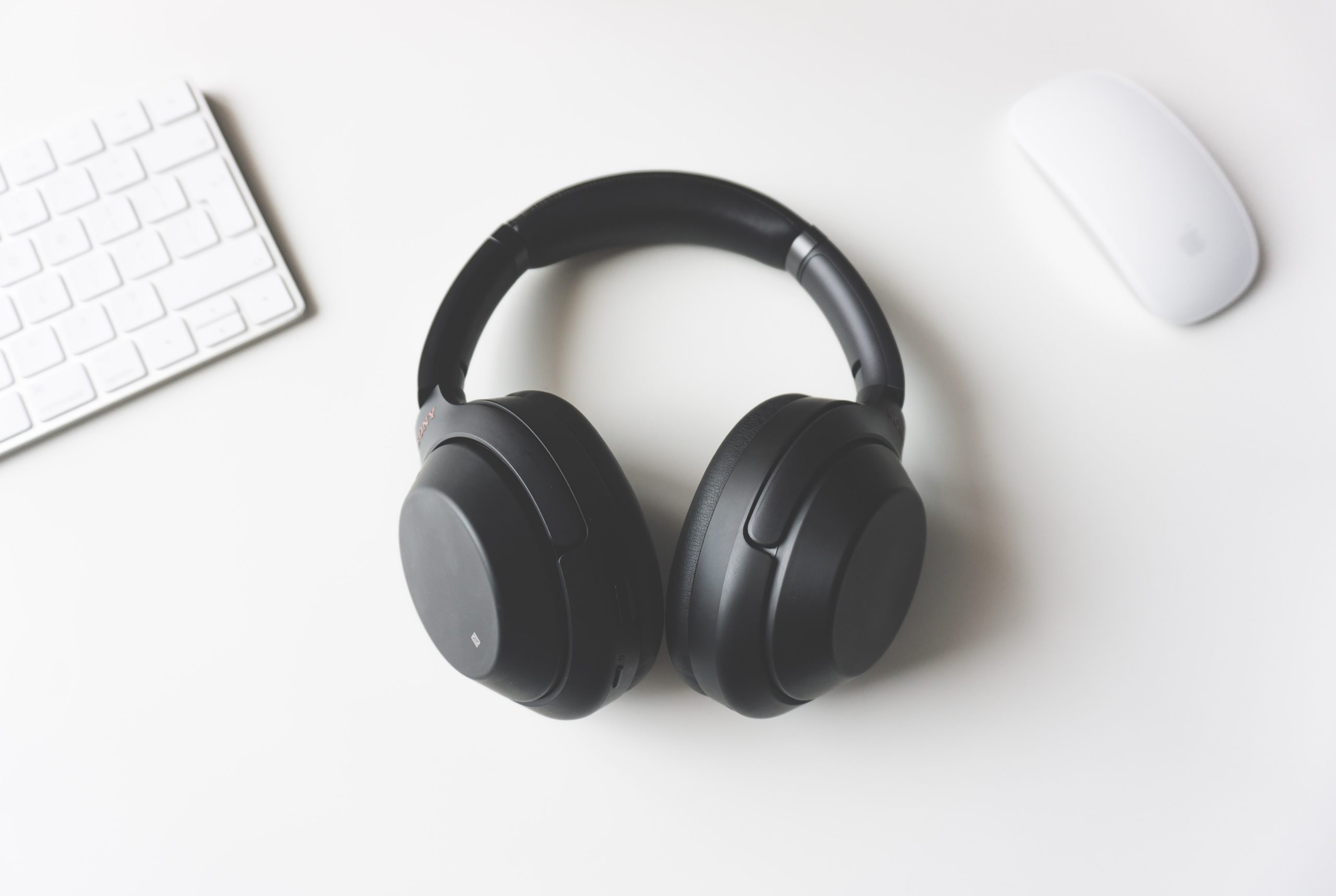
Bluetooth headphones can work normally for several minutes and then suddenly disconnect. Sometimes they reconnect by themselves. Other times, the audio stops while the headphones still appear connected, or the Bluetooth connection disappears completely.
The difficult part is figuring out where the problem actually comes from.
The headphones may have a low battery, firmware problem, damaged hardware, or another device trying to connect to them. But the phone or computer can also be responsible because of Bluetooth drivers, power-saving settings, software problems, or a temporary Bluetooth service failure.
Instead of immediately resetting your device or buying another pair of headphones, use a few controlled tests.
The goal is simple:
Find out whether the headphones fail with multiple devices or only with one device.
If the same headphones repeatedly disconnect from different phones or computers, the headphones become the stronger suspect. If they work normally elsewhere but disconnect from one particular device, investigate that device first.
Start by Identifying What “Disconnecting” Actually Means
Not every Bluetooth audio problem is a complete disconnection.
There are several different symptoms.
The headphones completely disappear
Your device changes from “Connected” to “Disconnected,” and the headphones may disappear from the active Bluetooth connection.
This points toward a Bluetooth connection problem.
The headphones remain connected but there is no sound
The Bluetooth connection may still be active while audio is being sent somewhere else or the audio profile has stopped working correctly.
On Android, for example, you can check the Bluetooth device settings and make sure Media audio is enabled. (Google Help)
The connection drops when you move away
Distance or obstacles may be affecting the wireless connection.
If moving the phone or computer closer to the headphones makes the problem disappear, range or the surrounding environment becomes more relevant.
The headphones disconnect at roughly the same time every time
This can be a useful clue.
For example, if the headphones disconnect after 10–15 minutes regardless of which device you use, investigate the headphones, their battery, temperature, automatic power-off behavior, or firmware.
First Test: Check the Headphones’ Battery
Before changing software settings, fully charge the headphones.
A low battery can cause Bluetooth accessories to stop maintaining a stable connection. Microsoft also lists low battery as one possible reason Bluetooth devices fail to connect or maintain a connection. (Microsoft Support)
Charge both:
- The headphones
- The charging case, if they use one
Then test them again.
If the headphones have separate left and right earbuds, make sure both are charging correctly.
Look for an uneven battery level
If one earbud repeatedly shows a much lower battery level than the other, clean the charging contacts and confirm that both earbuds are actually making contact with the case.
Do not assume the displayed percentage is accurate if one earbud is repeatedly dying much earlier than the other.
Second Test: Use the Headphones With Another Device
This is one of the most useful tests in the entire troubleshooting process.
Suppose the headphones disconnect from your Windows laptop.
Instead of changing ten Windows settings immediately, connect the same headphones to another device.
You could test them with:
- Another phone
- A tablet
- Another computer
- A different laptop
Use the headphones for long enough to reproduce the original problem.
If they disconnect on multiple devices
The headphones become the stronger suspect.
Possible causes include:
- Battery problems
- Headphone firmware issues
- Hardware damage
- Charging problems
- Automatic power-off behavior
- Multipoint or device-switching behavior
- A problem with one earbud
- Wireless interference affecting the headphones
If they only disconnect from one device
The headphones may be working normally.
Focus on the device that keeps losing the connection.
This could mean:
- Bluetooth driver problems
- Power-management behavior
- Outdated system software
- Bluetooth service problems
- Incorrect pairing information
- Device-specific compatibility issues
- Interference around that particular computer or phone
This single comparison test can save a lot of unnecessary troubleshooting.
Third Test: Connect a Different Bluetooth Headphone to the Same Device
Now reverse the test.
If your original headphones disconnect from your laptop, connect a different pair of Bluetooth headphones or a Bluetooth speaker to that same laptop.
You are trying to answer one question:
Does the problem follow the headphones or stay with the device?
If both Bluetooth audio devices disconnect
The computer or phone becomes the stronger suspect.
If only the original headphones disconnect
Investigate the headphones, their settings, firmware, battery, or compatibility.
This is much more useful than repeatedly pairing the same headphones with the same device.
Test the Connection at Short Range
Place the headphones close to the device.
For a laptop, put the headphones beside the computer rather than testing from another room.
Then play continuous audio.
If the connection remains stable at close range but repeatedly fails as you move away, range or the surrounding wireless environment may be contributing to the problem.
Microsoft recommends keeping Bluetooth devices within range and moving the device closer when troubleshooting connection problems. (Microsoft Support)
Do not use maximum distance as your first test. Start with a short, unobstructed connection.
Check Whether Another Device Is Taking Over the Headphones
Some headphones support connections to multiple devices.
This feature may be called:
- Multipoint
- Dual connection
- Device switching
- Audio switch
- Automatic switching
If the headphones are connected to both your phone and computer, another device may take control when a call, notification, or audio session begins.
Android supports Multipoint on compatible headphones and devices, allowing headphones to connect to two Bluetooth devices at the same time. Android also supports Audio Switch for compatible headphones. (Google Help)
Test with only one device
Temporarily disconnect the headphones from other nearby devices.
For example:
- Turn Bluetooth off on your phone.
- Keep Bluetooth enabled on your laptop.
- Connect the headphones to the laptop.
- Play audio continuously.
- Watch whether the disconnect happens again.
If the problem disappears, automatic device switching or multipoint behavior may have been involved.
Forget and Pair the Headphones Again
If the connection worked previously but has recently become unreliable, the saved Bluetooth pairing information may be part of the problem.
Windows 11
Go to:
Start → Settings → Bluetooth & devices
Find the headphones, select the three-dot menu, and choose Remove device.
Then select Add device and pair the headphones again.
Microsoft recommends removing and re-adding a Bluetooth device when connection problems persist. (Microsoft Support)
Android
Open Bluetooth settings, select the headphones, and choose Forget or Forget device, depending on the phone.
Then pair the headphones again.
Google’s Android guidance also recommends forgetting unused or problematic Bluetooth devices and pairing again when troubleshooting connection problems. (Google Help)
iPhone
Go to:
Settings → Bluetooth
Tap the information button next to the headphones and select Forget This Device.
Then pair the headphones again. (Apple Support)
The exact menu wording can vary between Android manufacturers and operating-system versions.
Turn Bluetooth Off and Back On
A temporary Bluetooth service or connection problem can sometimes be cleared simply by restarting Bluetooth.
On Windows 11:
Start → Settings → Bluetooth & devices
Turn Bluetooth off, wait several seconds, and turn it back on.
Microsoft specifically recommends turning Bluetooth off and back on as part of Bluetooth troubleshooting. (Microsoft Support)
On Android, turn Bluetooth off and on from Quick Settings or the Bluetooth settings.
Google also recommends this as an initial Bluetooth troubleshooting step. (Google Help)
On an iPhone, Bluetooth can be managed from Settings → Bluetooth. (Apple Support)
Restart Both Devices
Restart the headphones and the device they are connected to.
For the headphones:
- Turn them off.
- Wait several seconds.
- Turn them on again.
- Reconnect them.
For the computer or phone, perform a normal restart.
This is especially useful when Bluetooth worked normally earlier but suddenly became unreliable.
If the Problem Happens Only on Windows
If your headphones work normally with a phone but repeatedly disconnect from a Windows computer, focus on Windows.
Check Windows Bluetooth Updates
Open:
Start → Settings → Windows Update
Select Check for updates.
Install applicable updates and restart the computer.
Microsoft recommends keeping Windows updated when troubleshooting Bluetooth problems. (Microsoft Support)
Check the Bluetooth Driver
A Bluetooth driver problem can affect connection stability.
Open:
Start → Device Manager
Expand:
Bluetooth
Find the Bluetooth adapter rather than the headphone entry itself.
Right-click the adapter and select:
Update driver → Search automatically for drivers
Microsoft also recommends checking the computer manufacturer’s support site if Windows does not find a newer driver. (Microsoft Support)
If the problem began immediately after a driver or Windows update, Microsoft’s driver troubleshooting guidance also includes rolling back the driver when the option is available. (Microsoft Support)
Why the manufacturer matters
Bluetooth drivers can be supplied specifically for a laptop’s hardware.
If Windows reports that the current driver is already installed, check the support page for the exact laptop model before installing a random Bluetooth driver from another website.
Check Bluetooth Power Management
Windows can use power-saving behavior that may affect Bluetooth connectivity.
Microsoft’s current guidance for repeated Bluetooth disconnections includes checking the Bluetooth adapter’s power-management settings. (Microsoft Support)
Open:
Device Manager → Bluetooth
Right-click the Bluetooth adapter and select Properties.
If a Power Management tab is available, look for:
Allow the computer to turn off this device to save power
If this setting is enabled and the problem appears related to sleep, idle periods, or power-saving behavior, testing with the setting disabled can help determine whether power management is involved.
The exact options can vary by hardware and driver.
Check Windows Energy Saver or Battery Saver
If disconnections mainly happen while the laptop is running on battery, power management deserves more attention.
Microsoft recommends checking Battery Saver/Energy Saver when Bluetooth repeatedly disconnects. (Microsoft Support)
Test the headphones while the laptop is connected to AC power.
Then compare that behavior with battery operation.
If the headphones remain stable while plugged in but disconnect while running on battery, you have a useful clue that power management may be involved.
Restart the Bluetooth Support Service
Windows uses Bluetooth-related services to manage connections.
If the Bluetooth connection repeatedly fails, you can test whether restarting the Bluetooth Support Service changes the behavior.
Press:
Windows + R
Type:
services.msc
Press Enter.
Find:
Bluetooth Support Service
Right-click it and select Restart.
Microsoft includes restarting this service among its troubleshooting steps for repeated Bluetooth disconnections. (Microsoft Support)
If the Problem Happens Only on Android
If the headphones work correctly with your computer but disconnect from one Android phone, investigate the phone rather than assuming the headphones are defective.
Start with:
Settings → Connected devices → Bluetooth
The exact path may differ by manufacturer.
Google recommends turning Bluetooth off and on, restarting the devices, confirming that they are paired, and forgetting and reconnecting accessories when troubleshooting Bluetooth problems. (Google Help)
Check the headphones’ settings after connecting.
Make sure Media audio is enabled if your phone provides that option. (Google Help)
Also test the phone with another Bluetooth audio device.
If several Bluetooth headphones or speakers show the same behavior, the phone becomes the stronger area to investigate.
If the Problem Happens Only on an iPhone
On an iPhone, start by opening:
Settings → Bluetooth
Check whether the headphones remain connected when the audio stops.
You can also remove the headphones from the Bluetooth list and pair them again.
Apple documents the process as:
Settings → Bluetooth → Info button → Forget This Device
Then pair the headphones again. (Apple Support)
If the problem occurs with only one pair of headphones, test another Bluetooth audio accessory with the iPhone.
If multiple accessories experience similar problems, focus on the iPhone and its software or Bluetooth environment.
Check for Wireless Interference
Bluetooth uses radio communication, so the surrounding environment can matter.
Try the headphones:
- Away from crowded wireless equipment
- Away from unusual USB devices
- With the phone or computer in a clear position
- In another room
- At close range
- In a different location
Microsoft notes that certain unshielded USB 3.0 devices can sometimes interfere with Bluetooth connections. (Microsoft Support)
Apple also notes that relocating or reorienting an iPhone and Bluetooth accessory can improve wireless performance in some situations. (Apple Support)
You do not need to start changing router channels or advanced wireless settings. First determine whether changing the physical environment changes the symptom.
Check Whether the Problem Happens With Every App
A Bluetooth problem may actually be an application problem.
For example, suppose:
- Music works normally.
- A browser video works normally.
- One particular application repeatedly stops audio.
That points toward the application rather than the Bluetooth connection itself.
Test several sources of audio.
Try:
- A locally stored audio file.
- A browser video.
- A different streaming application.
- A system sound.
- A phone call, if appropriate.
If only one application causes the problem, troubleshoot that application before changing system-wide Bluetooth settings.
Test With Downloaded or Local Audio
Streaming introduces another possible source of confusion.
If an online video pauses, the user may assume the headphones disconnected when the real problem is the internet connection.
Play a local audio or video file if one is available.
If local playback continues while an online stream repeatedly stops, investigate the network or application separately.
This test helps separate:
Bluetooth connection problems
from
internet or application problems.
Watch What Happens When the Headphones Disconnect
The exact behavior can provide useful evidence.
Bluetooth says “Disconnected”
Investigate the Bluetooth connection itself.
Bluetooth still says “Connected,” but there is no audio
Check the selected audio output and the device’s media-audio settings.
Audio pauses but Bluetooth stays connected
Investigate the application, media playback, or device audio settings.
Headphones disappear from the Bluetooth list
Investigate Bluetooth stability, range, battery, pairing, drivers, or hardware.
Headphones immediately reconnect
Look at power management, automatic switching, range, and temporary Bluetooth service issues.
The more precisely you describe the symptom, the easier it becomes to identify the likely area of the problem.
Check Whether the Headphones Are Switching Devices
This is easy to overlook.
You may think the headphones disconnected when they actually switched to another paired device.
For example:
- Headphones are connected to a laptop.
- Your phone is nearby.
- A notification or audio event occurs on the phone.
- The headphones switch audio sources.
- The laptop appears to lose the connection.
This is particularly relevant for headphones supporting multipoint or automatic audio switching. Android documents both Multipoint and Audio Switch features for compatible devices and headphones. (Google Help)
For testing, temporarily disconnect the headphones from every other nearby device.
Then use only one source.
Check the Headphones’ Manufacturer App
Many modern Bluetooth headphones have a companion application.
Depending on the manufacturer, the app may provide:
- Firmware updates
- Battery information
- Multipoint settings
- Automatic switching controls
- Connection preferences
- Device reset options
- Headphone diagnostics
If your headphones have an official companion app, check whether it reports a firmware update or connection-related setting.
Use the manufacturer’s official app rather than downloading an unofficial “Bluetooth booster” or “headphone repair” application.
Do Not Reset Everything at Once
One of the biggest troubleshooting mistakes is changing multiple settings simultaneously.
For example, do not immediately:
- Reset network settings
- Uninstall Bluetooth drivers
- Factory-reset your phone
- Reset the headphones
- Change advanced Windows settings
- Install driver-update software
If you change everything at once and the problem disappears, you will not know what fixed it.
Instead, make one change at a time.
Then test the headphones again.
This makes the troubleshooting process much more reliable.
Do Not Install Random Bluetooth Driver Tools
Avoid third-party applications that promise to automatically repair or update every driver on your computer.
For Windows, start with Windows Update, Device Manager, and the computer manufacturer’s support site.
Microsoft specifically recommends checking the PC manufacturer’s website when Windows cannot find a newer Bluetooth driver. (Microsoft Support)
A Bluetooth driver should match the computer’s hardware and Windows version.
Do Not Immediately Factory Reset Your Phone
A factory reset is far too drastic for a Bluetooth problem that has not been properly diagnosed.
First determine whether:
- Other Bluetooth headphones work.
- Your headphones work with another device.
- Re-pairing changes the problem.
- The problem occurs only with one application.
- Software updates are available.
- Power-saving behavior is involved.
A factory reset should not be your first Bluetooth troubleshooting step.
How to Decide Whether the Headphones Are the Problem
The evidence points more strongly toward the headphones when:
- They disconnect from multiple devices.
- They have unusual battery behavior.
- One earbud repeatedly loses connection.
- They disconnect even when sitting close to the source.
- Another pair of headphones works normally on the same device.
- The problem follows the headphones from one device to another.
- The headphones continue failing after being properly re-paired.
- Their companion app reports firmware or hardware-related problems.
At that point, check the manufacturer’s support documentation and warranty options.
How to Decide Whether Your Device Is the Problem
The evidence points more strongly toward the computer or phone when:
- Multiple Bluetooth headphones disconnect from it.
- The same headphones work normally with other devices.
- The problem started after a system or driver change.
- Bluetooth disappears or becomes unstable.
- The problem changes when power-saving settings change.
- The problem happens only on battery power.
- A Bluetooth driver update changes the behavior.
- Bluetooth works normally after reconnecting or restarting the service.
This does not prove a hardware failure, but it tells you where to focus the next round of troubleshooting.
Use This Simple Diagnostic Test
If you want the shortest possible troubleshooting process, use these four tests.
Test 1: Same headphones, different device
Connect the headphones to another phone or computer.
Disconnects there too: investigate headphones.
Works normally: continue testing your original device.
Test 2: Different headphones, same device
Connect another Bluetooth headset.
It also disconnects: investigate the device.
It works normally: investigate the original headphones.
Test 3: Close-range test
Keep the headphones very close to the source.
Stable close up but unstable farther away: investigate range or wireless interference.
Still disconnects at close range: investigate software, battery, pairing, or hardware.
Test 4: One-device-only test
Disconnect the headphones from all other nearby devices.
Problem disappears: investigate multipoint or automatic switching.
Problem continues: continue with device and headphone troubleshooting.
Together, these tests give you much more useful evidence than repeatedly turning Bluetooth off and on.
What to Do After You Find the Likely Cause
If the headphones are the likely problem, check:
- Battery and charging.
- Manufacturer firmware.
- Multipoint or device-switching settings.
- Pairing information.
- Manufacturer troubleshooting instructions.
- Warranty or repair options if the problem occurs on multiple devices.
If the computer is the likely problem, check:
- Windows Update.
- Bluetooth driver.
- Bluetooth power management.
- Bluetooth Support Service.
- Windows Bluetooth troubleshooting.
- Laptop manufacturer’s Bluetooth drivers.
If the phone is the likely problem, check:
- System updates.
- Bluetooth pairing.
- Media-audio settings.
- Other Bluetooth accessories.
- Battery-saving behavior.
- Manufacturer-specific Bluetooth troubleshooting.
Verify the Fix Before Calling the Problem Solved
Do not stop testing after the headphones stay connected for 30 seconds.
Use them long enough to reproduce the original problem.
For example, if they normally disconnect after 15 minutes, test for at least that long.
Try normal usage:
- Play music.
- Pause and resume.
- Move around normally.
- Lock and unlock the phone.
- Let the computer sit idle.
- Switch between applications.
- Test on battery power if that is where the problem originally occurred.
A successful fix should eliminate the original symptom under similar conditions.
When the Headphones May Need Repair or Replacement
Consider manufacturer support when the problem follows the headphones across multiple devices.
This is particularly important if the headphones:
- Disconnect from several different devices.
- Have abnormal battery behavior.
- Fail even at close range.
- Have suffered physical or liquid damage.
- Have one earbud that repeatedly drops out.
- Cannot maintain a connection after being fully charged and re-paired.
Before replacing them, check whether the manufacturer provides a firmware update, diagnostic tool, reset procedure, or warranty service.
A Practical Troubleshooting Order
For most Bluetooth headphone disconnection problems, use this order:
1. Charge the headphones fully.
2. Restart the headphones and your device.
3. Test at close range.
4. Disconnect the headphones from other nearby devices.
5. Test the headphones with another phone or computer.
6. Test another Bluetooth headset with your original device.
7. Forget and re-pair the headphones.
8. Install available system and Bluetooth driver updates.
9. Check power-saving behavior if the problem is device-specific.
10. Check the manufacturer’s firmware and support tools.
11. Consider hardware support if the problem follows the headphones.
This order helps isolate the fault before making major changes.
Frequently Asked Questions
Why do my Bluetooth headphones keep disconnecting?
The cause can be on either side of the Bluetooth connection. Common possibilities include low battery, range, interference, pairing problems, automatic device switching, power management, outdated drivers, or a hardware problem.
The most useful first test is to connect the same headphones to another device.
How can I tell if my headphones are defective?
Test them with at least one other phone or computer.
If they repeatedly disconnect from multiple devices under similar conditions, the headphones become the stronger suspect.
How can I tell if my laptop’s Bluetooth is causing the problem?
Connect another Bluetooth headset to the laptop.
If multiple Bluetooth audio devices disconnect from the same laptop, investigate the laptop’s Bluetooth adapter, driver, power management, Windows software, and wireless environment.
Why do Bluetooth headphones disconnect when I move away?
Distance, obstacles, and wireless interference can affect Bluetooth performance. Test the headphones at close range first. If they remain stable nearby but fail farther away, range or the environment may be contributing to the problem.
Why do my headphones disconnect when my phone is nearby?
The headphones may support multipoint or automatic device switching. Temporarily disconnect them from other nearby devices and test with only one source.
Should I reset my Bluetooth settings?
Not immediately. First determine whether the problem follows the headphones or remains with one device. Re-pairing is a simpler test and can often provide useful evidence without changing unrelated settings.
Should I update the Bluetooth driver?
If the problem occurs only on a Windows computer, checking for a current Bluetooth driver is reasonable. Microsoft recommends using Windows Update, Device Manager, and the computer manufacturer’s support site for driver troubleshooting. (Microsoft Support)
Why do my headphones show as connected but produce no sound?
The Bluetooth connection can remain active while audio is being routed incorrectly or the media-audio function is disabled. On Android, check the Bluetooth settings for the accessory and confirm that Media audio is enabled when that option is available. (Google Help)
Final Takeaway
When Bluetooth headphones disconnect during use, the first goal should not be to reset everything.
The first goal is to identify which side of the connection is failing.
Test the same headphones with another device. Then test another pair of headphones with the original device. Keep the headphones close, remove other paired devices from the test, and watch exactly what happens when the connection fails.
These simple comparisons can separate a headphone problem from a phone or computer problem before you start changing drivers, resetting settings, or replacing hardware.
For Windows-specific problems, Microsoft’s Bluetooth troubleshooting guidance covers connection, driver, power-management, and repeated-disconnection issues. (Microsoft Support)
For Android devices, Google’s Bluetooth troubleshooting guidance covers restarting, reconnecting, forgetting devices, and checking accessory settings. (Google Help)
For iPhone and iPad users, Apple’s Bluetooth support documentation explains pairing and removing Bluetooth accessories and provides additional guidance for wireless performance. (Apple Support)
Official Sources
- Microsoft: Troubleshoot Bluetooth problems in Windows
- Microsoft: Bluetooth keeps disconnecting in Windows
- Microsoft: Update Bluetooth drivers in Windows
- Google Android Help: Fix Bluetooth problems on Android
- Apple Support: Connect a third-party Bluetooth accessory to iPhone or iPad
This version is intentionally built around diagnosis rather than generic “try these 20 fixes” advice, which makes it more useful for readers and gives the article a clearer practical purpose.