
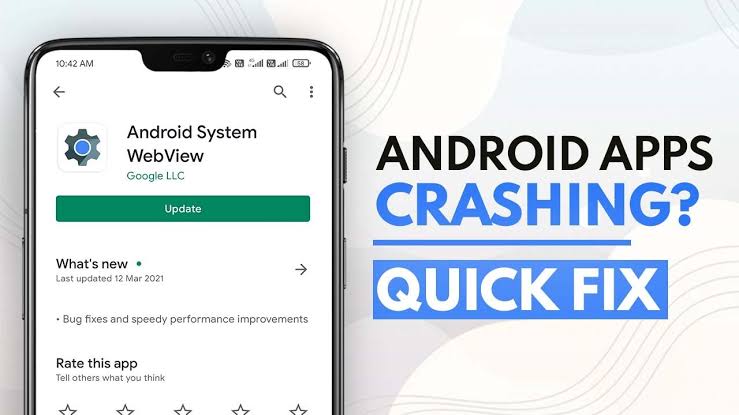
An Android app that suddenly closes can be frustrating, especially when it happens repeatedly or affects an app you need every day.
Sometimes the problem is limited to one application. In other cases, several apps may keep closing because the phone itself has a storage, software, update, or compatibility problem.
The safest way to troubleshoot the issue is to start with simple checks and move toward more advanced steps only when necessary.
Google’s official Android and Google Play guidance recommends restarting the phone, checking Android and app updates, checking available storage, force-stopping the affected app, clearing its cache or data when appropriate, testing Safe Mode, and reinstalling the app. (Google Help)
What Does It Mean When an Android App Keeps Closing?
An app crash occurs when an application stops working unexpectedly and closes, returns to the home screen, or becomes unresponsive.
You might notice that:
- One particular app closes immediately after opening.
- An app works for a few minutes and then disappears.
- Apps close when performing a specific task.
- Several different apps keep crashing.
- Apps started crashing after an Android update.
- Apps close when the phone is low on storage.
- The entire phone becomes slow or unstable at the same time.
These different patterns matter because they can point toward different causes.
If only one app is affected, start with that app.
If many unrelated apps are closing, investigate the phone itself.
Why Android Apps Keep Closing
There is no single cause of app crashes.
Common possibilities include:
The app has a temporary problem
An app may have encountered an error while running. Restarting the app or phone can sometimes clear the problem.
The app is outdated
An older version may have compatibility problems with the current Android version or with other components of the device.
Android is outdated
A pending system update may contain bug fixes or compatibility improvements.
The app’s cached data is causing problems
An application’s temporary cached files can occasionally become problematic. Clearing the cache is a standard troubleshooting step recommended by Google. (Google Help)
The phone is running low on storage
Google says Android devices can begin experiencing problems when less than 10% of storage remains free. (Google Help)
Another downloaded app is causing a conflict
A recently installed application can sometimes cause crashes, freezing, or other system problems. Safe Mode can help determine whether a downloaded app is involved. (Google Help)
The app installation is damaged
If the app’s files or stored data have become corrupted, updating or reinstalling the application may help.
The problem is actually with Android
If several unrelated applications keep closing, the problem may not be inside each individual app. A system update, storage problem, background conflict, or other device-level issue may be involved.
First Check: Does One App Keep Closing or Do Several Apps Crash?
This is the most useful question to answer before changing anything.
If only one app is crashing
Focus on:
- Updating that app
- Restarting the phone
- Force-stopping the app
- Clearing its cache
- Checking its permissions
- Reinstalling it if necessary
- Contacting the developer if the problem continues
If several apps are crashing
Look at:
- Available storage
- Android updates
- Recently installed applications
- Safe Mode
- General phone stability
- Google Play and other system components
This distinction can prevent you from unnecessarily changing settings throughout the phone.
Step 1: Restart Your Android Phone
Start with the simplest step.
Press and hold the power button and select Restart.
The exact method varies between Android manufacturers.
After the phone restarts, open the affected app before opening several other applications.
If the app works normally afterward, continue using the phone for a while to see whether the problem returns.
Google recommends restarting the device as one of the first troubleshooting steps for an app that crashes or does not work correctly. (Google Help)
A restart is useful because it clears temporary processes and gives Android and its applications a fresh session.
Step 2: Update the App
If only one application keeps closing, check whether an update is available.
Open the Google Play Store.
Then:
- Tap your profile picture.
- Tap Manage apps & device.
- Look under available updates.
- Find the affected application.
- Tap Update.
You can also update other apps if several applications are having problems.
Google specifically recommends checking for app updates when troubleshooting an Android application that crashes or will not open. (Google Help)
After the update finishes, open the app again.
Step 3: Check for an Android System Update
If updating the app does not help, check Android itself.
Depending on the phone, the menu may be similar to:
Settings > System > Software update
On some phones it may appear under:
Settings > About phone > Software update
Samsung and other manufacturers can use different menu structures.
Install an available system update if one is offered and your device is ready for the update.
Google recommends checking for Android updates when troubleshooting crashes and other device problems. (Google Help)
After the update, restart the phone and test the application again.
Step 4: Check How Much Storage Is Available
Low storage can cause broader problems on an Android phone.
Open:
Settings > Storage
The exact wording varies by manufacturer.
Check how much free space remains.
Google says an Android device can begin having problems when less than 10% of its storage is free. (Google Help)
If your phone is almost full, free up space before performing more complicated troubleshooting.
Look for:
- Large videos
- Unused applications
- Old downloads
- Duplicate files
- Offline media
- Large messaging attachments
- Unneeded documents
Do not start deleting random Android system folders.
Focus on files and applications you recognize.
Once you have recovered some storage, restart the phone and test the affected app again.
Step 5: Force Stop the Problem App
If the app keeps closing, force-stop it and then open it again.
The exact menu varies, but a common path is:
Settings > Apps > See all apps > [App name] > Force stop
Confirm the action if Android asks.
Then launch the app normally.
Google recommends force-stopping a problematic app as part of its troubleshooting process. (Google Help)
Force stopping an app is different from uninstalling it. It simply stops the current app process so you can start it again.
If the app immediately crashes again, move to the next step.
Step 6: Clear the App’s Cache
Cached data is temporary information stored by an application to help it work efficiently.
If that temporary data becomes problematic, clearing the cache can sometimes resolve an app that repeatedly crashes.
A common Android path is:
Settings > Apps > [App name] > Storage & cache > Clear cache
Some manufacturers use slightly different names.
After clearing the cache, open the application again.
Google lists clearing an app’s cache as a troubleshooting step for apps that crash or do not work correctly. (Google Help)
Clearing cache is not the same as clearing data
This distinction is important.
Clear cache removes temporary cached files.
Clear storage/data can remove the application’s locally stored information and settings.
Do not press Clear storage or Clear data simply because the app is crashing.
Use that option only when you understand what information the application stores locally and what you may lose.
Step 7: Check the App’s Permissions
Some applications depend on access to particular phone features.
Depending on the app, these could include:
- Camera
- Microphone
- Location
- Contacts
- Photos and videos
- Files
- Phone
- Notifications
Open:
Settings > Apps > [App name] > Permissions
Review the permissions that are currently allowed or denied.
If you recently changed permissions, that change may explain why an application no longer behaves normally.
Do not grant every permission just to stop crashes.
Only allow permissions that make sense for the application’s features and your intended use.
Step 8: Check Whether the Problem Started After Installing Another App
Think about what changed shortly before the crashes started.
For example:
- Did you install a new cleaner?
- Did you install a launcher?
- Did you install a keyboard?
- Did you install a security or optimization app?
- Did you install an app from outside Google Play?
- Did you change system-related settings?
If the problem began immediately after installing another application, that app deserves attention.
Google recommends Safe Mode as a way to determine whether a downloaded app is causing problems. Safe Mode temporarily disables downloaded apps. (Google Help)
Step 9: Test the Phone in Safe Mode
Safe Mode is particularly useful when several apps are crashing or the entire phone has become unstable.
The exact method for entering Safe Mode differs between manufacturers.
Google recommends checking the device manufacturer’s instructions for the correct procedure. (Google Help)
Once the phone is in Safe Mode, test the phone normally.
If the problem disappears in Safe Mode, a downloaded application is more likely to be involved.
You can then restart the phone normally and begin removing recently installed applications one at a time.
After removing one, test the phone before removing another.
This method takes longer than deleting several apps at once, but it gives you a much better chance of identifying the application responsible.
Step 10: Reinstall the Problem App
If the app continues to crash after updating, restarting, force-stopping, and clearing its cache, reinstalling it may help.
Before uninstalling it, check whether the app contains important locally stored information.
Some applications synchronize their information with an online account, while others store data locally.
Google warns that uninstalling an app can erase data saved within that app. (Google Help)
If you know your important data is backed up or synchronized:
- Uninstall the application.
- Restart the phone if necessary.
- Open Google Play Store.
- Search for the application.
- Install it again.
- Sign back in if required.
- Test the application.
Download the application from Google Play or the developer’s legitimate source rather than an unknown APK website.
Step 11: Check Whether Only One Specific Feature Causes the Crash
Sometimes an app does not crash randomly.
It may crash when you:
- Open the camera
- Upload a photograph
- Open a particular document
- Play a video
- Start a call
- Open a saved project
- Access a particular account
- Use a specific setting
This detail can be extremely useful.
For example, if an app works normally until you open one particular file, the problem may involve that file rather than the entire application.
Try another file or another account if possible.
If only one feature consistently triggers the crash, document exactly what you were doing before contacting the app developer.
Step 12: Check the Google Play Store If Multiple Apps Cannot Update
If several applications are outdated because Google Play Store itself is malfunctioning, the problem may be broader than one app.
Google provides separate troubleshooting steps for problems with the Play Store, including issues where the Play Store will not open or updates do not complete. (Google Help)
Before using advanced Play Store troubleshooting, check:
- Your internet connection
- Available storage
- Android date and time
- Android system updates
- Google Play Store updates
If Play Store itself is crashing, follow Google’s Play Store-specific troubleshooting rather than repeatedly reinstalling individual applications.
Step 13: Check Date and Time Settings
Incorrect date or time settings can interfere with some online services and application connections.
Open:
Settings > System > Date & time
Depending on the phone, the options may appear elsewhere.
Make sure automatic date and time and automatic time zone are enabled when available.
Google includes correct date and time among its basic Android troubleshooting steps for Google Play-related problems. (Google Help)
This is not the most common cause of app crashes, so do not change these settings repeatedly if they are already correct.
Step 14: Do Not Keep Clearing App Data Without a Reason
Clearing an application’s complete storage can sometimes solve persistent problems, but it is more disruptive than clearing the cache.
Depending on the app, clearing its data can remove:
- Sign-in information
- App settings
- Offline content
- Locally stored files
- Other application-specific data
Before using Clear storage or Clear data, check whether the information is synchronized with your account or backed up elsewhere.
If you do not know what the button will remove, do not press it yet.
Step 15: Check Whether the Phone Is Overheating
An overheating phone can become unstable, and demanding applications can increase heat and resource usage.
If apps begin closing when the phone becomes very warm, stop demanding tasks and allow the device to cool.
Check whether the problem happens only during:
- Gaming
- Video recording
- Navigation
- Video calls
- Charging
- High-performance applications
If the phone becomes unusually hot during ordinary light use and apps repeatedly crash, the issue may require broader device troubleshooting.
Do not continue pushing the phone through repeated crashes simply to test the problem.
What Not to Delete or Change
When an Android app keeps closing, avoid random system modifications.
Do not:
- Delete Android system folders
- Install several “RAM booster” or “phone cleaner” apps
- Disable important Android services
- Change developer settings without understanding them
- Install random APK files to replace system components
- Clear data from every app at once
- Factory-reset the phone as the first solution
- Remove Google system applications randomly
- Grant every app every permission
- Keep installing and uninstalling large numbers of apps without identifying the cause
These actions can make diagnosis harder and may create additional problems.
When the Problem Is Probably the App
The application itself is more likely to be responsible when:
- Only one app crashes.
- Other apps work normally.
- The crash happens during one specific task.
- The problem started after an app update.
- Reinstalling the app temporarily fixes it.
- The application crashes on multiple devices or accounts.
In this situation, check the app’s Play Store listing for recent updates and developer information.
If the problem continues after normal troubleshooting, Google recommends contacting the app developer for problems limited to one application. (Google Help)
When the Problem May Be Android or the Phone
The phone itself deserves more attention when:
- Several unrelated apps crash.
- The phone frequently freezes.
- The phone restarts unexpectedly.
- Storage is nearly full.
- The problem occurs across many applications.
- The issue remains in Safe Mode.
- Apps started failing after a system update.
- The phone is unusually hot.
- The device has other stability problems.
Google’s Android troubleshooting guidance recommends checking storage, updates, downloaded apps, Safe Mode, and other device-level causes when the phone is crashing or unstable. (Google Help)
When a Factory Reset Becomes Reasonable
A factory reset should be near the end of the troubleshooting process, not the beginning.
A reset removes the phone’s locally stored data and uninstalls apps and their associated data.
Before considering it:
- Back up important photos and videos.
- Confirm important contacts are synchronized.
- Back up important application data where supported.
- Make sure you know your Google Account credentials.
- Check whether important files are stored only on the phone.
- Make sure you understand what the reset will remove.
Google explicitly warns that a factory reset removes all data from the device and recommends backing up before performing one. (Google Help)
If the problem is caused by one downloaded application, a factory reset is usually far more disruptive than identifying and removing that application.
How to Verify That the Problem Is Fixed
Do not assume the problem is solved simply because the app opened once.
After making a change:
- Restart the phone if appropriate.
- Open the affected app.
- Perform the action that previously caused the crash.
- Use the app normally for several minutes.
- Close it.
- Open it again.
- Test it again later.
If several apps were crashing, test more than one application.
A successful fix should improve the original symptom rather than simply changing when the crash happens.
A Simple Troubleshooting Path
If one app keeps closing, start with:
Restart → update app → force stop → clear cache → check permissions → reinstall → contact developer
If several apps keep closing, start with:
Restart → check storage → update Android → update apps → Safe Mode → investigate recently installed apps
If the phone itself freezes or restarts, investigate:
Storage → Android updates → Safe Mode → recently installed apps → hardware/device support
If the phone is extremely hot, allow it to cool and investigate the cause before continuing demanding tasks.
If the problem remains after Safe Mode, a downloaded application becomes less likely to be the cause, so broader device troubleshooting may be necessary. (Google Help)
How to Prevent Android Apps From Repeatedly Crashing
You cannot prevent every application bug, but several habits can reduce avoidable problems.
Keep Android updated
Install appropriate system updates when they are available.
Keep important apps updated
Especially update apps that you use frequently.
Maintain reasonable free storage
Avoid letting the phone remain almost completely full. Google notes that devices can begin experiencing problems when less than 10% of storage remains free. (Google Help)
Avoid questionable APK sources
Installing modified or unofficial applications can introduce compatibility and security problems.
Review newly installed apps
If problems begin immediately after installing something, remember that connection when troubleshooting.
Avoid unnecessary cleaner and optimizer apps
Android already manages many system resources. Adding several applications that constantly monitor or “optimize” the phone can introduce additional background activity.
Keep important data backed up
A backup gives you more options if troubleshooting eventually requires uninstalling an application or resetting the phone.
Frequently Asked Questions
Why do my Android apps keep closing by themselves?
The cause can range from an app bug or outdated software to low storage, corrupted cached data, an incompatible downloaded app, or a broader Android problem. Start by determining whether one app or several apps are affected.
Why does one Android app keep crashing but everything else works?
If only one app is affected, focus on that application first. Restart the phone, update the app, force-stop it, clear its cache, and reinstall it if necessary. Google recommends contacting the developer when a problem remains limited to one application. (Google Help)
Can low storage cause Android apps to close?
It can contribute to Android problems. Google says phones can start experiencing issues when less than 10% of storage remains free. (Google Help)
Will clearing an app’s cache delete my account?
Clearing cache removes temporary cached data. It is different from clearing the application’s storage or data, which can remove locally stored information and settings. (Google Help)
Should I clear app data if clearing the cache did not work?
Not immediately. Clearing app data can remove locally stored information. First check whether the app’s important data is synchronized or backed up and understand what will be removed.
Can Safe Mode tell me which app is causing the problem?
Safe Mode can help determine whether a downloaded application is likely responsible. If the problem disappears in Safe Mode, Google recommends removing recently downloaded apps one at a time and testing after each removal. (Google Help)
Should I factory-reset my Android phone because apps keep crashing?
Usually, a factory reset should not be the first step. Try updates, storage checks, app troubleshooting, and Safe Mode first. If a reset becomes necessary, back up important data because a factory reset removes the device’s data and installed apps. (Google Help)
What if every app keeps crashing?
When several unrelated apps are affected, investigate the phone rather than repeatedly reinstalling individual applications. Check storage, Android updates, recently installed apps, and Safe Mode. If the problem continues, contact the device manufacturer or carrier for further support. (Google Help)
Official Sources
For current troubleshooting guidance, readers can refer to Google’s official documentation:
- Google Play Help: fixing an installed Android app that is crashing or not working. (Google Help)
- Android Help: troubleshooting a device that is restarting or crashing. (Google Help)
- Android Help: finding problem apps with Safe Mode. (Google Help)
- Android Help: troubleshooting a device that freezes or stops responding. (Google Help)
Final Takeaway
When Android apps keep closing, do not immediately clear every app’s data or reset the phone.
First determine whether one application or several applications are affected.
For one problematic app, start with a restart, app update, Android update, force stop, cache cleanup, and—if necessary—reinstallation.
For multiple crashing apps, investigate storage, system updates, recently installed applications, and Safe Mode.
Most importantly, make one change at a time and test the original problem after each change. That makes troubleshooting much easier and reduces the risk of deleting useful data while trying to fix a problem.
This version is deliberately focused on diagnosis rather than a generic “10 fixes” list, which should make it much more useful as a people-first troubleshooting article.