
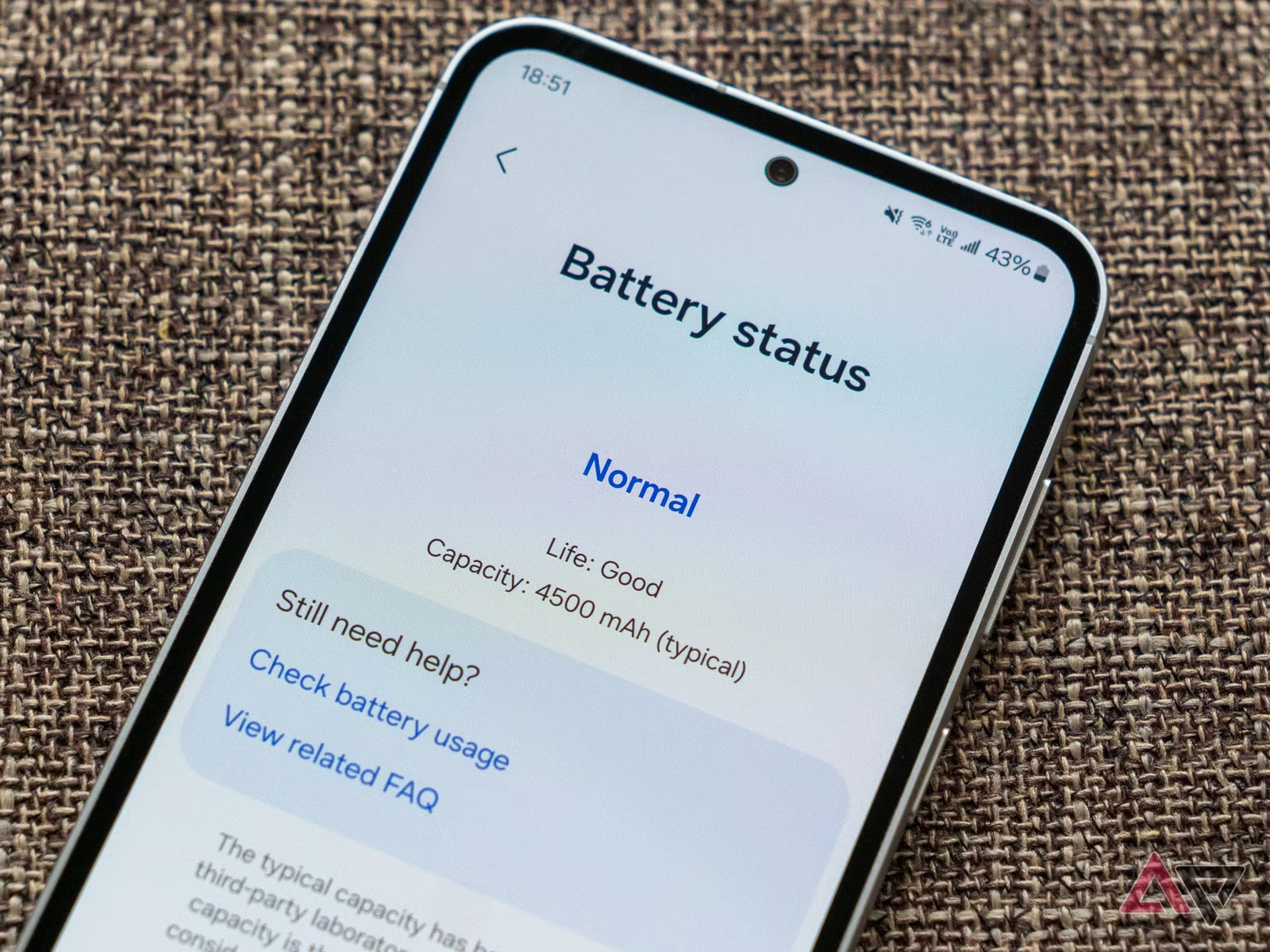
Waking up to find that your Android phone has lost a noticeable amount of battery while you were not using it can be frustrating.
A small amount of overnight battery use is normal. Your phone may still receive notifications, maintain network connections, synchronize accounts, check for updates, and perform other background tasks.
The important question is whether the overnight drain is higher than expected and what is causing it.
Android provides battery-usage information that can help identify apps and system activity using power. Google also recommends checking updates, restricting apps with unusually high battery use, keeping Adaptive Battery and battery optimization enabled where available, and keeping the phone cool.
This guide explains how to investigate overnight battery drain without immediately disabling important Android features or performing a factory reset.
How Much Battery Should Your Phone Lose Overnight?
There is no single overnight battery-loss number that applies to every Android phone.
Battery usage depends on:
- Phone model
- Battery capacity and age
- Mobile signal strength
- Wi-Fi connection
- Bluetooth
- Location services
- Background applications
- Notifications
- Account synchronization
- Recent software updates
- Temperature
- Network conditions
- Battery-saving settings
Google provides a useful diagnostic test for Pixel phones: charge the phone to 100%, disconnect it from power, leave it idle overnight, and check the battery the next morning. Google uses more than 10% overnight loss as a point at which further troubleshooting is appropriate for that specific Pixel diagnostic process.
That should not be treated as a universal rule for every Android phone.
Instead, compare the drain with your phone’s normal behavior.
If your phone normally loses very little overnight but suddenly starts losing a large amount, the change itself is a useful clue.
What Can Cause Overnight Battery Drain?
Several different things can keep using power while the screen is off.
Background Apps
An application may continue performing tasks after you stop using it.
For example, an app may:
- Synchronize information
- Check for new content
- Upload files
- Use location services
- Maintain a network connection
- Process media
- Send notifications
- Perform background work
Android provides battery-usage information so you can identify applications using unusually high amounts of power.
Weak Mobile Signal
Your phone may use more power when maintaining a cellular connection in a difficult signal environment.
This is particularly relevant if the battery drains much faster overnight at one location than another.
For example, you might notice different overnight behavior:
- At home
- At work
- In a basement
- In a rural area
- In a hotel
- While travelling
Do not automatically assume that an app is responsible if the battery drain is strongly related to location.
Poor Wi-Fi or Network Conditions
Your phone can remain active while maintaining network connections and handling background traffic.
Apps may also use network access while you are asleep.
Google notes that background data allows applications to download information and provide notifications even when you are not actively using them.
Recent Android or App Updates
Battery behavior can temporarily change after a software update.
Google specifically notes for Pixel phones that battery drain can be higher than usual shortly after an update because the device may be working to download and optimize software.
If the problem started immediately after an update, do not assume the battery or phone has suddenly failed.
Monitor the phone for several days while checking which apps and system components are using power.
An Aging Battery
Lithium-ion batteries gradually lose capacity as they age.
A phone with an older battery may therefore have less usable energy available overnight than it did when new.
Battery aging is different from an application suddenly consuming excessive power.
If the battery drains quickly during both active use and standby, battery condition becomes more relevant.
Heat
Heat can significantly increase battery drain.
Google specifically advises keeping the phone cool and notes that a battery drains much faster when the phone is hot, even when it is not being used.
If your phone is noticeably warm when you wake up, investigate what kept it active rather than focusing only on the percentage that was lost.
Step 1: Check Battery Usage First
This should be your first diagnostic step.
Open:
Settings > Battery > Battery usage
The exact wording can vary by Android manufacturer.
On some phones you may see:
Settings > Battery > Battery usage by app
On Pixel phones, Google provides:
Settings > Battery > Battery usage > View by apps
The battery screen can show which apps and system activities have consumed battery.
Look for an application that appears unusually high compared with your normal usage.
Do not judge an app only by its percentage.
An app you actively used for several hours can naturally appear near the top.
The more useful clue is an app that has significant battery usage even though you barely used it.
Step 2: Compare the Battery Usage With Your Overnight Period
Checking battery usage immediately after waking can provide a much better picture than simply looking at the battery percentage.
If your phone provides a battery graph, examine the period when you were asleep.
Look for:
- A gradual decline
- A sudden drop
- Repeated periods of activity
- An unusual spike
- A large decline while the phone was apparently idle
A gradual decline may be normal background consumption.
A sudden or unusually steep decline deserves closer investigation.
The exact battery graph and information available depend on the phone manufacturer and Android version.
Step 3: Identify the App Using the Most Battery
If one application is clearly using more battery than expected, open its battery settings.
On supported Android versions and Pixel devices, the path may be:
Settings > Apps > See all apps > [App name] > App battery usage
You may see options related to background usage.
Google recommends keeping battery optimization enabled for apps unless there is a specific reason to change it.
If an application is consuming unusually high battery in the background, review its available battery settings.
Do not immediately restrict every app.
Some applications need background activity for:
- Messages
- Alarms
- Authentication
- Wearable connections
- Security features
- Important notifications
Restricting the wrong application can prevent expected features from working correctly.
Step 4: Check Whether Adaptive Battery Is Enabled
On supported Android phones, Adaptive Battery can reduce background activity for applications you use less often.
On Pixel devices, Google provides this path:
Settings > Battery > Battery Saver > Adaptive Battery
Then make sure Use Adaptive Battery is enabled.
Other manufacturers may place the setting somewhere else or use a different name.
Adaptive Battery learns how you use applications and can reduce activity from apps you use less frequently. Google recommends keeping it enabled.
Do not turn battery optimization off for an app simply because it sometimes delays a notification.
If you deliberately allow unrestricted background activity, that app may be able to run more while you are not using it, increasing battery consumption.
Step 5: Check for Apps That Were Recently Installed or Updated
Think about when the battery problem began.
Did you recently install:
- A launcher
- A keyboard
- A VPN
- A social-media application
- A fitness application
- A cloud-storage app
- A cleaner or optimizer
- A security application
- A wallpaper application
- A smartwatch or wearable companion app
Did an existing app recently receive a major update?
If the overnight drain started around the same time, compare that application’s battery usage with your previous experience.
You do not need to uninstall everything immediately.
Identify the likely change first.
Step 6: Check Whether the Phone Is Warm Overnight
Before going to sleep, note whether the phone is at normal room temperature.
In the morning, check whether it feels unusually warm.
If the phone is significantly warmer than expected while it was not being used, something may have been keeping it active.
Possible causes include:
- Background processing
- Network activity
- An application problem
- Synchronization
- Charging-related heat
- Poor ventilation
- High ambient temperature
Google advises keeping Android devices cool because heat can accelerate battery drain even when the phone is not in active use.
Do not place a hot phone under a pillow or blanket to keep it out of the way.
Step 7: Check Your Mobile Signal
If overnight battery drain is much worse in one location, check the mobile signal.
A weak or unstable cellular connection may be worth investigating.
Try comparing:
Night at home
with
Night in another location
If the battery behaves very differently in different locations, network conditions may be part of the explanation.
You can also perform a controlled test by enabling Airplane mode for one night.
However, this changes your phone’s normal behavior.
You will not receive normal cellular calls, texts, or mobile-data notifications while Airplane mode is active unless you manually enable other connections supported by your phone.
Therefore, use Airplane mode as a diagnostic experiment, not as a permanent solution.
Step 8: Check Wi-Fi and Bluetooth
Wi-Fi and Bluetooth can remain active while the screen is off.
That does not automatically mean they are causing excessive battery drain.
Android is designed to manage connectivity efficiently.
Instead, look for unusual behavior.
For example:
- Does battery drain only when connected to a particular Wi-Fi network?
- Does the problem occur after connecting a smartwatch?
- Does it happen when Bluetooth earbuds remain connected?
- Does the phone behave differently when Wi-Fi is disabled?
Google lists connectivity and location as factors that can affect battery life.
Avoid permanently disabling useful connections simply because they exist.
Test them one at a time if you need to identify a cause.
Step 9: Check Location-Using Apps
Location services can use additional power when applications repeatedly request location information.
Review applications that have location permission.
A common path is:
Settings > Location > App location permissions
The exact menu varies by device.
Look for applications that are allowed to access location in the background.
If an app does not need continuous location access, consider whether its permission can be changed to a less permissive option.
Do not disable location for every application.
Navigation, safety, fitness, weather, and other applications may legitimately need location access.
The goal is to give apps only the access they actually require.
Step 10: Check Background Activity
If a particular application is consuming battery while you are asleep, inspect its background battery settings.
On supported Pixel devices:
Settings > Apps > See all apps > [App name] > App battery usage > Allow background usage
Google recommends keeping Optimized enabled for apps unless there is a specific reason to change the setting.
Other Android manufacturers may use different wording, such as:
- Battery optimization
- Background usage
- Background activity
- Allow background activity
- Unrestricted
- Optimized
- Restricted
Do not select the most restrictive option for every application.
Some apps need background activity to deliver expected notifications and services.
Step 11: Check for Android and App Updates
Open:
Settings > System > Software update
The exact path may differ by manufacturer.
Then open:
Google Play Store > Profile picture > Manage apps & device
Check for available application updates.
Google recommends checking both Android and app updates when troubleshooting battery problems.
If the problem started immediately after an update, give the phone some time to complete post-update processing before concluding that the update permanently damaged battery life.
If abnormal drain continues, use Battery usage to identify what is consuming power.
Step 12: Restart the Phone
A restart is simple but useful.
Press and hold the power button, then choose Restart.
Google includes restarting the phone among its recommended steps for persistent battery problems.
After restarting, let the phone sit normally for the next night.
Compare the result with the previous night.
If the drain improves significantly and then returns later, that may indicate that a process or application is gradually becoming active again.
Step 13: Perform a Controlled Overnight Test
If you want a useful comparison, run the same test for two or more nights.
Start with the phone fully charged.
Then:
- Charge the phone to 100%.
- Disconnect it from the charger.
- Close any activity you normally would not leave running.
- Leave the phone in its normal location.
- Do not intentionally change multiple settings.
- Check the battery percentage in the morning.
- Review Battery usage.
- Note whether the phone feels warm.
For Pixel devices, Google’s battery diagnostic procedure specifically uses an overnight test and treats more than 10% drain as a point for additional troubleshooting.
For other Android phones, use the test as a comparison rather than assuming Google’s Pixel threshold applies exactly to your device.
Step 14: Test Battery Saver for One Night
Battery Saver can reduce background activity and help extend battery life.
A common Android path is:
Settings > Battery > Battery Saver
The exact location varies by manufacturer.
Google explains that Battery Saver can limit or turn off some background activity and other features.
You can use it as a diagnostic test.
If overnight drain is dramatically lower with Battery Saver enabled, background activity may be contributing to the problem.
That does not necessarily mean you should keep Battery Saver permanently enabled.
Instead, use the result as a clue and investigate which apps or activities are responsible.
Step 15: Check Battery Health If Your Phone Provides It
Some newer phones provide battery-health information or diagnostics.
For example, Google provides battery diagnostics on Pixel 6 and later:
Settings > Battery > Battery diagnostics > Battery draining too quickly
This feature is device-specific.
Other manufacturers may provide their own battery-health tools.
If your phone does not show battery health, do not install an unknown application simply to obtain a percentage.
Third-party battery-health estimates can vary in accuracy.
If the phone has been used heavily for several years and battery life has gradually declined during both active use and standby, professional battery assessment may be more useful.
Step 16: Check Whether Charging or Heat Is Part of the Problem
If you leave the phone charging overnight, pay attention to temperature.
Google recommends using the appropriate charger and keeping the phone cool, especially when it is fully charged.
Do not place the phone somewhere that traps heat while charging.
Avoid:
- Under pillows
- Under blankets
- On thick bedding
- In direct sunlight
- Against heat sources
If the phone becomes unusually hot while charging, investigate the charger, cable, environment, and device condition.
Do not continue using a charger or cable that is visibly damaged.
What Not to Do When Your Battery Drops Overnight
Avoid making several major changes at the same time.
Do not:
- Disable every background app
- Turn off all notifications
- Permanently disable Location
- Keep Airplane mode enabled without understanding its effects
- Install several battery-optimizer apps
- Force-stop every application
- Disable Google system services randomly
- Change developer settings just to save battery
- Factory-reset the phone immediately
- Replace the battery before checking battery usage
- Assume that the largest battery-usage percentage is automatically the problem
Changing everything at once makes diagnosis much harder.
Make one change, test the phone, and compare the result.
When the Battery Drain Is Probably App-Related
An application becomes more suspicious when:
- It appears unusually high in Battery usage.
- You barely used it during the day.
- The overnight drain started after installing or updating it.
- Restricting its background activity improves battery life.
- Uninstalling it resolves the problem.
- The phone remains cool when the app is not running.
In this situation, focus on that application rather than changing the entire phone.
When the Problem May Be Network-Related
Network conditions become more suspicious when:
- Battery drain is much worse in one location.
- The phone shows a weak or unstable mobile signal.
- Airplane mode dramatically changes overnight battery usage.
- The phone is constantly switching between network conditions.
- Battery usage is not dominated by a particular app.
Run a controlled comparison rather than permanently disabling mobile connectivity.
Remember that Airplane mode prevents normal cellular connectivity, so a better result in Airplane mode does not automatically identify the exact cause.
When the Battery Itself May Be the Problem
Battery condition becomes more relevant when:
- The phone is several years old.
- Battery life has gradually declined over time.
- The phone drains quickly during both active use and standby.
- The phone shuts down unexpectedly.
- Battery percentage behaves unusually.
- The phone becomes swollen or physically damaged.
If you notice swelling, unusual heat, smoke, a strong chemical smell, or other signs of physical battery damage, stop using the device and seek professional service.
Do not puncture, bend, or attempt to open a damaged lithium-ion battery.
How to Verify That You Fixed the Problem
Do not judge the result after only one short test.
Use the phone normally for several days.
Keep track of:
- Battery percentage before sleep
- Battery percentage after waking
- Battery usage by app
- Mobile signal conditions
- Wi-Fi status
- Whether the phone was warm
- Recent updates
- Any settings you changed
If the battery consistently performs better, the change was probably useful.
If the drain returns, check Battery usage again rather than repeating every troubleshooting step.
A Simple Overnight Battery Diagnosis
Use this sequence:
1. Check Battery usage
Find out what is consuming power.
2. Identify unusual apps
Look for applications with significant background use.
3. Check storage
Make sure the phone is not nearly full.
4. Update Android and apps
Install appropriate updates.
5. Check battery optimization
Keep Adaptive Battery and normal optimization enabled where available.
6. Check heat
Find out whether the phone is warm overnight.
7. Check signal
Compare different locations if necessary.
8. Test one setting at a time
Try Battery Saver or a controlled connectivity test.
9. Repeat the overnight test
Compare the results rather than relying on memory.
10. Consider battery health or professional service
Do this when software and background activity do not explain the drain.
How to Reduce Unnecessary Overnight Battery Drain
Once you identify the cause, the solution may be relatively simple.
Keep Android and important applications updated.
Leave Adaptive Battery and normal battery optimization enabled when available.
Restrict background activity only for apps that genuinely do not need it.
Remove applications you no longer use.
Keep the phone cool.
Avoid unnecessary location access.
Review applications that use unusually high battery in the background.
Use Battery Saver when you actually need additional battery life.
Google recommends several of these measures, including restricting high-battery-use apps, using Adaptive Battery, keeping the device cool, and using Battery Saver when needed.
Frequently Asked Questions
Why does my Android phone lose battery overnight when I am not using it?
The phone is not completely inactive while the screen is off. It may maintain network connections, synchronize accounts, receive notifications, run background applications, and perform system tasks.
The first thing to check is Settings > Battery > Battery usage.
How much battery should an Android phone lose overnight?
There is no universal number because phones, batteries, networks, temperatures, and software configurations differ.
Google’s Pixel diagnostic process uses more than 10% overnight loss as a reason for additional troubleshooting, but that threshold should not automatically be applied to every Android phone.
Why does my phone lose battery even when all apps are closed?
Closing visible apps does not necessarily stop all background activity. Android and system services can continue operating, and some apps may have background permissions.
Check Battery usage rather than relying only on the recent-apps screen.
Can poor mobile signal drain the battery overnight?
Network conditions can affect battery life. If your phone behaves differently in different locations, compare the battery results under those conditions before assuming an application is responsible.
Should I turn off Wi-Fi at night?
Not necessarily.
Wi-Fi itself is not automatically a problem. If you suspect connectivity is contributing to the drain, perform a controlled test rather than permanently disabling it.
Should I turn on Airplane mode every night?
Airplane mode can reduce some connectivity-related activity, but it also changes normal phone behavior and prevents regular cellular calls and messages unless additional connections are enabled.
It is more useful as a diagnostic test than as the first permanent solution.
Does Battery Saver fix overnight battery drain?
Battery Saver can reduce background activity and extend battery life, but it does not identify the underlying cause. If Battery Saver makes a large difference, investigate which background activities are consuming power.
Can an app drain battery while I am asleep?
Yes. Apps can perform background work and use network connections while you are not actively using the phone. Android provides battery-usage information and background battery controls to help identify and manage this behavior.
Why did my battery start draining after an Android update?
Battery behavior can temporarily change after a software update because the phone may perform additional downloading and optimization work. Google specifically notes this behavior for Pixel phones.
If unusual drain continues beyond the initial update period, check Battery usage and look for a specific app or system activity.
When should I replace my Android battery?
Consider professional battery assessment when the phone is older and battery life has substantially declined during both active use and standby, or when the device shows signs of battery damage.
Do not replace the battery solely because one night had unusually high drain.
Official Sources
For current Android battery guidance, readers can refer to Google’s official documentation:
- Google Android Help — battery life and troubleshooting.
- Google Pixel Help — fixing battery drain problems.
- Google Pixel Help — Adaptive Battery and battery optimization.
- Google Play Help — background data and app activity.
Final Takeaway
Overnight battery drain does not automatically mean your Android battery is failing.
Start by finding out where the battery went.
Check Battery usage, identify apps with unusual background activity, review battery optimization, check Android and app updates, look at network conditions, and pay attention to heat.
If one application stands out, investigate that application first. If the drain changes dramatically with network conditions, investigate connectivity. If the phone remains warm while idle or loses substantial battery during both active use and standby, battery condition or hardware may need closer attention.
The safest approach is simple: measure first, change one thing at a time, and test the result overnight.