
Your device can show Connected to Wi-Fi while websites refuse to load. This can be confusing because the Wi-Fi icon suggests that everything is working.
The important detail is that being connected to a Wi-Fi network does not necessarily mean you can reach the internet.
Your computer or phone may be successfully communicating with the router while something else is failing. The problem could be DNS, the internet connection, the browser, a VPN, a proxy, security software, or the device’s network configuration.
Instead of immediately resetting the router, trace the connection one step at a time.
The goal is to determine where the connection stops working.
What “Connected to Wi-Fi” Actually Tells You
When your device says it is connected to Wi-Fi, it generally means the device has established a wireless connection with the local network.
That does not automatically confirm that:
- The router has internet access.
- DNS is working.
- Websites are reachable.
- Your browser is working correctly.
- A VPN is working correctly.
- The website itself is available.
Think of the connection as several stages:
Device → Wi-Fi → Router → Internet → DNS → Website
The failure can happen at any point along that path.
Your troubleshooting becomes much easier once you identify the stage that is failing.
First Check: Does the Problem Affect One Device or Everything?
Before changing anything, test another device connected to the same Wi-Fi network.
For example, if websites will not load on your laptop, try your phone on the same Wi-Fi.
If other devices can browse normally
The problem is more likely specific to the laptop.
Investigate:
- Browser settings
- DNS
- VPN
- Proxy
- Security software
- Network adapter
- Windows network configuration
- A recent software change
If several devices cannot open websites
The problem may be farther upstream.
Investigate:
- Router
- Modem
- Internet connection
- ISP outage
- DNS service
- Router configuration
This first comparison prevents you from spending time repairing a computer when the actual problem is the internet connection.
Check Whether the Problem Is Really the Internet
Try opening more than one website.
Do not test only the website you originally wanted to visit.
Try:
- A major search engine
- Another well-known website
- A different service you normally use
If one website fails while others work, the problem may be with that website rather than your Wi-Fi connection.
If every website fails, continue with the network tests below.
Check Whether the Device Can Reach the Router
The next question is:
Can your device communicate with the local router?
On Windows, open Command Prompt.
Press:
Windows + R
Type:
cmd
Press Enter.
Then type:
ipconfig
Look for the active Wi-Fi adapter.
You should see information such as:
- IPv4 Address
- Subnet Mask
- Default Gateway
The Default Gateway is usually the local router address.
Do not assume that every router uses the same address. Use the address shown by ipconfig.
Test the Default Gateway
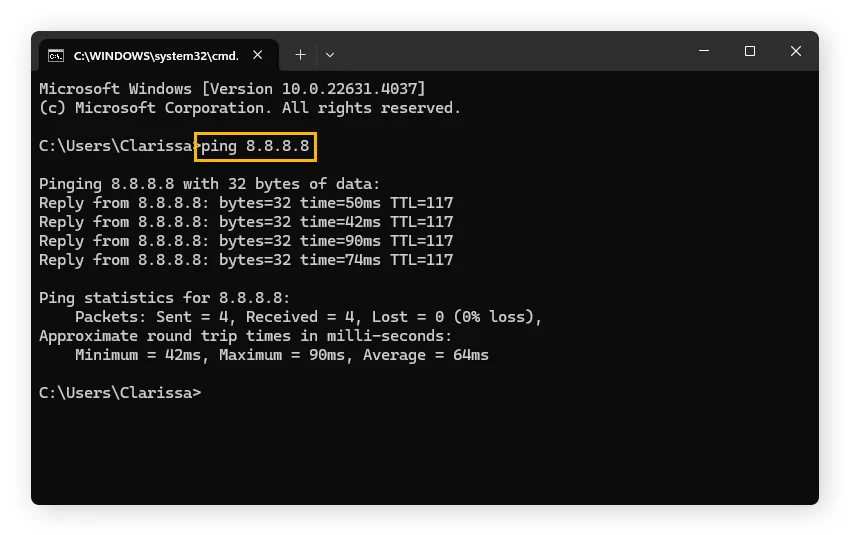
In Command Prompt, run:
ping <default-gateway>
Replace <default-gateway> with the address shown by ipconfig.
For example, if the Default Gateway shown by your computer is 192.168.1.1, you would test:
ping 192.168.1.1
If the gateway responds
Your computer can communicate with the router.
That means the Wi-Fi connection and local network are at least functioning at a basic level.
The problem may be beyond the router, such as:
- DNS
- Internet access
- VPN
- Proxy
- Browser
- Security software
If the gateway does not respond
Investigate the local connection first.
Possible areas include:
- Wi-Fi connection
- Network adapter
- IP configuration
- Router communication
- Driver problems
- Network interference
A failed ping does not always prove that the router is unreachable because some devices or networks may not respond to ICMP ping. Treat it as a diagnostic clue rather than a final verdict.
Check the IP Address
Run:
ipconfig
again and look at the IPv4 address.
A normal private network address often begins with ranges such as:
192.168.x.x10.x.x.x172.16.x.xthrough172.31.x.x
If Windows shows an address beginning with 169.254.x.x, that can indicate that the computer did not receive a normal IPv4 address from the network’s DHCP service.
This makes the local network configuration worth investigating.
Do not manually enter a random IP address just because you see a 169.254 address.
First try reconnecting to Wi-Fi and restarting the computer.
Check Whether the Internet Is Reachable Without Using DNS
This is one of the most useful tests when Wi-Fi says connected but websites will not load.
A website name such as:
example.com
must first be translated into an IP address through DNS.
You can test basic internet reachability separately from name resolution.
In Command Prompt, try:
ping 1.1.1.1
If your network allows ICMP traffic, a response can indicate that your computer can reach an external IP address.
If the gateway works but 1.1.1.1 does not
The problem may be between your router and the wider internet.
Possible areas include:
- ISP connection
- Router internet connection
- WAN configuration
- Upstream outage
If 1.1.1.1 works but websites do not
DNS becomes a stronger suspect.
However, ping behavior varies across networks and services, so do not treat a failed ping by itself as proof that the internet is unavailable.
Test DNS Separately
DNS translates website names into IP addresses.
For example, when you enter a domain name in your browser, your device needs to resolve that name before it can connect to the site’s server.
Windows includes a useful command for testing this:
nslookup example.com
If the command returns an address, DNS resolution is working for that domain.
If it reports a DNS-related error or cannot find the domain while other connectivity tests work, DNS deserves further investigation.
Use nslookup to Compare Results
You can test another domain:
nslookup google.com
Then compare it with:
nslookup microsoft.com
If several well-known domains fail to resolve, while your computer can otherwise reach the internet, the DNS path may be the problem.
If only one domain fails, do not immediately change DNS settings. The domain itself or its DNS records may be the issue.
Flush the DNS Cache Carefully
Windows keeps local DNS information in a cache.
If the cache contains outdated information, clearing it can sometimes help with name-resolution problems.
Open Command Prompt as Administrator and run:
ipconfig /flushdns
Windows should report that the DNS Resolver Cache was successfully flushed.
Then try opening the website again.
This does not change your router configuration or permanently change your DNS provider.
Check Whether a VPN Is Blocking the Connection
A VPN changes how network traffic is routed.
If websites stopped loading after connecting to a VPN, temporarily disconnect the VPN and test again.
If browsing immediately starts working, investigate the VPN connection rather than changing Windows network settings at random.
Possible causes include:
- VPN server problems
- VPN DNS handling
- VPN configuration
- VPN application problems
- Security software interacting with the VPN
If you use a work or school VPN, do not remove or alter its configuration without checking the organization’s instructions.
Check Windows Proxy Settings
A proxy can affect how browsers and other applications reach websites.
In Windows 11, open:
Settings → Network & internet → Proxy
Review the proxy configuration.
If you intentionally use a proxy, do not disable it just because it exists.
If you do not use a proxy and one has unexpectedly been configured, investigate why it was enabled before changing it.
A proxy setting can explain why Wi-Fi appears normal while web traffic fails.
Test Another Browser
Sometimes the network works while the browser is the problem.
If websites fail in your normal browser, try another browser.
For example:
- If Chrome fails, test Edge.
- If Edge fails, test Chrome or another installed browser.
If another browser works
Investigate the original browser.
Possible causes include:
- Browser extensions
- Proxy settings
- Cached data
- Browser-specific security settings
- A damaged browser profile
- Recently installed browser software
If every browser fails
The problem is more likely outside the browser.
Continue with the network tests.
Try a Private or Incognito Window
A private browsing window can help identify extension or session-related problems.
Open a private/incognito window and try a website that normally fails.
If the website works there but not in the normal browser window, investigate extensions and browser-specific settings.
Do not assume that private browsing repairs the connection. It is simply a useful comparison test.
Temporarily Check Browser Extensions
Extensions can sometimes interfere with websites.
If the problem occurs only in one browser, disable recently installed or suspicious extensions and test again.
You do not need to remove every extension immediately.
Change one thing at a time.
If the website starts working after disabling one extension, you have a useful clue about the cause.
Check Windows Date and Time
Incorrect system time can cause problems with secure website connections.
Open:
Settings → Time & language → Date & time
Make sure the computer is configured to obtain the correct time automatically where appropriate.
Then retry the affected website.
This is particularly useful if you see certificate or secure-connection errors rather than a simple loading timeout.
Check Windows Network Adapter Status
Open:
Settings → Network & internet → Wi-Fi
Confirm that Wi-Fi is enabled and that the computer is connected to the expected network.
You can also open:
Settings → Network & internet → Advanced network settings
Look under the network adapters.
If the Wi-Fi adapter is disabled, enable it and test again.
If the adapter repeatedly disappears, disconnects, or reports an error, the problem may involve the adapter, driver, or Windows network configuration.
Update the Wi-Fi Driver
If the problem affects only one Windows computer, check for a current Wi-Fi driver.
Open:
Start → Device Manager
Expand:
Network adapters
Find the wireless adapter.
Right-click it and choose:
Update driver → Search automatically for drivers
Also check the computer manufacturer’s support page for drivers intended for the exact model.
Avoid downloading random driver packages from third-party websites.
A driver should match your computer’s hardware and Windows version.
Restart the Network Adapter
If the adapter appears connected but behaves incorrectly, disabling and re-enabling it can provide a useful test.
Open:
Settings → Network & internet → Advanced network settings
Find the Wi-Fi adapter.
Choose Disable.
Wait a few seconds, then select Enable.
Reconnect to the network and test the website again.
This is less disruptive than performing a complete network reset.
Forget the Wi-Fi Network and Reconnect
If the saved wireless profile may be corrupted or outdated, remove it and reconnect.
In Windows, go to:
Settings → Network & internet → Wi-Fi → Manage known networks
Select the affected network and choose Forget.
Then connect again and enter the Wi-Fi password.
This removes the saved connection profile but does not reset the entire computer’s networking configuration.
Check Whether Other Internet Applications Work
Do not use the browser as your only test.
Try another internet-dependent application.
For example:
- An email application
- A cloud-sync application
- A software update check
- Another network-connected application
If other applications work while every browser fails, investigate browser configuration.
If nothing can reach the internet, investigate the network connection more broadly.
Check for a Security Application Blocking Traffic
Third-party security software can sometimes affect network traffic.
If the problem started after installing or updating security software, investigate its network protection features.
Do not permanently disable antivirus or firewall protection just to make a website load.
Instead, use the software’s official troubleshooting documentation and check whether it provides a safe diagnostic mode.
Windows also includes built-in security and firewall controls that should remain enabled unless you have a specific reason to change them.
Test the Computer on Another Network
This is another powerful isolation test.
Connect the affected computer to a different network.
You could use:
- Another trusted Wi-Fi network
- A phone hotspot
- Another location with internet access
Then try opening the same websites.
Websites work on the second network
The original Wi-Fi network, router, DNS configuration, or ISP becomes more relevant.
Websites fail on both networks
The computer itself becomes the stronger suspect.
This test can separate a device problem from a particular network problem without changing advanced settings.
Check Whether Only HTTPS Websites Fail
Pay attention to the exact error message.
If ordinary websites fail with messages such as:
- Connection timed out
- DNS error
- DNS_PROBE_FINISHED_NXDOMAIN
- ERR_NAME_NOT_RESOLVED
- Your connection is not private
- Secure connection failed
the error can provide a clue about where the connection is breaking.
For example, a DNS resolution error points toward name resolution, while a certificate warning points toward a different class of problem.
Do not treat every browser error as a Wi-Fi failure.
Check the Router Only After Testing the Device
If several devices connected to the same Wi-Fi cannot access websites, move your investigation toward the router and internet connection.
Check whether the router reports an internet/WAN problem.
You can also restart the router if appropriate.
However, avoid repeatedly rebooting the router before establishing whether other devices are affected.
If your phone browses normally over the same Wi-Fi while the computer cannot load anything, restarting the router is unlikely to be the most informative first step.
When the ISP Becomes the Stronger Suspect
Contact your internet provider or check its official outage information when:
- Multiple devices cannot access websites.
- The router reports an internet/WAN failure.
- Devices can connect to Wi-Fi but cannot reach external services.
- The problem also occurs over Ethernet.
- The issue affects multiple users or devices on the same connection.
If possible, compare the connection with another network before assuming the ISP is responsible.
Do Not Randomly Change DNS Servers
Changing DNS providers is often recommended as a universal fix.
It is not.
If DNS is actually failing, changing the configured DNS resolver can be a useful diagnostic or configuration step. But if the problem is caused by the Wi-Fi adapter, router, ISP, VPN, browser, or proxy, changing DNS will not solve the underlying issue.
First test DNS with nslookup.
Then decide whether a DNS change is justified.
Do Not Change MTU, TCP, or Registry Settings Without Evidence
Advanced networking settings can affect connectivity, but they should not be changed simply because websites will not load.
Avoid following generic guides that tell you to immediately modify:
- MTU
- TCP parameters
- Windows Registry entries
- Network stack values
- Firewall rules
These changes can create additional problems and make the original issue harder to diagnose.
Start with evidence from simpler tests.
Network Reset Should Be a Later Step
Windows provides a Network reset option, but it is more disruptive than simply forgetting one Wi-Fi network or restarting the adapter.
It can remove and reinstall network adapters and reset networking settings.
Use it after simpler troubleshooting has failed and you understand what it will change.
If the computer is managed by an organization, check with the administrator before performing a network reset.
What Not to Change During Troubleshooting
Avoid changing several unrelated settings at once.
Do not:
- Factory-reset the computer.
- Randomly change DNS servers.
- Disable security software permanently.
- Delete network drivers without a reason.
- Change registry network settings.
- Modify router configuration unnecessarily.
- Reset the router repeatedly.
- Install third-party “internet booster” software.
- Change advanced TCP settings without evidence.
The goal is to isolate the problem, not create additional variables.
A Simple Connection-Failure Map
You can use the following sequence to identify where the failure occurs.
Step 1: Can another device browse?
Yes: investigate the affected device.
No: investigate the router, internet connection, or ISP.
Step 2: Can the affected computer reach the router?
Test the Default Gateway.
Yes: continue toward internet/DNS testing.
No: investigate Wi-Fi and local networking.
Step 3: Can it reach an external IP?
Test an external IP such as 1.1.1.1, while remembering that some networks may block ping.
Yes: DNS becomes more relevant.
No: investigate the internet path, router, VPN, or network configuration.
Step 4: Does nslookup resolve domains?
Yes: DNS is probably functioning for that test.
No: investigate DNS.
Step 5: Does another browser work?
Yes: investigate the original browser.
No: investigate Windows networking or security software.
Step 6: Does another network work?
Yes: investigate the original Wi-Fi/router/ISP.
No: investigate the computer.
This creates a much clearer troubleshooting path than trying random fixes.
Example: Finding the Bottleneck on a Windows Laptop
Imagine your laptop says:
Connected, secured
but Chrome displays a DNS error for every website.
You test your phone on the same Wi-Fi.
Your phone loads websites normally.
That makes the laptop the main area to investigate.
You run:
ipconfig
and confirm that the laptop has a normal local IP address and a Default Gateway.
You ping the gateway and receive replies.
That tells you the laptop can communicate with the router.
You then test an external IP and find that the laptop can reach it.
Next, you run:
nslookup example.com
If DNS resolution fails, the problem is now much more specifically related to name resolution rather than basic Wi-Fi connectivity.
You can then investigate the laptop’s DNS configuration, VPN, proxy, DNS cache, or security software.
Notice what happened: you did not have to reset the router, reinstall Windows, or replace the Wi-Fi adapter.
The tests narrowed down the failure point first.
How to Verify the Fix
After making a change, repeat the test that originally failed.
If DNS was the suspected problem, run nslookup again.
If the browser was the suspected problem, test the affected websites in the original browser.
If the Wi-Fi profile was the suspected problem, reconnect and test again.
Then use the computer normally for several minutes.
Open multiple websites and try the applications that originally failed.
A fix is more convincing when the original symptom disappears under the same conditions that previously caused it.
When to Get Additional Help
Consider contacting your internet provider when multiple devices fail on the same connection.
Contact the computer manufacturer when the problem follows one computer across multiple networks and the network adapter continues behaving abnormally.
If the computer is managed by an employer or school, contact the administrator before changing VPN, proxy, security, or network configuration.
For persistent problems, record:
- The exact error message.
- Whether other devices work.
- Whether another network works.
- Your IP address information.
- Whether the Default Gateway responds.
- Whether DNS resolution works.
- Whether a VPN is involved.
- What changed before the problem started.
This information can make technical support much more efficient.
Frequently Asked Questions
Why does Wi-Fi say connected but the internet does not work?
Wi-Fi connectivity and internet connectivity are different things. Your device may be connected successfully to the router while the router has lost internet access, DNS is failing, or software on the device is blocking web traffic.
Why do websites not load but Wi-Fi still works?
The failure may be in DNS, the browser, VPN, proxy, security software, or the connection between the router and the internet. Testing another device on the same Wi-Fi helps determine which side to investigate.
How do I know if DNS is causing the problem?
Use nslookup to test whether a domain name resolves to an IP address. If general internet connectivity works but DNS lookups consistently fail, DNS becomes a stronger suspect.
Should I restart my router when websites will not load?
If multiple devices have the same problem, restarting or checking the router can be reasonable. If only one computer is affected while other devices browse normally, investigate that computer first.
What does a 169.254 IP address mean?
A 169.254.x.x address can indicate that the device did not obtain a normal IPv4 address from the network’s DHCP service. Reconnecting to Wi-Fi and restarting the device are reasonable first checks.
Why does one browser work while another does not?
The problem may be specific to the browser, such as an extension, cached information, browser profile, or browser-specific configuration. If another browser works normally, investigate the affected browser before changing system-wide network settings.
Can a VPN cause websites not to load?
Yes. A VPN can change routing and DNS behavior. Temporarily disconnecting the VPN and testing again can help determine whether it is involved.
Should I change my DNS server?
Not automatically. First test DNS and determine whether name resolution is actually involved. Changing DNS will not fix a Wi-Fi adapter, router, ISP, browser, or VPN problem.
Final Takeaway
When Wi-Fi shows Connected but websites will not load, the Wi-Fi icon is only telling you part of the story.
Start by comparing another device on the same network. Then work through the connection in order:
Device → Router → Internet → DNS → Browser
On Windows, ipconfig, ping, and nslookup can provide useful clues about where the connection stops working.
If the computer can reach the router but cannot reach the internet, investigate the next part of the connection. If it can reach an external IP but cannot resolve website names, investigate DNS. If another browser works, investigate the original browser. If the same computer fails on multiple networks, focus on the computer rather than the router.
Most importantly, change one thing at a time.
That approach gives you evidence about the real bottleneck instead of turning a simple connectivity problem into a collection of unrelated configuration changes.
Official Sources
- Microsoft Support — Windows network connection and troubleshooting guidance
- Microsoft Support — Windows Wi-Fi and network adapter troubleshooting
- Microsoft Support — Windows proxy and network settings
- Google Public DNS documentation — DNS troubleshooting and
nslookupconcepts