
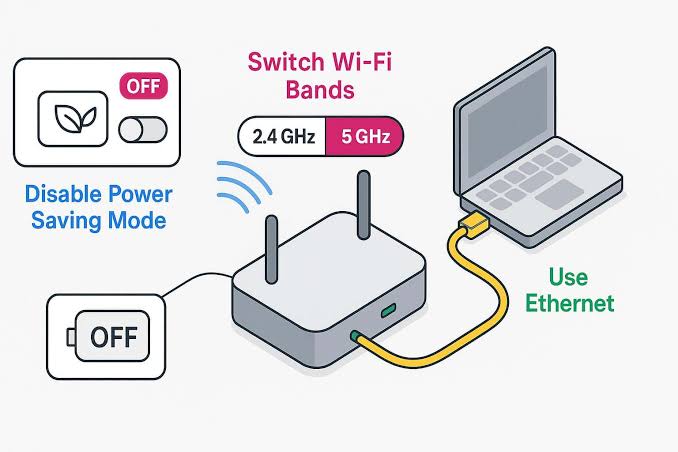
A slow or unreliable Wi-Fi connection does not automatically mean your router needs to be replaced.
Wi-Fi problems can come from the device, wireless signal, network settings, DNS, interference, outdated drivers, background activity, or the internet connection itself. In some cases, the router is working normally and replacing it will not solve the problem.
The better approach is to identify what is actually failing before buying new hardware.
This guide walks through the most useful checks in a logical order. Start with simple comparisons, then move toward device and network troubleshooting.
First Determine What Kind of Wi-Fi Problem You Have
“Wi-Fi is bad” can describe several different problems.
You may be experiencing:
- Wi-Fi disconnecting repeatedly
- Slow internet speeds
- Websites failing to load
- Strong Wi-Fi signal but no internet
- One device being slower than others
- Connection problems in only one room
- High latency while gaming or making calls
- Wi-Fi becoming unreliable after the computer wakes from sleep
- Problems that happen only at certain times
The symptom matters because each one points toward different possible causes.
For example, replacing a router will not necessarily fix a problem caused by a laptop’s Wi-Fi driver.
Test Another Device First
Before changing the router, connect another device to the same Wi-Fi network.
For example, if your laptop is having problems, test:
- Your phone
- A tablet
- Another computer
- A smart TV
Try the same activity that is failing.
If other devices work normally
The router may not be the main problem.
Focus on the affected device.
Possible causes include:
- Wi-Fi driver
- Network settings
- VPN
- Proxy
- Background downloads
- Device power management
- Browser problems
- Hardware problems
If several devices have the same problem
The network itself deserves more attention.
Investigate:
- Router
- Modem
- Internet service
- Wireless interference
- ISP problems
- Router placement
This is one of the most useful tests because it tells you whether the problem follows the device or the network.
Check Whether the Problem Is Wi-Fi or Internet
A Wi-Fi connection and an internet connection are not the same thing.
Your device can have a strong Wi-Fi connection to the router while the router has no working internet connection.
Look at the symptoms carefully.
Wi-Fi works but websites do not load
Investigate:
- DNS
- Router internet connection
- VPN
- Proxy
- Browser
- ISP connection
Wi-Fi keeps disconnecting
Investigate:
- Signal strength
- Interference
- Wi-Fi adapter
- Driver
- Power management
- Router wireless settings
Only one website is slow
The website itself or the browser may be involved.
Do not replace the router based on one website.
Restart the Device Before Changing Network Hardware
Restart the affected computer, phone, or tablet.
This simple step can clear temporary networking problems and restart the operating system’s network services.
If the problem disappears after restarting but returns later, pay attention to what happens before the failure returns.
For example:
- Does it happen after sleep?
- After waking the laptop?
- After connecting a VPN?
- After running a particular application?
- After several hours?
- Only while using battery power?
Those details can help identify the cause.
Restart the Router Once and Observe the Result
Restarting the router can clear temporary problems.
Turn it off using its normal power method, wait briefly, and turn it back on.
Then allow it to finish starting before testing the connection.
However, do not repeatedly restart the router every time Wi-Fi becomes slow.
If the same problem returns shortly after every restart, the restart is treating the symptom rather than identifying the cause.
Check the Router’s Location
Router placement can have a major effect on wireless coverage.
A router placed:
- Inside a cabinet
- Behind large objects
- On the floor
- In a far corner
- Near metal objects
- Surrounded by electronics
may provide less consistent wireless coverage than one placed in a more open and suitable location.
If the connection is reliable near the router but poor in one particular room, coverage or interference becomes more likely than a general router failure.
Test the Problem Close to the Router
Take the affected device near the router.
Then test the same website, application, video, or download.
Works near the router but not farther away
Investigate:
- Wireless coverage
- Walls and obstacles
- Interference
- Band selection
- Router placement
Still fails beside the router
The problem is less likely to be simple signal distance.
Investigate the device, network configuration, router internet connection, or other causes.
This is an easy test that requires no configuration changes.
Compare Wi-Fi With Ethernet
If the computer has an Ethernet port, connect it directly to the router temporarily.
Then test the same activity.
Ethernet works but Wi-Fi does not
The internet connection and router’s wired networking may be working.
Focus on:
- Wi-Fi signal
- Wireless interference
- Wi-Fi adapter
- Driver
- Wireless configuration
Ethernet also has the same problem
The problem may be beyond the wireless connection.
Investigate:
- Router internet connection
- ISP
- DNS
- Device networking
- VPN
- Browser
- Internet service
This is one of the strongest ways to separate a wireless problem from a broader internet problem.
Check the Wi-Fi Signal on the Affected Device
Do not judge the connection only by the internet speed shown by a speed-test website.
Look at the device’s Wi-Fi signal indicator.
If the signal is consistently weak in the location where the problem occurs, move closer to the router and test again.
If the signal becomes strong but the internet remains slow or unusable, signal strength may not be the real bottleneck.
Test Different Locations
Move the same device to several locations.
For example:
- Beside the router
- In the room where the problem normally occurs
- Somewhere between the two
Compare the results.
If performance gradually becomes worse as distance increases, wireless coverage is an important clue.
If the connection is poor everywhere, investigate other causes.
Check Whether Only One Device Is Slow
Suppose your phone gets normal performance but your laptop is consistently slow while connected to the same Wi-Fi.
Do not immediately buy a new router.
Instead, investigate the laptop.
Check:
- Wi-Fi driver
- Background downloads
- VPN
- Proxy
- Browser
- Network adapter
- Power settings
- Malware/security software
- Hardware limitations
A router does not need to be replaced simply because one computer has a problem.
Check for Background Downloads
A device can appear to have slow Wi-Fi when another application is using most of its network connection.
On Windows, press:
Ctrl + Shift + Esc
to open Task Manager.
Check applications and processes using network resources.
Look for:
- Cloud synchronization
- Windows updates
- Game downloads
- File transfers
- Backup applications
- Large application updates
- Streaming
- Other downloads
Allow important updates or synchronization tasks to finish, or pause them through their normal controls when appropriate.
Then test the connection again.
Check Cloud-Sync Applications
Applications such as cloud storage clients can continuously upload or download files.
This can make normal browsing feel slow, especially when upload bandwidth is limited.
Check whether applications such as your cloud-storage client are actively synchronizing large amounts of data.
Do not delete files simply to stop synchronization.
If necessary, use the application’s normal pause or bandwidth controls.
Check Whether Uploading Is the Problem
Many users think of internet speed only in terms of downloading.
But heavy uploads can also affect the experience of other applications.
Examples include:
- Cloud backups
- Large file uploads
- Video uploads
- Security-camera uploads
- File synchronization
If web browsing becomes slow while a device is uploading large files, temporarily pause the upload and test again.
If performance improves, you have identified a potential bottleneck without replacing the router.
Test the Connection With a Different Website
If one website is slow, test several others.
Try:
- A search engine
- A news website
- A different streaming service
- Another website you regularly use
If only one site has problems, the router may not be involved at all.
The problem could be:
- The website
- DNS
- Browser cache
- Browser extension
- Website-specific connection issue
Avoid using a single website as proof that your Wi-Fi hardware is failing.
Try Another Browser
If websites are slow or fail to load on one computer, test another browser.
For example:
- Chrome
- Edge
- Firefox
- Safari on compatible Apple devices
If one browser works while another does not, investigate the affected browser.
Possible causes include:
- Extensions
- Cached information
- Browser settings
- A damaged browser profile
- Security software integration
If every browser behaves the same way, continue investigating the network.
Temporarily Test Without a VPN
A VPN can change routing and DNS behavior.
If Wi-Fi became slow after connecting to a VPN, disconnect the VPN temporarily and test again.
If performance improves, investigate the VPN rather than replacing the router.
This is especially useful when:
- Normal browsing is slow
- Some websites work while others fail
- Streaming behaves differently
- The problem occurs only while the VPN is connected
If the VPN is required for work or school, follow the organization’s troubleshooting instructions before changing its configuration.
Check Windows Proxy Settings
A proxy can affect how web traffic is handled.
On Windows 11, open:
Settings → Network & internet → Proxy
Review the settings.
If you intentionally use a proxy, leave it configured unless you have a reason to change it.
If an unexpected proxy has appeared, investigate the software or administrator that configured it.
Do not change multiple networking settings at once.
Update the Wi-Fi Driver
If only one Windows computer has Wi-Fi problems, check its wireless driver.
Open:
Start → Device Manager
Expand:
Network adapters
Find the wireless adapter.
Right-click it and select:
Update driver → Search automatically for drivers
Also check the computer manufacturer’s support website for the exact model.
A manufacturer’s driver can be useful when Windows does not provide a newer driver through its normal update process.
Avoid random third-party driver-update programs.
Check Windows Updates
Open:
Settings → Windows Update
Select:
Check for updates
Install relevant updates and restart the computer if required.
If the Wi-Fi problem began after a recent software or driver change, record that information before making additional changes.
Knowing what changed can be more useful than immediately undoing everything.
Check Wi-Fi Power Management on a Laptop
Laptop power management can sometimes affect wireless behavior.
If the problem occurs mainly:
- On battery power
- After waking from sleep
- When the laptop has been idle
- During power-saving modes
investigate the Wi-Fi adapter’s power-management settings.
In Windows, open:
Device Manager → Network adapters
Right-click the Wi-Fi adapter and select Properties.
If a Power Management tab is available, review its options.
Hardware and driver versions differ, so you may not see exactly the same settings on every computer.
Test one change at a time and compare the results.
Forget and Reconnect to the Wi-Fi Network
If the saved wireless profile may be causing problems, forget the network and reconnect.
In Windows 11:
Settings → Network & internet → Wi-Fi → Manage known networks
Select the network and choose Forget.
Then connect again and enter the Wi-Fi password.
On Android and iPhone, the exact menu names vary, but both platforms provide options to forget/remove a saved Wi-Fi network.
This is a targeted troubleshooting step and is less disruptive than resetting the entire network configuration.
Check DNS When Wi-Fi Works but Websites Do Not
If your device connects to Wi-Fi but websites consistently fail to load, DNS may be involved.
DNS helps translate domain names into IP addresses.
On Windows, open Command Prompt and run:
nslookup example.com
Replace the domain with a website you are trying to reach.
If DNS resolution fails while other network tests work, investigate DNS rather than replacing the router immediately.
You can also clear the local DNS cache with:
ipconfig /flushdns
Then test again.
Do not change DNS servers randomly just because a website does not load. First establish that DNS is actually involved.
Check Whether the Router Has Internet Access
If multiple devices have the same problem, check the router’s internet/WAN status.
Depending on the router, its administration interface may show whether the WAN connection is active.
Look for information such as:
- Internet status
- WAN status
- Connection status
- ISP connection
- DNS status
The exact interface varies by manufacturer.
If the router shows that its internet connection is down, the problem may be the modem, ISP, or incoming service rather than the Wi-Fi radio itself.
Test Another Network
Connect the affected device to another trusted network.
A phone hotspot can be useful for a short diagnostic test if your mobile plan and device support it.
The device works normally on another network
The original network becomes more relevant.
Investigate:
- Router
- Wi-Fi environment
- DNS
- ISP
- Network configuration
The same device has problems on multiple networks
The device itself becomes a stronger suspect.
Investigate:
- Wi-Fi adapter
- Driver
- Operating system
- VPN
- Security software
- Hardware
This test can prevent an unnecessary router purchase.
Check for Wireless Interference
Wireless performance can vary depending on the environment.
Potential sources include:
- Nearby wireless networks
- Certain electronic equipment
- USB 3 devices close to wireless hardware
- Physical obstructions
- Crowded wireless channels
You do not need to start changing advanced router settings.
First move the device and router into a better position and test whether the symptom changes.
If moving the device only a short distance significantly changes performance, the environment deserves further investigation.
Check Bluetooth Devices Too
If the Wi-Fi problem occurs at the same time as Bluetooth activity, test with Bluetooth temporarily disabled.
This is particularly useful when:
- Bluetooth headphones are connected
- A wireless mouse is being used
- A wireless keyboard is active
- The problem occurs only on one computer
This does not prove Bluetooth is causing the problem, but it provides another useful comparison.
Check the Router’s Age Before Replacing It
Older hardware can eventually become a limitation, but age alone does not prove that the router needs replacement.
Ask:
- Does the router support the devices you use?
- Does it maintain a stable connection?
- Do all devices have the same problem?
- Does Ethernet work normally?
- Does the problem occur close to the router?
- Does restarting temporarily fix the issue?
- Does the router show overheating or repeated reboots?
- Does the ISP require particular equipment?
A router should be replaced based on a demonstrated limitation or failure, not simply because it is old.
Signs You Probably Don’t Need a New Router Yet
A replacement is not the first thing to consider when:
- Only one computer has the problem.
- Another device works normally.
- Ethernet works but Wi-Fi does not on one device.
- The problem disappears near the router.
- A different browser fixes the issue.
- Disconnecting the VPN fixes the problem.
- Updating the Wi-Fi driver fixes it.
- The device works normally on another network.
- Only one website is affected.
- The router provides stable service to other devices.
These clues point toward a more specific cause.
Signs the Router or Internet Connection Deserves More Attention
The router or internet service becomes more relevant when:
- Several devices lose internet access simultaneously.
- Wi-Fi and Ethernet both have the same problem.
- The router reports an internet/WAN failure.
- The connection repeatedly drops for every device.
- The problem occurs close to the router as well as farther away.
- The problem occurs on multiple devices and applications.
- Restarting the router temporarily restores service but the problem repeatedly returns.
Even then, determine whether the failure is the router itself or the internet service coming into the router.
A new router cannot fix an ISP outage.
What Not to Do
Avoid replacing the router before performing basic comparison tests.
Also avoid:
- Buying a Wi-Fi extender immediately.
- Changing every router setting at once.
- Randomly changing DNS servers.
- Installing “Wi-Fi booster” software.
- Installing unknown driver tools.
- Changing advanced TCP settings without evidence.
- Resetting the router repeatedly.
- Factory-resetting devices unnecessarily.
- Changing security settings just to improve speed.
Each unnecessary change makes troubleshooting harder.
A Simple Troubleshooting Order
Use this order when Wi-Fi is unreliable.
1. Test another device
Determine whether the problem affects one device or several.
2. Test close to the router
Separate range problems from general connectivity problems.
3. Test another network
Determine whether the problem follows the device.
4. Test Ethernet if available
Separate Wi-Fi problems from broader internet problems.
5. Check background activity
Look for downloads, cloud synchronization, and uploads.
6. Test another browser
Rule out browser-specific problems.
7. Disconnect VPN temporarily
Determine whether routing or VPN software is involved.
8. Check the Wi-Fi driver
Especially when only one Windows computer is affected.
9. Forget and reconnect
Rebuild the saved wireless connection profile.
10. Investigate DNS
Use nslookup and related tests when websites fail despite an apparently working connection.
11. Check the router and ISP
Move here when multiple devices show the same symptoms.
12. Consider hardware replacement
Only after the evidence points toward a hardware limitation or failure.
Example: Why Replacing the Router Would Not Help
Imagine your laptop is extremely slow on Wi-Fi.
Your phone, television, and tablet work normally.
You move the laptop beside the router and the problem continues.
Then you connect the laptop to a phone hotspot, and the internet works normally.
This evidence points toward the laptop or its interaction with the original network.
You check Task Manager and find a cloud application uploading a large amount of data.
After the upload finishes, normal browsing returns.
In this case, replacing the router would not have addressed the actual bottleneck.
The lesson is simple:
Test before you replace.
When a Router Replacement May Actually Make Sense
A new router may be reasonable when troubleshooting shows that the existing hardware is genuinely limiting or failing.
Examples include:
- The router repeatedly crashes.
- Multiple devices lose connectivity.
- Wired and wireless connections are both affected.
- The router cannot provide the required features or wireless standards.
- Coverage requirements have changed significantly.
- The router is no longer supported or receives important firmware updates.
- The hardware cannot meet the speed or capacity required by your current network.
Before purchasing, confirm that the limitation is actually the router.
If the ISP supplies the router, check whether they provide or support replacement equipment.
Verify the Problem After Every Major Change
Do not judge a fix immediately.
If you update a Wi-Fi driver, test the connection again under the same conditions that originally caused the problem.
If you move the router, test the rooms that previously had weak coverage.
If you disconnect a VPN, test the websites and applications that previously failed.
If you forget and reconnect to Wi-Fi, use the network normally for a while.
The best troubleshooting result is not simply:
“The Wi-Fi seems better.”
It is:
“The original problem no longer occurs under the conditions that previously caused it.”
Frequently Asked Questions
Do I need a new router if my Wi-Fi is slow?
Not necessarily. First determine whether the problem affects one device or multiple devices. A slow computer, VPN, Wi-Fi driver, weak signal, background download, or browser problem can make Wi-Fi appear slow without the router being defective.
Why is Wi-Fi slow on my laptop but fine on my phone?
The laptop may have a driver, adapter, software, power-management, or background-activity problem. Test the laptop on another network and compare it with another computer on the same Wi-Fi.
Why does Wi-Fi work near the router but not in another room?
The problem may be wireless coverage, obstacles, or interference. Test several locations before deciding that the router itself is defective.
Does restarting the router fix Wi-Fi problems permanently?
Sometimes, but a temporary improvement does not identify the underlying cause. If the same problem returns repeatedly, continue troubleshooting instead of repeatedly restarting the router.
Should I buy a Wi-Fi extender if one room has poor Wi-Fi?
Not automatically. First test whether the problem is actually caused by coverage. If the connection is strong elsewhere and consistently weak in one location, coverage may be the issue. Router placement or a different networking solution may also be relevant.
Can a VPN make Wi-Fi feel slow?
Yes. A VPN can change routing and may add another point where traffic can be delayed or interrupted. Disconnect it temporarily for comparison if your network policy allows this.
Can a Wi-Fi driver cause slow internet?
Yes. If one computer has problems while other devices work normally, the computer’s Wi-Fi adapter or driver is one area worth investigating.
How do I know whether my ISP or router is the problem?
Test multiple devices and, if possible, Ethernet. If several devices have the same problem over both wired and wireless connections, investigate the router’s internet connection and ISP rather than focusing only on Wi-Fi.
Final Takeaway
A bad Wi-Fi experience does not automatically mean you need a new router.
Start by asking a more useful question:
Where does the problem actually occur?
Test another device. Move close to the router. Try another network. Compare Wi-Fi with Ethernet. Check background downloads, VPNs, browsers, drivers, power management, and DNS when the symptoms point in those directions.
If only one device is affected, investigate that device before replacing network hardware.
If every device is affected, move your investigation toward the router and internet connection.
And if the router itself is stable while the ISP connection is failing, replacing the router may not change anything.
The most cost-effective troubleshooting method is often the simplest one:
Compare devices, isolate the connection, test one change at a time, and replace hardware only when the evidence points to hardware.