
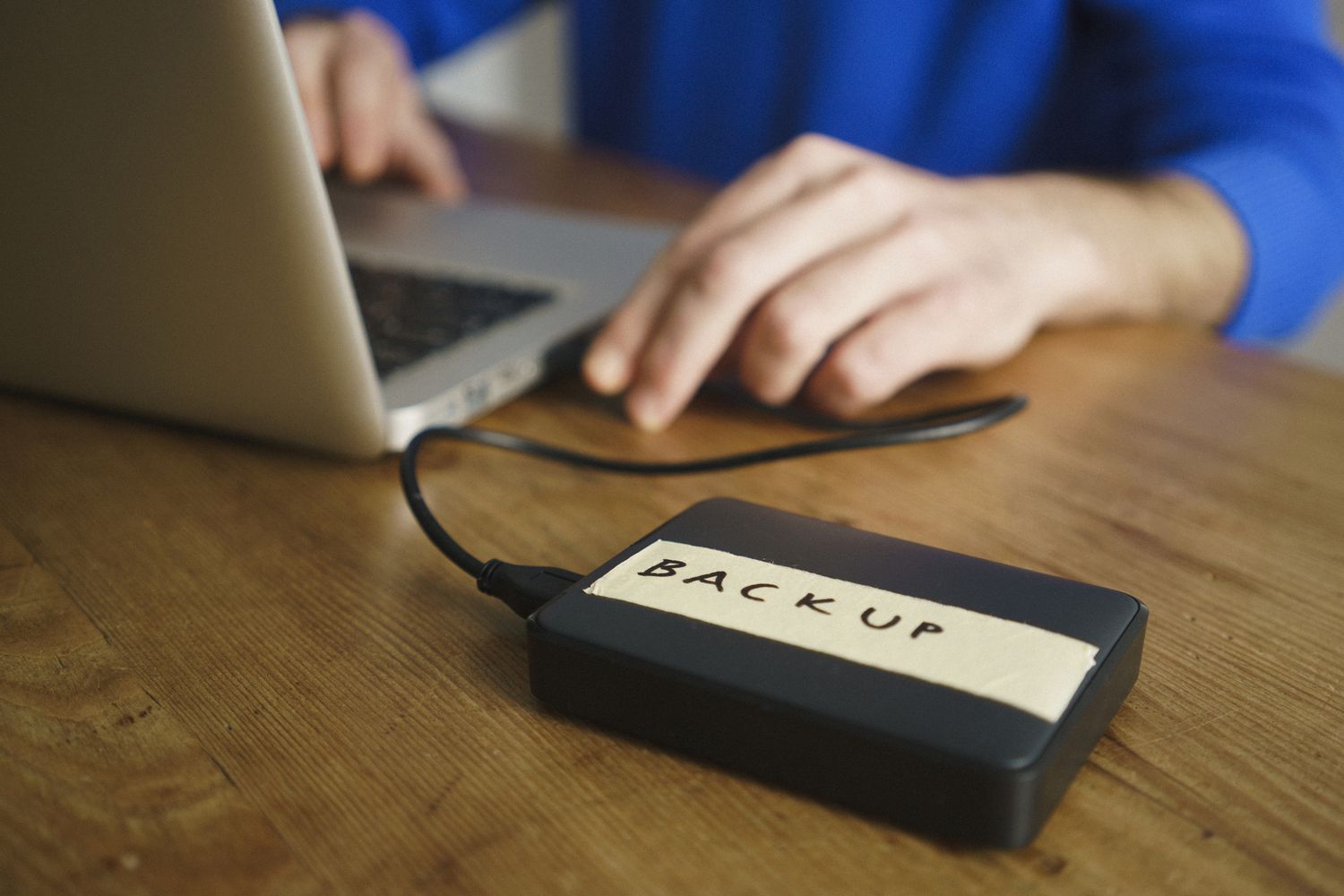
If your important files exist in only one place, they can disappear because of a failed drive, lost device, accidental deletion, ransomware, theft, or another unexpected problem.
The solution is not necessarily an expensive backup system.
A useful backup system is one that protects your important files, keeps more than one copy, and is simple enough that you will continue using it.
You do not need to back up every temporary download or duplicate file. Start by identifying what you would actually be upset or unable to replace if your computer or phone suddenly stopped working.
Then build a backup routine around those files.
What Counts as an Important File?
Before choosing a backup method, decide what actually needs protection.
Important files commonly include:
- Personal photographs and videos
- Work documents
- Tax and financial records
- Identification documents
- School or university files
- Projects and creative work
- Important emails or exported records
- Personal notes
- Password-manager recovery information
- Device configuration files
- Business documents
- Files created by applications that are difficult to recreate
The list will be different for every person.
A useful question is:
If this device stopped working today, which files would I genuinely need to recover?
Those files should form the foundation of your backup plan.
Don’t Confuse Synchronization With Backup
Cloud synchronization is useful, but it should not automatically be treated as a complete backup.
For example, a folder synchronized between your computer and a cloud service may make the same files available on multiple devices.
But synchronization can also synchronize changes.
If a file is accidentally deleted or changed, that change may eventually appear on other synchronized devices.
Some services provide version history, recycle bins, or recovery features, but those features have their own limits.
A backup system should give you a way to recover files when something goes wrong.
That is different from simply making the same current files available on another device.
Start With a Simple Backup Goal
You do not need to design a complicated enterprise backup system for a personal computer.
Start with three questions:
What am I protecting?
List your important folders and files.
Where is the original?
For example:
Laptop → Documents
Where will the backup copies live?
For example:
Laptop → External drive
and
Laptop → Cloud backup
This immediately gives you a basic structure.
Use More Than One Copy
A practical backup strategy should avoid having only one copy of an important file.
A common approach is the 3-2-1 backup principle:
- Keep at least three copies of important data.
- Keep the copies on at least two different types of storage or media.
- Keep at least one copy somewhere separate from the original location.
The exact implementation can vary.
For example:
Original: Computer
Backup 1: External drive
Backup 2: Cloud or another physically separate location
This protects you against several different failure scenarios.
If your computer’s internal drive fails, the external backup may still be available.
If the computer and external drive are stolen together, an off-site or cloud copy may still exist.
Choose What Kind of Backup You Need
There are several ways to create backups.
External Drive Backup
An external hard drive or SSD can provide a large amount of storage without requiring a continuous cloud subscription.
It can be useful for:
- Photos
- Videos
- Documents
- Project folders
- Large archives
One important limitation is physical proximity.
If the backup drive is always connected to the computer, it can be affected by some of the same problems as the computer.
For example, theft, electrical damage, or certain malware incidents could affect both devices.
For important data, consider disconnecting a backup drive when it is not being used, provided your backup workflow allows it.
Cloud Backup
Cloud storage or a dedicated cloud-backup service can provide an off-site copy.
This can be particularly useful if your computer and local backup drive are lost or damaged together.
Cloud services differ considerably.
Some primarily synchronize folders between devices.
Others are designed specifically for backup and recovery.
Before relying on a service, check:
- What files it backs up
- Whether it keeps previous versions
- How deleted files are handled
- How long deleted data remains recoverable
- Whether encryption is provided
- How account recovery works
- Whether there are storage limits
- Whether restoring large amounts of data is practical
Do not assume that every service advertised as “cloud storage” provides the same backup features.
Consider a Second External Drive
If you have a large collection of irreplaceable files, using two external backup drives can provide another layer of protection.
For example:
Computer → Drive A
Computer → Drive B
You can keep one drive disconnected and stored separately while using the other for regular backups.
For stronger protection against theft or physical damage, the second drive can be kept in a different location.
The important part is not owning two drives.
It is making sure both copies are actually updated.
Don’t Keep Both Backup Copies in the Same Bag
Physical separation matters.
Imagine you have:
- Laptop
- External backup drive
If both are stored in the same backpack and the backpack is stolen, you have lost both copies.
Likewise, keeping the computer and backup drive in the same room does not protect against every physical disaster.
For especially important information, keep at least one backup somewhere physically separate.
That could be:
- Another room
- A locked storage location
- A trusted secondary location
- An appropriate cloud service
The more valuable the data, the more important physical separation becomes.
Decide How Often Your Files Need to Be Backed Up
Backup frequency should depend on how much data you can afford to lose.
Consider a simple example.
If you work on an important project every day and only back it up once a month, you could lose weeks of work.
If you take photos once a week, your backup schedule might be different.
Ask:
How much recent work could I recreate without causing a serious problem?
That answer helps determine how often you should back up.
Automate Regular Backups
Manual backups are easy to forget.
If possible, configure your operating system or backup software to run automatically.
Windows includes backup and recovery features, while macOS includes Time Machine for backing up a Mac to an external storage device. The exact options depend on the operating-system version and configuration.
Automation is valuable because it removes the need to remember:
“I should back up my files today.”
Instead, the backup becomes part of the normal computer routine.
Windows Users: Check Windows Backup Options
Windows provides backup-related settings under:
Settings → Accounts → Windows backup
Depending on your Windows version and account configuration, Windows Backup can help back up certain folders, settings, and other information.
It is important to understand exactly what your selected Windows backup features cover.
Do not assume that enabling one Windows backup option automatically creates a complete copy of every file on your computer.
For files that are particularly important, verify where the actual backup copy is stored and how it can be restored.
Mac Users: Consider Time Machine
Mac users can use Apple’s Time Machine to automatically back up personal files and other data to an external storage device.
A typical setup involves connecting an appropriate external storage device and selecting it as the Time Machine backup disk.
Time Machine can maintain historical backups, which can be useful when you need to recover an earlier version of a file rather than only the newest copy.
This is one reason a real backup system is more useful than simply copying files once.
Phones Need a Backup Plan Too
Many people protect their computers while forgetting about their phones.
A phone can contain years of:
- Photos
- Videos
- Contacts
- Messages
- Notes
- Documents
- App information
Check the backup features provided by your phone and the services you already use.
On Android, Google provides backup features for supported devices and accounts.
On iPhone, Apple provides iCloud Backup and computer-based backup options.
The important point is to verify what is actually included rather than assuming every piece of data is automatically protected.
Don’t Assume Your Photos Are Backed Up
Photos deserve special attention because they are often irreplaceable.
If you use a cloud photo service, check:
- Which folders are included
- Whether uploads are complete
- Whether videos are included
- Which account is being used
- Whether the service shows pending uploads
- Whether storage is full
- Whether older photos are actually available online
Do not delete local photographs simply because you believe they are backed up.
First verify that the files are available from the backup service and that you understand how restoration works.
Check Your Backup Storage
A backup can quietly stop working when its destination becomes full.
This is particularly common with:
- Cloud storage
- Small external drives
- Long-running computer backups
Check available storage periodically.
If the backup system reports that it cannot complete because there is insufficient space, do not simply ignore the warning.
Determine whether you need to:
- Increase cloud storage
- Replace an external drive
- Remove unnecessary backup data
- Adjust what is being backed up
- Use a backup system with better retention controls
Deleting old backups can affect your ability to recover earlier versions, so understand the retention settings before removing anything.
Keep Your Backup Organized
A backup system becomes difficult to maintain when nobody knows what it contains.
Use a simple structure.
For example:
Computer
→ Documents
→ Photos
→ Projects
→ Important Records
Then decide which of those folders need continuous backup and which can be archived less frequently.
Avoid creating dozens of complicated backup rules unless you genuinely need them.
A simple system that you understand is usually easier to maintain than a technically sophisticated system that you rarely check.
Protect the Backup Account
A cloud backup is only useful if you can access it.
Secure the account used for your backup service with:
- A unique password
- Multi-factor authentication where available
- Up-to-date recovery information
- A secure recovery method
If someone gains control of the cloud account, the backup could potentially become inaccessible or compromised.
Your backup therefore needs security protection just like your primary account.
Consider Encryption for Sensitive Backups
Backups can contain a large amount of personal information.
If an external drive is lost or stolen, someone may be able to access its contents unless appropriate protection is enabled.
For sensitive information, consider encryption options supported by your operating system or backup software.
Windows provides encryption features such as BitLocker on supported editions and devices.
macOS also provides encryption through FileVault for supported Mac systems.
The exact availability and setup depend on the device and operating-system version.
Before enabling encryption, make sure you understand the recovery-key process.
Losing the encryption key can make your own backup difficult or impossible to access.
The Most Important Step: Test Your Backups
A backup that has never been restored is not fully proven.
You need to know that:
- The backup actually completed.
- The files are present.
- The files can be opened.
- You know where the recovery controls are.
- You understand how to restore them.
You do not have to perform a full computer restoration every week.
Start with a few test files.
For example:
- Select several important documents.
- Open the backup location.
- Locate those files.
- Restore copies to another folder.
- Open the restored files.
- Confirm that the contents are usable.
For photographs, restore several images and videos and verify that they open correctly.
This simple test can reveal a backup problem before you urgently need the files.
Don’t Test by Overwriting the Original Files
When testing a backup, restore the files to a separate location.
Do not replace your original documents simply to see whether the backup works.
For example:
Original: Documents/Tax Records
Test restore: Desktop/Backup Test
This lets you compare the restored files without putting the originals at risk.
Keep Older Versions When They Matter
Imagine that a document becomes corrupted today.
A backup containing only the newest version may contain the same corrupted file.
Historical versions can provide another recovery option.
Version history can be especially useful for:
- Documents
- Spreadsheets
- Projects
- Creative work
- Configuration files
Check whether your backup system supports previous versions and how long those versions are retained.
Retention rules matter because an older version may disappear after a certain period.
Protect Against Accidental Deletion
A useful backup system should help you recover from mistakes.
For example, if you accidentally delete a folder, you should know:
- Whether the backup contains the folder
- Whether deleted files remain available
- How long they remain recoverable
- How to restore them
Do not assume that the recycle bin on your computer is a backup.
A recycle bin is useful for recovering some accidental deletions, but it does not protect against every type of data loss.
Ransomware Changes the Backup Equation
Malware can create a particularly difficult backup problem if backup files are constantly connected to the affected computer.
If malicious software can access your backup destination, it may potentially damage or encrypt backup data as well.
This is one reason an offline or otherwise separately protected backup can be valuable.
For important information, avoid relying exclusively on a backup destination that is permanently writable from the computer being protected.
Don’t Make Your Backup System Too Complicated
A backup plan with twenty steps may look impressive but can become difficult to maintain.
A simpler structure might be:
Every day
Important files are automatically synchronized or backed up.
Every week
A separate local backup is updated.
Every month
A backup is checked and a test restoration is performed.
Occasionally
An additional backup is stored separately.
The exact schedule should match how frequently your files change and how much data you can afford to lose.
Create a Backup Inventory
Write down what your backup system protects.
A simple inventory could include:
| Data | Original location | Backup location | Frequency |
|---|---|---|---|
| Documents | Computer | External drive + cloud | Daily |
| Photos | Phone | Cloud + computer | Automatic |
| Work projects | Computer | External drive + cloud | Daily |
| Financial records | Computer | Encrypted backup | Weekly |
| Old archives | External drive | Separate storage | Monthly |
This does not need to be complicated.
The purpose is to prevent the common situation where you think something is backed up but cannot remember where the backup actually exists.
Keep a Record of How to Restore Your Data
A backup plan should answer more than:
“Where are my files?”
It should also answer:
“How do I get them back?”
Record the basic recovery process.
Include:
- Backup software or service name
- Backup destination
- Account used
- Recovery location
- Encryption details
- Where recovery keys are stored
- What to do if the original computer is lost
- How to restore individual files
- How to perform a complete device recovery
Keep this information somewhere you can access even if your primary computer fails.
Do not store an encryption recovery key only on the computer that the encrypted backup is supposed to protect.
What Not to Do With Backups
Don’t keep only one backup copy
One backup can fail.
Don’t keep every backup in the same physical location
A single incident can affect both the original and backup.
Don’t assume cloud synchronization is a complete backup
Synchronization and backup solve different problems.
Don’t delete local files before verifying the backup
Confirm that the backup contains the files and that they can be restored.
Don’t ignore backup error messages
A failed backup is not protection.
Don’t leave sensitive backup drives unprotected
Consider encryption when the stored information is sensitive.
Don’t assume a backup is working because the software is installed
Check successful runs and perform test restorations.
Don’t make the system so complicated that you stop using it
Reliability comes from a process you can maintain.
What to Do If You Discover You Have No Backup
Do not start by trying to copy everything randomly.
First identify your highest-value files.
Create an initial backup of:
- Irreplaceable photographs and videos
- Personal documents
- Work and school files
- Financial and tax records
- Important projects
- Other files that would be difficult or impossible to recreate
Then verify the backup.
Once the most important files are protected, build the automated system around them.
This approach gives you useful protection quickly without requiring you to organize your entire digital life first.
A Practical Backup System for a Typical User
A simple system might look like this:
Primary copy
Your computer or phone contains the files you actively use.
Local backup
An external drive receives regular backups.
Off-site copy
Important files are also stored with a reputable cloud backup or storage service.
Historical recovery
Your backup system keeps previous versions where practical.
Regular verification
You periodically restore test files to confirm that recovery works.
Physical separation
At least one backup copy is kept away from the primary device when practical.
This structure does not eliminate every possible risk, but it avoids the most basic problem: having only one copy of something important.
How to Tell Whether Your Backup System Is Actually Working
Ask yourself these questions:
- Can I name the files I consider most important?
- Do I know where their original copies are?
- Do I know where their backup copies are?
- Is at least one copy physically separate?
- Are backups running automatically where possible?
- Do I receive errors when backups fail?
- Do I know how long previous versions are retained?
- Have I successfully restored files recently?
- Can I access the backup if my main computer fails?
- Are cloud accounts protected with strong authentication?
- Are sensitive backups encrypted where appropriate?
If you cannot answer several of these questions, your backup system may need some attention.
A Simple Maintenance Routine
Once the system is configured, maintenance should be relatively small.
Weekly
Check that recent backups completed.
Monthly
Restore a few test files.
Check available storage.
Review backup warnings or errors.
Every few months
Confirm that the backup still contains the folders you care about.
Check that recovery credentials and encryption information are accessible.
After Major Changes
Review the backup whenever you:
- Buy a new computer
- Replace a phone
- Move important files
- Change cloud services
- Start a new business or project
- Add a large photo collection
- Change your backup software
A backup plan should change when your data changes.
Final Checklist
Before considering your backup system finished, confirm:
- Important files have been identified.
- Important files exist in more than one place.
- At least one backup is physically separate from the original.
- Automatic backups are enabled where practical.
- Cloud storage limits have been checked.
- External backup storage has enough free space.
- Sensitive backup data is appropriately protected.
- Previous versions are available when needed.
- Backup errors are being reviewed.
- Test files have been restored successfully.
- Recovery instructions are available.
- Backup accounts are protected with strong authentication.
Frequently Asked Questions
Is cloud storage enough for a backup?
Not necessarily. Some cloud services primarily synchronize files between devices, while dedicated backup services may provide different recovery and version-history features. Check exactly what the service protects and how recovery works.
How many copies of my important files should I have?
A commonly used approach is the 3-2-1 strategy: at least three copies, using at least two types of storage or media, with at least one copy kept separately from the primary location.
Should I leave my external backup drive connected?
It depends on your backup system. Continuous connection can make automated backups convenient, but a permanently connected drive can be exposed to some of the same threats as the computer. A separate or offline copy can provide additional protection.
How often should I back up my computer?
There is no single schedule for everyone. Back up often enough that the amount of work you could lose is acceptable. If you create important files every day, daily or automatic backups may make sense.
Are Google Drive, OneDrive, or iCloud automatically a complete backup?
Not necessarily. Cloud synchronization and device backup have different functions. Check the specific service and configuration to understand which files, versions, and recovery options are actually covered.
Do I need to back up files that are already on my phone?
If they are important, yes. A phone can be lost, damaged, stolen, or reset. Verify what your phone’s backup or cloud-photo system actually includes.
How do I know whether a backup really works?
Perform a test restoration. Restore several files to a separate location and open them. This confirms that the files are available and that you understand the recovery process.
Can ransomware affect my backup?
It can, depending on how the backup is connected and protected. A backup destination that is continuously accessible from an infected computer may be exposed to the same incident. Maintaining a separate or offline copy can reduce this risk.
Should I back up everything on my computer?
Not necessarily. Temporary downloads, cached files, applications that can be reinstalled, and other easily replaceable data may not need the same treatment as irreplaceable personal files. Focus first on data that would be difficult or impossible to recreate.
Official Resources
For current backup instructions, use the documentation for your operating system and backup service:
- Microsoft: Windows Backup
- Apple: Back up your Mac with Time Machine
- Apple: What does iCloud Backup include?
- Google: Back up or restore data on your Android device
- Microsoft: BitLocker overview
- Apple: FileVault
The Bottom Line
A backup system does not need to be complicated.
Start by identifying the files you cannot afford to lose. Keep more than one copy, use a separate location for at least one backup, automate the process where possible, and periodically test whether your files can actually be restored.
Most importantly, do not wait until a drive fails to discover that your backup was incomplete.
A backup is only useful when it contains the files you need and you know how to get them back.