
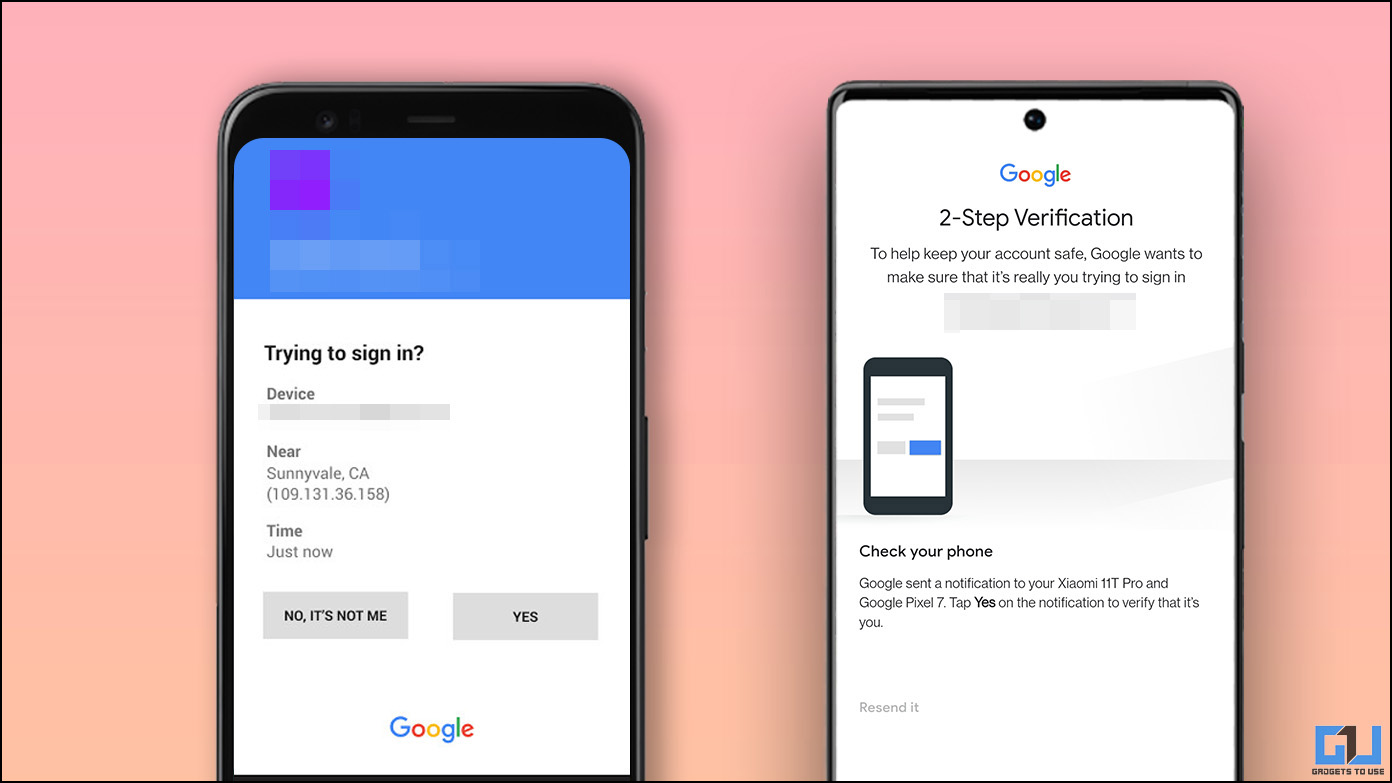
A login alert you do not recognize can be alarming, but the alert alone does not always mean someone successfully accessed your account.
A security notification may be triggered because you signed in from a new device, changed networks, traveled, installed an application that signed in to your account, or because someone else attempted to use your credentials.
The important thing is to determine what actually happened.
Was it only an unsuccessful sign-in attempt? Was the attempt blocked by the account provider? Did a new device successfully sign in? Or did someone change an important security setting after gaining access?
This guide shows how to investigate the alert without relying on the location shown in the notification alone.
First, Don’t Click the Alert Link Immediately
If the alert arrived by email or text message, do not automatically use the link inside the message.
Instead, open the account provider’s official website or account settings directly.
This reduces the risk of being redirected to a fake login page designed to steal your password or verification code.
For Google accounts, Google recommends reviewing suspicious activity through your Google Account security controls. Microsoft similarly says that if you are unsure about an unusual-activity email, you can sign in to your Microsoft account directly rather than clicking the email link.
A genuine-looking alert can still be worth investigating, but the safest approach is to verify it from the account itself.
What a Login Alert Actually Tells You
A login alert generally means the provider detected an activity that it considered important or unusual.
It does not automatically tell you that an attacker successfully entered the account.
For example, Google says it can send security alerts when it detects a sign-in on a new device or suspicious activity. Microsoft can also flag unusual sign-ins based on factors such as a new location or device.
The notification may contain details such as:
- Device type
- Operating system
- Approximate location
- Date and time
- Browser or application
- Whether the activity was unusual
- Whether additional verification was required
Use these details as clues rather than treating one field as definitive proof.
The First Question: Was the Sign-In Successful?
This is the most important distinction.
There is a major difference between:
Someone tried to sign in
and
Someone successfully signed in.
A failed attempt may mean the person had an incorrect password, failed a verification challenge, or was blocked by the provider.
A successful sign-in deserves more attention because it means the account accepted the authentication.
Google’s security tools can show recent security events and devices using the account. Microsoft provides a Recent activity page showing account activity and additional details for individual events.
Do not assume the account was compromised until you establish what the activity actually represents.
Check the Device Before Judging the Location
An unfamiliar location can look frightening, but location information is not always precise.
Account providers often estimate location from the network or IP address.
Mobile networks, VPNs, corporate networks, and internet routing can make the displayed location different from your physical location.
Microsoft specifically warns that mobile network routing can make activity appear to come from a different location. Apple also states that the location shown for a new-device sign-in is approximate and based on the IP address or network being used.
Therefore, do not use location alone to decide whether a login was yours.
Instead, compare several details:
- Device
- Operating system
- Browser
- Application
- Date
- Time
- Location
- Whether you were using a VPN
- Whether you recently changed networks
A login from a strange city on a device you recognize may have a simple explanation.
A successful login from an unfamiliar device combined with an unfamiliar browser and time deserves much closer attention.
Check Your Google Account
If the alert concerns a Google Account, start by opening your Google Account directly.
Go to the Security & sign-in section.
Look for Recent security events and Your devices.
Google’s current instructions allow you to review recent security events and manage devices that are currently or recently signed in to your account.
Review Recent Security Events
Look for the event that triggered your alert.
Review:
- Date and time
- Device type
- Location
- Activity description
Google’s security alerts allow you to indicate whether the activity was yours. If it was not yours, Google provides steps to secure the account.
Do not simply dismiss the notification without checking the account itself.
Review Your Devices
Open:
Google Account → Security & sign-in → Your devices → Manage all devices
Google says this section can show devices where you are currently signed in or have recently been signed in. You can select a device or session to see additional information.
Look for devices you genuinely do not recognize.
Remember that several sessions can sometimes belong to the same physical device, so do not assume that every duplicate-looking entry represents a different person.
What If You Don’t Recognize a Google Device?
If you find a device or session you do not recognize, treat it as something that needs investigation.
Google provides an option to indicate that you do not recognize a device and then follow additional security steps.
If you believe someone actually signed in, change your Google Account password.
Also review other accounts that use the same password.
Google specifically recommends changing passwords for other services where you reused the same password when you believe someone else may have access to your Google Account.
Check Your Microsoft Account
For a personal Microsoft account, use the account’s Recent activity page.
Microsoft says the page shows when and where your account has been used within the previous 30 days, along with additional details for individual activities.
Look for:
- Successful sign-ins
- Unsuccessful sign-ins
- Unusual activity
- Security changes
- Password changes
- New devices
- Changes you did not make
Expand suspicious entries instead of judging them only from the summary.
Microsoft says individual activity details can include the IP address, approximate location, device or operating system, browser, and application information.
Understand “Unusual Activity” on Microsoft
Microsoft’s unusual-activity system can flag activity because the device or location differs from what it normally sees.
That does not necessarily mean an attacker successfully accessed the account.
Microsoft gives examples such as traveling, using a new device, or allowing an application to sign in as reasons activity may appear unusual.
If you see an event you know was not yours, Microsoft provides options such as This wasn’t me for unusual activity and Secure your account for suspicious recent activity.
If you are uncertain, do not approve an activity simply because the location looks familiar.
Check the complete event details first.
Check an Apple Account
Apple also sends notifications when a sign-in occurs on a new device while two-factor authentication is enabled.
Apple says the notification can include a map showing the approximate location of the new device. The location is based on the IP address or network rather than the exact physical location of the device.
If you receive a new-device sign-in notification and do not recognize it, Apple provides a Don’t Allow option to reject the sign-in attempt.
If you believe your Apple Account has already been compromised, review the devices associated with the account and follow Apple’s account-security guidance.
Don’t Approve an Unexpected Sign-In Request
Some services can ask you to approve a login from your phone or another trusted device.
If you did not start the login yourself, do not approve the request.
An unexpected approval request can mean someone has your password and is attempting to complete the sign-in using another authentication step.
Microsoft specifically advises users not to respond to unrequested sign-in prompts and to check recent account activity instead.
The same basic rule is useful across account providers:
If you did not start the login, don’t approve it.
Look for Changes Beyond the Login Alert
A successful unauthorized login may be more important than the original notification.
After reviewing the sign-in, check whether anything important changed.
Look for:
- Password changes
- Recovery email changes
- Recovery phone changes
- New authentication methods
- New trusted devices
- New passkeys
- New connected applications
- Forwarding rules in email
- Unknown email delegates
- Unexpected sent messages
- Deleted or archived messages
- New payment information
- Account profile changes
- Security settings you did not modify
Google specifically recommends checking for unfamiliar changes to critical security settings and suspicious activity across Google products.
These changes can provide stronger evidence that someone actually gained access than an unfamiliar location by itself.
Check Your Email Account Carefully
If the affected account includes email, inspect the account settings after a suspicious login.
Look for forwarding rules or other settings you did not create.
An attacker who gains access to an email account may attempt to maintain access or intercept messages without repeatedly triggering a new-login alert.
Also check your sent folder for messages you did not send.
Look through deleted or archived messages if you notice anything unusual.
You do not need to assume that every missing or moved message is evidence of an attack. Start with changes you can clearly identify as unauthorized.
Check Connected Apps and Services
Accounts often connect to third-party applications.
An unfamiliar sign-in could involve a service that you previously authorized rather than a person manually entering your password.
Review the account’s connected applications and services.
Remove access for applications you no longer recognize or use, but avoid removing services blindly.
If you remove access from an application you rely on, its sign-in or synchronization features may stop working.
The important question is:
Do I recognize this application, and do I still want it connected to my account?
Check Whether You Were Using a VPN
Before concluding that a login came from another person, consider whether you were using:
- A VPN
- A corporate network
- A school network
- Mobile data
- A privacy-focused browser
- A remote desktop service
- A cloud-based browser or application
These services can change the network location associated with a login.
A location that appears several hundred miles away does not necessarily mean someone was physically there.
However, a VPN does not explain an unfamiliar device or browser by itself.
Consider all available details together.
What If the Alert Happened While You Were Traveling?
Travel is a common reason for legitimate unusual-login alerts.
A new country, city, network, or device can cause an account provider to request additional verification.
Microsoft explicitly lists travel and new devices among circumstances that can produce unusual activity alerts.
If the device, time, and application match what you were doing, the alert may have been legitimate.
Still, verify the event rather than assuming it was yours.
What If You Don’t Recognize the Device but the Location Looks Right?
This is a situation where you should investigate further.
For example, suppose the alert says:
- Location: your city
- Device: unfamiliar
- Browser: unfamiliar
- Time: while you were asleep
The location alone should not convince you that the login was legitimate.
Check whether:
- Someone else in your household uses the account.
- You recently used a work or school computer.
- You installed an application that uses the account.
- You have an old phone, tablet, or computer still signed in.
- The provider is showing a session rather than a completely separate device.
If none of these explanations fit and the sign-in was successful, secure the account.
What If You See Only Failed Login Attempts?
Failed attempts are different from successful access.
Someone may have entered an incorrect password or failed another security check.
Microsoft’s account activity can show unsuccessful sign-ins separately from successful activity. Microsoft notes that an unsuccessful attempt can be caused by a simple credential mistake, although repeated unfamiliar attempts can also indicate someone is trying to guess the password.
Do not ignore repeated attempts.
If you see unfamiliar failed attempts, consider changing your password, especially if the password is old or reused elsewhere.
What to Do If You Confirm Unauthorized Access
If the evidence indicates that someone actually accessed your account, act quickly.
1. Change the Password
Use a new, unique password that you have not used on another service.
If you can, change it from a device you trust.
2. Review Signed-In Devices
Remove or sign out unfamiliar devices and sessions.
3. Check Recovery Information
Make sure the recovery email address and phone number still belong to you.
4. Review Authentication Methods
Check two-step verification methods, passkeys, security keys, authenticator applications, and other sign-in methods.
5. Check Connected Apps
Remove unknown or unnecessary third-party access.
6. Check Email Settings
Look for forwarding rules, delegates, filters, and other changes you did not create.
7. Change Reused Passwords
If you used the same password on other websites, change those passwords too.
Google specifically recommends changing reused passwords when you believe someone else has accessed the account.
Be Careful When Changing Your Password
Changing the password is important after confirmed unauthorized access, but do not enter the new password into a page reached through a suspicious email or text message.
Open the provider’s website or official app yourself.
This is especially important when the alert creates a sense of urgency.
A fake security warning can use exactly the same fear that a legitimate warning would create.
Google warns about scams that impersonate account-security personnel and advises users to verify account activity through their account’s security settings rather than responding to suspicious callers or messages.
Turn On Stronger Sign-In Protection
After investigating the alert, review your account’s available multi-factor authentication options.
Depending on the provider, you may be able to use:
- Authenticator apps
- Passkeys
- Security keys
- Verification prompts
- Backup codes
- Other multi-factor methods
The exact options vary by service.
The goal is to avoid relying on a password alone when stronger authentication is available.
Do not share verification codes with anyone who contacts you unexpectedly.
A legitimate support representative should not need you to read a private verification code aloud to prove ownership of your account.
What Not to Do
Avoid these common mistakes after receiving an unfamiliar login alert.
Don’t panic and delete everything
A suspicious alert does not automatically mean the account was compromised.
Investigate first.
Don’t trust the location alone
Locations can be approximate and can be affected by network routing, VPNs, and mobile networks.
Don’t approve an unexpected login
If you did not start the sign-in, do not approve the request.
Don’t click random security links
Open the provider’s official account page directly when possible.
Don’t reuse your new password
A password changed after an incident should be unique.
Don’t ignore successful unfamiliar sign-ins
A successful sign-in from an unknown device deserves immediate investigation.
Don’t immediately blame a particular person
An unfamiliar login can have several explanations. Verify the technical details before drawing conclusions about who caused it.
A Quick Login-Alert Investigation Checklist
When you receive an alert you do not recognize, work through this list:
- Open the account provider directly.
- Find the corresponding security event.
- Determine whether the attempt was successful or unsuccessful.
- Check the date and time.
- Check the device and operating system.
- Check the browser or application.
- Review the approximate location.
- Consider VPNs, mobile networks, travel, and shared devices.
- Review currently signed-in devices.
- Check password and recovery settings.
- Check connected applications.
- Inspect important email settings if the account includes email.
- Change the password if unauthorized access is confirmed or strongly suspected.
- Remove unfamiliar sessions or devices.
- Enable or strengthen multi-factor authentication.
- Change reused passwords on other services.
This process helps separate a harmless unusual-login notification from an actual account-security problem.
When You Should Treat the Situation as Urgent
Act immediately if you see several strong indicators together, such as:
- A successful sign-in you did not make
- An unfamiliar device
- A password change you did not request
- Recovery information you did not change
- A new authentication method you did not add
- Emails sent or deleted without your involvement
- Unknown connected applications
- Payment or subscription changes you did not make
A single unfamiliar location is weaker evidence than several independent account changes.
The more pieces of evidence that point in the same direction, the more important it becomes to secure the account immediately.
Final Verification After Securing the Account
After changing your password and security settings, check the account again.
Confirm that:
- Your password works.
- Your recovery email is correct.
- Your recovery phone is correct.
- Your authentication methods are yours.
- Unknown devices have been removed.
- Connected applications are recognized.
- Email forwarding and related settings are correct.
- No unfamiliar security changes remain.
Then review recent account activity again.
The goal is not simply to change a password. It is to make sure the account’s current security state matches what you expect.
Frequently Asked Questions
Does a login alert mean someone hacked my account?
No. A login alert can be triggered by a new device, location, application, travel, or other unusual activity. Check the actual account activity to determine whether the login succeeded and whether the activity was yours.
Can a login location be wrong?
Yes. Location information is often approximate because providers use network and IP information. Mobile networks and VPNs can make a sign-in appear to originate somewhere other than your physical location.
What if I recognize the device but not the location?
Check whether you were using mobile data, a VPN, a work network, or another network that could route traffic through a different location.
What if I receive a sign-in approval request that I did not initiate?
Do not approve it. Open your account directly and review recent activity. Microsoft specifically recommends not responding to unrequested sign-in prompts.
Should I change my password after every login alert?
Not necessarily. First determine whether the activity was yours and whether the sign-in was successful. If you confirm unauthorized access, or have strong reason to believe your credentials were exposed, change the password promptly.
What if I see several failed login attempts?
Review the activity and consider changing your password, particularly if the attempts are unfamiliar or repeated. Failed attempts do not necessarily mean the person gained access, but repeated attempts should not be ignored.
What if I don’t recognize a device in my Google Account?
Review its details. Google provides a way to investigate devices you don’t recognize and take security actions. If you believe someone else has accessed the account, change the password and review other security settings.
Can someone access my account without triggering a new-login alert?
Security alerts are useful but should not be treated as a complete record of everything that happens inside an account. Also review security settings, connected apps, email rules, devices, and other account activity when investigating a possible compromise.
Official Account Security Resources
For the most current instructions, use the provider’s own security pages:
- Google: Respond to security alerts
- Google: Secure a hacked or compromised account
- Google: See devices with account access
- Microsoft: What happens if there’s an unusual sign-in
- Microsoft: Recent activity on your account
- Apple: Reject unknown sign-in attempts
The Bottom Line
A login alert is a signal to investigate, not automatic proof that someone accessed your account.
Start by checking whether the event was successful. Then compare the device, time, application, and approximate location with what you were actually doing.
If the activity was yours, you can usually leave the account alone.
If you find a successful sign-in or security change you did not make, secure the account immediately: change the password, remove unfamiliar access, review recovery and authentication settings, and check for other changes.
The most reliable approach is to verify the actual account activity rather than making a decision based on one unfamiliar location or notification.