
Android apps often ask for access to information and features on your phone. Depending on the app, permissions can include access to your camera, microphone, location, contacts, photos, files, notifications, or other device features.
Some permissions are necessary for an app to work correctly. A navigation app needs location access for navigation, for example, while a camera app needs camera access.
The problem starts when an app has access that does not appear necessary for what it does.
Checking permissions does not mean disabling everything. A safer approach is to review what an app can access, decide whether that access is actually needed, remove unnecessary permissions, and then verify that the app still works normally.
Android menu names vary by phone manufacturer and Android version, so the exact wording may be slightly different on Samsung, Google Pixel, Xiaomi, Motorola, OnePlus, and other devices.
What Android App Permissions Actually Control
An Android permission allows an app to access a particular type of information or device capability.
Depending on your Android version and installed apps, permissions may include:
- Camera
- Microphone
- Location
- Contacts
- Phone
- SMS
- Call logs
- Photos and videos
- Music and audio
- Files
- Nearby devices
- Notifications
- Calendar
- Physical activity
Not every phone displays exactly the same permission categories.
A permission by itself does not prove that an app is malicious.
For example, a video-calling application asking for camera and microphone access can be expected. The same permissions may deserve more scrutiny when requested by an app that has no obvious reason to use them.
Start With the Apps You Actually Use
You do not need to inspect hundreds of apps at once.
Start with:
- Apps you recently installed
- Apps you no longer use
- Apps with access to sensitive information
- Apps you do not recognize
- Apps that request several unrelated permissions
- Apps that recently changed their behavior
This makes the review more manageable.
Pay particular attention to apps that have access to sensitive information such as your location, microphone, camera, contacts, photos, or messages.
Check an Individual App’s Permissions
A common Android path is:
Settings → Apps → See all apps → Select an app → Permissions
On some phones, the option may simply be called Permissions on the app information page.
You should see permissions that are currently allowed, denied, or available to the app.
Review each one rather than assuming that every permission is necessary.
For example, if a simple flashlight application requests access to contacts, microphone, and location, you should ask why those permissions are needed.
The permission list is a starting point for investigation, not proof that an app is unsafe.
Check the Permission Manager
Android also provides a way to review permissions by category.
Depending on your device, look under:
Settings → Security & privacy → Privacy → Permission manager
On some Android versions, you may find it under:
Settings → Privacy → Permission manager
From there, you can select categories such as:
- Camera
- Microphone
- Location
- Contacts
- Photos and videos
- Files
- Calendar
- Phone
This gives you a different view of your installed apps.
Instead of asking, “What permissions does this app have?”, you can ask:
“Which apps have access to my microphone?”
That can reveal applications you may have forgotten about.
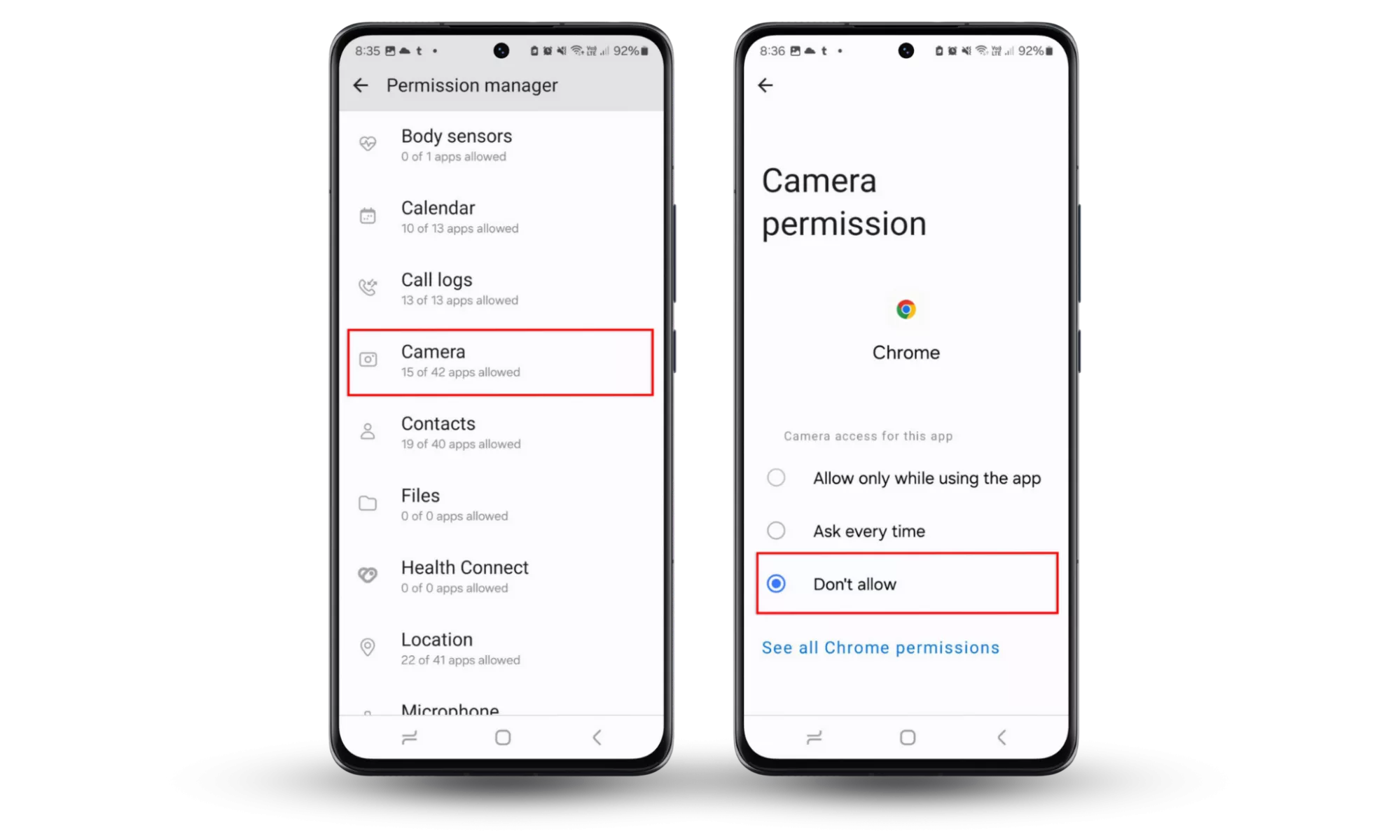
Review Camera Access
Camera access deserves attention because it can provide an app with access to the device’s camera.
Open the relevant app’s permissions and check whether Camera is allowed.
Then ask:
- Does this app actually need the camera?
- Do I use a camera-related feature in this app?
- Could the feature work without camera access?
- Did I intentionally grant this permission?
For a video-chat application, camera access may be expected.
For an app that does not provide a feature involving the camera, you may have a reason to deny it.
Review Microphone Access
Microphone access can allow an app to use audio input from your device.
Check:
Settings → Privacy → Permission manager → Microphone
or the equivalent permission-management screen on your phone.
Consider why each listed app needs microphone access.
Examples where microphone access may make sense include:
- Video-calling apps
- Voice-recording apps
- Voice-chat applications
- Audio-editing tools
- Apps that provide voice commands
If an app does not appear to need the microphone, consider changing its permission.
Review Location Access Carefully
Location permissions can be more complicated because Android may provide different access levels.
Depending on your Android version and device, you may see options such as:
- Allow all the time
- Allow only while using the app
- Ask every time
- Don’t allow
The available choices vary.
For many apps, while using the app can provide the required functionality without granting continuous access.
For example, an app that only needs your location when you actively use a map feature may not need constant background location access.
Do not automatically deny location access to an app that genuinely requires it.
Instead, choose the least access level that still allows the feature you need to work.
Check Whether an App Has Background Location Access
Background location is more sensitive than ordinary location access because an application may be able to access location when you are not actively using it.
Review apps that have location permission and look carefully at the access level.
Ask:
Does this app need my location when I am not using it?
A navigation, safety, or location-based service may have a legitimate reason.
A simple app with no obvious location-related function deserves more scrutiny.
If you do not need continuous location access, change it to a more limited option where your Android version provides one.
Review Photos and Videos Access
Photos and videos can contain personal information, places, people, documents, and other sensitive material.
Depending on your Android version, apps may have different ways of accessing photos and videos.
When reviewing an app, ask:
- Does it actually need access to my photos?
- Does it need my entire photo library?
- Do I only need to select a few photos?
- Did I grant this access for a feature I no longer use?
On supported Android versions, you may be able to give an app access only to selected photos rather than your entire library.
That can be preferable when the app only needs a few images for a specific task.
Review Contacts Access
Contacts can contain names, phone numbers, email addresses, and other personal information.
Open the Contacts permission category and review which applications have access.
Ask why each app needs it.
Contacts access may make sense for applications that provide:
- Calling features
- Messaging
- Contact synchronization
- Communication tools
If an app has no feature that appears to require your contacts, consider denying access.
After changing the permission, test the application.
Review Phone, SMS, and Call Log Permissions
Permissions related to phone calls, SMS messages, and call history can provide access to sensitive communication information.
Review these permissions particularly carefully.
Do not assume an app needs SMS access simply because it is installed on your phone.
Some apps may legitimately use SMS-related functionality for specific features, while others may not.
If you see an unfamiliar application with sensitive communication permissions, investigate the app before deciding what to do.
Check “Nearby Devices” Access
Some Android apps use nearby-device permissions to communicate with Bluetooth accessories or other compatible devices.
For example, an app that controls headphones, watches, speakers, or another accessory may reasonably need access.
If you do not use a feature involving nearby devices, ask whether the permission is still necessary.
Do not disable it automatically if doing so would break a device connection you rely on.
Check Which Permissions an App Used Recently
Some Android versions provide privacy information showing when certain sensitive permissions were accessed.
This can be useful because there is a difference between:
An app has permission
and
An app recently used that permission.
Look for Android’s privacy dashboard or permission activity information.
A common path on supported versions is:
Settings → Privacy → Privacy dashboard
The exact location and available information depend on the Android version and manufacturer.
Use this information as a clue.
A recent access event does not automatically mean something harmful happened. The app may have used the permission for a legitimate feature.
Look for the Green Camera or Microphone Indicator
On supported Android versions, Android can display an indicator when an app is using the camera or microphone.
If you see the indicator unexpectedly, check which application is using the relevant sensor.
This can help you investigate unexpected camera or microphone activity.
Remember that an indicator simply tells you that the relevant sensor is being accessed. It does not, by itself, prove malicious behavior.
Review Apps You No Longer Use
Unused apps are worth reviewing even if they are not currently causing a visible problem.
If you no longer use an application, consider uninstalling it rather than leaving it installed indefinitely.
Before uninstalling, check whether it contains:
- Saved documents
- Offline content
- Local projects
- Important account information
- Unsynchronized data
If the app is no longer needed and its data is safely backed up or unnecessary, uninstalling it removes the app and its associated access to the device.
Remove Unnecessary Permissions
Once you have identified a permission that an app does not need, open the app’s permission settings.
For example:
Settings → Apps → See all apps → [App] → Permissions → [Permission] → Don’t allow
The exact wording may vary.
After changing the permission, reopen the app.
If everything you need still works, you can leave the permission disabled.
If a feature stops working, Android may ask for the permission again when you use that feature.
Do Not Deny Every Permission
Removing permissions simply because they appear sensitive can break legitimate features.
For example:
- A navigation app may need location.
- A camera app needs camera access.
- A voice recorder needs microphone access.
- A messaging app may need contacts for certain features.
- A photo editor may need access to selected photos.
- A wearable-device app may need nearby-device access.
The goal is necessary access, not zero access.
Give an app the permissions required for the features you actually use and avoid granting unnecessary access.
Check an App’s Privacy Information Before Installing It
Permission review should start before installation when possible.
On Google Play, app listings can provide information about how an app handles data.
Review the app’s available privacy and data-safety information before installing it.
Do not treat a privacy label as a guarantee that an app is trustworthy. Use it as one piece of information alongside the developer identity, reviews, update history, requested permissions, and the app’s purpose.
Pay Attention to the Developer
If an app looks suspicious, check who publishes it.
Compare:
- Developer name
- App name
- Number of downloads
- Update history
- Reviews
- Official website, if available
- Whether the app has a clear purpose
Be careful with applications that imitate well-known services.
A familiar-looking icon or name does not prove that an app is published by the legitimate company.
Be Careful With Apps Installed Outside Google Play
Apps installed from unknown or unofficial sources deserve additional caution.
Android provides protections against potentially harmful applications, but installing software outside established app stores can increase the risk of installing something you did not intend to install.
If you do not have a specific reason to install an APK from another source, using a trusted app distribution channel is generally simpler and safer.
If you already installed an unfamiliar APK and now notice unusual behavior, investigate the application and consider uninstalling it if you do not need it.
Run Google Play Protect
Google Play Protect checks apps and can warn about potentially harmful applications.
Open:
Google Play Store → Profile picture → Play Protect
Then review the available security information and scan status.
Keep Play Protect enabled unless you have a specific reason to change its settings.
Play Protect is another layer of protection, not a replacement for reviewing permissions and installed applications.
What to Do If an App Keeps Requesting a Permission
An application may ask for permission again after you deny it.
First determine why the app is requesting it.
For example, a photo-editing application may request photo access only when you choose a photo to edit.
That behavior can be expected.
If an app repeatedly requests a sensitive permission that appears unrelated to its purpose, do not grant it simply because the application keeps asking.
Look for an alternative way to use the feature or consider removing the app if you do not trust its behavior.
What If Removing a Permission Breaks the App?
This does not automatically mean you made the wrong decision.
Some applications are designed around permissions that support optional or core features.
For example, denying microphone access could prevent a voice-chat feature from working.
You have three choices:
- Keep the permission denied and stop using that feature.
- Grant the permission only when needed, if Android provides that option.
- Find another application that provides the feature with less access.
The important point is that you control whether to grant the permission.
What Not to Do
Avoid making security changes you do not understand.
Do not:
- Disable every Android security feature
- Grant all permissions just to stop permission prompts
- Install multiple security apps that perform the same functions
- Delete random system files
- Disable important system components
- Grant Accessibility access to an unfamiliar app without understanding why
- Install an APK simply because a website tells you it is required
- Assume one suspicious permission automatically means an app is malware
- Factory-reset the phone before investigating the actual problem
Changing fewer things at a time makes it easier to determine what is happening.
Pay Special Attention to Accessibility Access
Accessibility access is different from ordinary permissions and deserves careful attention.
Accessibility services can provide powerful interaction capabilities because they are designed to help users interact with their devices.
If an unfamiliar application asks for accessibility access, understand exactly why it needs it before granting access.
Do not grant powerful device access simply because an app claims it is necessary for a minor feature.
If you did not intentionally enable an accessibility service for an app, review the setting.
The exact menu can vary by Android version and manufacturer, but it is commonly found under:
Settings → Accessibility → Installed apps
or a similarly named section.
Review Device Administrator or Special Access Settings
Some applications can request access beyond ordinary runtime permissions.
Depending on your phone, these settings may include special app access or device-management features.
If an unfamiliar application appears to have unusually powerful access, inspect its special access settings.
Do not disable security or device-management features blindly. First identify the application and understand what the access does.
How to Investigate an App That Looks Suspicious
If an app seems unusual, work through a simple checklist.
Step 1: Identify the App
Find the exact application name and developer.
Step 2: Check Where It Came From
Determine whether you installed it intentionally and where it came from.
Step 3: Review Its Permissions
Look for camera, microphone, location, contacts, files, SMS, phone, and other sensitive access.
Step 4: Check Recent Permission Activity
Use the Privacy Dashboard or equivalent feature if your phone provides it.
Step 5: Review Its Play Store Listing
Check the developer, app description, update history, and available privacy information.
Step 6: Remove Unnecessary Access
Deny permissions that you have determined are not required for features you use.
Step 7: Uninstall the App If You Do Not Need It
If you do not trust the application and do not need it, removing it may be more appropriate than trying to manage every permission individually.
Step 8: Run Play Protect
Check the device with Google Play Protect.
How to Verify Your Changes
After changing permissions, do not assume everything is fixed.
Test the application’s normal functions.
For example:
- Open the app.
- Use the feature you normally need.
- Check whether notifications still work.
- Test camera or microphone features if relevant.
- Confirm that location-based features work if you allowed location.
- Verify that photo selection works if you changed photo permissions.
Then leave unnecessary permissions disabled.
If an app repeatedly asks for access you have intentionally denied, consider whether you still want to use it.
A Simple Android Permission Audit
You can perform a basic permission review every few months.
Start with:
Settings → Privacy → Permission manager
Then review sensitive categories individually.
A practical order is:
- Camera
- Microphone
- Location
- Photos and videos
- Contacts
- Phone
- SMS
- Nearby devices
- Calendar
- Files or other sensitive categories shown on your phone
For each application, ask:
Do I use a feature that requires this permission?
If the answer is no, investigate whether you can safely remove the access.
How to Prevent Unnecessary Permission Access
A few habits can make future permission management easier.
Install Fewer Apps
Every additional application creates another set of permissions to review.
Review Permissions During Installation
Do not automatically accept every request.
Keep Android Updated
System updates can include security improvements and privacy controls.
Keep Apps Updated
App updates can contain bug fixes and security improvements.
Remove Apps You No Longer Need
An unused application has little reason to remain installed indefinitely.
Use Temporary or Limited Access When Available
If Android offers an option such as Ask every time, Only while using the app, or selected-photo access, consider whether it meets your needs better than permanent access.
Frequently Asked Questions
How do I see which apps have permission to use my camera?
On supported Android versions, open Settings → Privacy → Permission manager → Camera. You can then review the apps that have camera access. The exact menu can vary by device.
How do I stop an Android app from accessing my microphone?
Open the app’s permissions, select Microphone, and choose an available option such as Don’t allow. Alternatively, use the Privacy/Permission Manager to review microphone access across apps.
Should I turn off location permission for every app?
No. Some apps genuinely require location for features you use. Instead, review whether the app needs location at all and whether it needs continuous access or only access while you are using it.
Is an app suspicious if it asks for many permissions?
Not necessarily. The permissions should be considered in relation to the app’s purpose. A video-chat app may legitimately need camera, microphone, and contacts, while an unrelated app requesting the same permissions deserves closer review.
Can I remove a permission without uninstalling the app?
Yes. Android generally allows you to change permissions for individual apps. If a feature depends on a permission you remove, that feature may stop working until you grant the permission again.
What is Android’s Privacy Dashboard?
On supported Android versions, the Privacy Dashboard provides information about access to certain sensitive permissions and can help you review which apps have recently accessed them.
Should I use a third-party permission manager?
Start with Android’s built-in privacy and permission controls. They are integrated into the operating system and are sufficient for many routine permission reviews.
What should I do if I find an app I don’t recognize?
First identify the app and developer. Check whether it is a legitimate system or manufacturer component before removing anything. If it is an unfamiliar downloaded application that you do not need, investigate it and consider uninstalling it.
Final Takeaway
Android permissions are not something you need to fear or disable blindly.
The useful question is simple:
Does this app need this access for a feature I actually use?
Review sensitive permissions such as camera, microphone, location, contacts, photos, SMS, and nearby devices. Use Android’s Permission Manager and Privacy Dashboard where available, remove unnecessary access, and test the app afterward.
If an application has permissions that do not match its purpose, was installed unexpectedly, or behaves unusually, investigate it instead of automatically granting every request.
A regular permission review takes only a few minutes and gives you much better visibility into which apps can access the information and device features on your Android phone.
Official Android Security and Privacy Resources
For current instructions and Android-specific security information, use Google’s official resources: