
An Android phone that used to feel fast can gradually become slower. Apps may take longer to open, scrolling can feel less responsive, the keyboard may lag, or the phone may pause for a few seconds when switching between tasks.
Slow performance does not always mean the phone is failing. Low storage, outdated apps, a problematic downloaded app, pending system updates, heat, or the limits of older hardware can all contribute.
The safest way to troubleshoot the problem is to identify when and where the slowdown happens before changing settings or deleting anything.
First Determine What “Slow” Actually Means
Start by identifying the type of slowdown you are experiencing.
Does the entire phone feel slow, or is only one app affected?
Common symptoms include:
- Apps taking longer to open
- Delayed touch responses
- Lag while scrolling
- Keyboard input appearing late
- Home-screen animations becoming choppy
- Apps repeatedly freezing
- Camera taking longer to open
- Delays when switching between apps
- Websites loading slowly
- The phone becoming slow when it gets hot
- The phone slowing down after being used for a long time
This distinction matters.
If only one app is slow, troubleshooting that app makes more sense than changing the entire phone.
If everything is slow, check storage, system updates, recent apps, heat, and the phone’s overall condition.
Check Whether the Problem Is the Internet or the Phone
A slow internet connection can look like a slow phone.
For example, you may tap a website and wait several seconds for content to appear. That does not necessarily mean Android itself is slow.
Test something that does not require an internet connection.
For example, open:
Settings → Storage
or open the camera and browse photos already stored on the device.
If menus and offline content respond normally but websites or cloud-based apps are slow, investigate the Wi-Fi or mobile-data connection instead.
Google also recommends checking the network connection when troubleshooting slowness related to online activity. (Google Help)
Restart Your Android Phone
A restart is a simple first test.
It can close processes that have become stuck and gives the operating system a fresh start.
Use your phone’s normal Restart option rather than immediately performing more aggressive troubleshooting.
After restarting, use the phone normally for a few minutes.
Check whether:
- Apps open faster
- Scrolling is smoother
- The keyboard responds normally
- The home screen responds quickly
- The same app becomes slow again
If the phone becomes fast immediately after every restart but gradually slows again, pay attention to what you do before the slowdown returns.
That pattern can help identify an app, storage problem, heat issue, or background process.
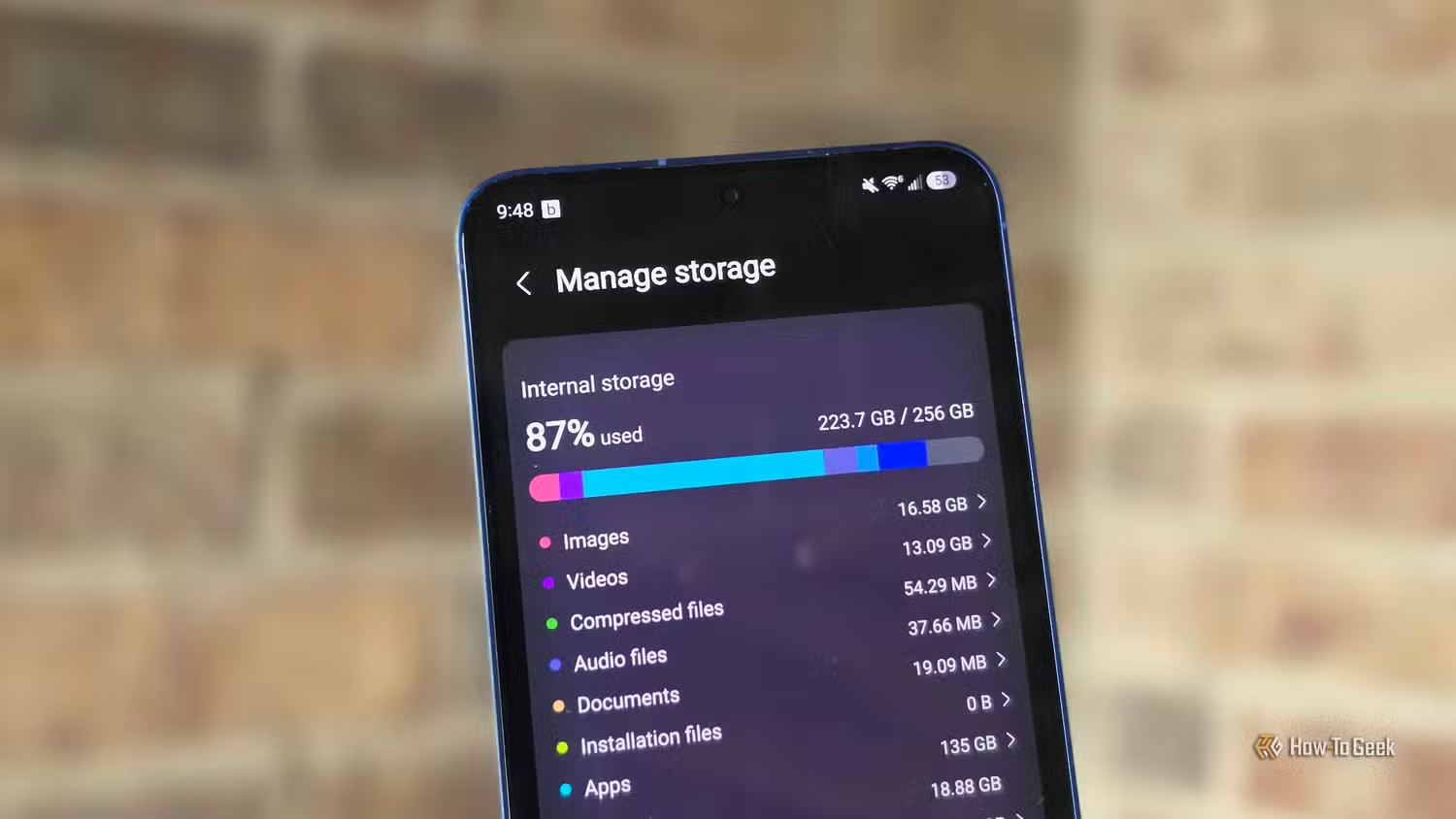
Check How Much Storage Is Available
Low storage is one of the first things to check.
Open:
Settings → Storage
The exact menu can differ between Android manufacturers.
Google says an Android phone can start experiencing issues when less than 10% of storage is free. (Google Help)
You do not need to delete important photos just because storage is getting low.
Instead, identify which category is consuming the space.
Look for:
- Apps
- Photos and videos
- Downloads
- Audio
- Documents
- Temporary files
- Other files
If storage is nearly full, safely removing unnecessary downloads, unused apps, and other identifiable files can be more useful than repeatedly restarting the phone.
Do Not Confuse Storage With Memory
Android storage and memory are not the same thing.
Storage is where your apps, photos, videos, documents, and other files are kept.
Memory, commonly referred to as RAM, is used while Android and your apps are running.
A phone can have plenty of storage available while still having performance problems caused by an app or another issue.
Likewise, a phone with very little free storage can start experiencing problems even if its RAM is not the immediate cause.
Google specifically separates storage and memory in its Android guidance. (Google Help)
Check for Android System Updates
An outdated system can be worth investigating when your phone is behaving unusually.
On many Android phones, you can check under:
Settings → System → Software update
Some manufacturers use a different menu, such as:
Settings → Software update
or place the option under About phone.
Google notes that settings vary by manufacturer. (Google Help)
Install an available update if your phone supports it and follow the instructions provided by the manufacturer.
Do not assume that every update will make an older phone faster. Updates can change features and behavior, but keeping the device supported and current is an important troubleshooting step.
Update Your Android Apps
A single outdated app can sometimes behave differently from the rest of the phone.
Open:
Google Play Store → Profile picture → Manage apps & device
Check for available updates.
Google’s current Android troubleshooting guidance recommends checking app updates when investigating performance problems. (Google Help)
Pay particular attention to apps that became slow or started freezing around the same time as the problem.
Find Out Whether One App Is Causing the Slowdown
Try to identify whether the problem appears after opening a particular application.
For example:
- Restart the phone.
- Use the phone normally.
- Open your commonly used apps one at a time.
- Notice when the slowdown begins.
- Reopen the suspected app to see whether the problem returns.
If the phone becomes slow only after using one particular app, focus your troubleshooting there.
You may be dealing with an app-specific problem rather than a phone-wide performance problem.
Force Stop a Problematic App
If one app becomes unresponsive or behaves abnormally, you can usually force stop it.
A common path is:
Settings → Apps → See all apps → [Select the app] → Force stop
The exact wording varies by device.
Google recommends force stopping an app when troubleshooting an app that is not responding. (Google Help)
After force stopping it, open the app again and check whether the behavior improves.
Do not make a habit of force-stopping every app simply because it appears in the recent-apps screen. Android is designed to manage apps and memory itself.
Clear an App’s Cache Carefully
If one app has become unusually large or is behaving strangely, clearing its cache may help.
A common path is:
Settings → Apps → See all apps → [Select the app] → Storage & cache → Clear cache
The exact path can differ.
Google explains that Clear cache removes temporary data. The app may take slightly longer to open the next time because it needs to rebuild some cached information. (Google Help)
Do Not Confuse Clear Cache With Clear Storage
This distinction is important.
Clear cache removes temporary data.
Clear storage or Clear data can permanently remove the app’s stored data and reset it.
Google specifically warns that clearing storage permanently deletes all app data. (Google Help)
If you are troubleshooting performance, do not select Clear storage unless you understand what information the app will lose and have a suitable backup if necessary.
Check Recently Installed Apps
Think about when the slowdown started.
If the phone became noticeably slower after installing a new app, that app deserves attention.
You do not need to uninstall everything.
Start with applications installed shortly before the problem appeared.
Check whether the slowdown continues after removing a suspected app.
This is especially useful if the phone behaves normally immediately after a restart but becomes slow again after you begin using certain applications.
Use Safe Mode to Test Downloaded Apps
Safe Mode is one of the more useful diagnostic steps when you suspect an installed app.
Safe Mode temporarily disables downloaded apps. Google recommends using it to determine whether a downloaded app is causing problems such as freezing, crashing, or slow performance. (Google Help)
The exact method for entering Safe Mode varies by manufacturer.
Once the phone is in Safe Mode, use it normally for a while.
If the slowdown disappears, a downloaded app is more likely to be involved.
If the slowdown remains, the problem may not be caused by a downloaded app.
What to Do If Safe Mode Makes the Phone Faster
Return to normal mode and review recently installed apps.
Remove suspected applications one at a time and restart the phone after each removal.
This gives you a better chance of identifying the application responsible instead of deleting many apps unnecessarily.
Google recommends removing recently downloaded apps individually when Safe Mode indicates that an app may be responsible. (Google Help)
Check Whether the Phone Is Getting Hot
Heat can affect how a phone behaves.
Pay attention to whether the slowdown appears when:
- Charging
- Recording video
- Playing demanding games
- Using navigation for a long time
- Using the camera repeatedly
- Running demanding applications
- Using the phone in direct sunlight
If the phone is noticeably hot and becomes slower at the same time, allow it to cool naturally.
Avoid covering the phone with blankets, placing it on a hot surface, or using questionable cooling accessories.
If overheating happens frequently during ordinary light use, that deserves additional investigation.
Check Battery and Power-Related Behavior
If your phone has a battery-saving or power-management mode enabled, check whether the behavior changes when the mode is active.
The exact features vary considerably by manufacturer.
Do not immediately disable every battery optimization setting in an attempt to make the phone faster.
Instead, identify whether the slowdown is actually related to battery or power management.
If the phone becomes slow only when the battery is very low, compare its behavior after charging it.
Check for a Problem With a Specific Feature
Sometimes the phone feels slow because one particular operation is slow.
Test individual functions:
Home Screen
Swipe between home screens and open the app drawer.
If the home screen itself stutters, the problem may be broader than one application.
Keyboard
Open a simple text field and type several sentences.
If letters appear late, check whether the problem occurs in multiple apps.
Camera
Open the camera and take several photos.
If the camera is slow but the rest of the phone responds normally, investigate the camera app and available storage.
Settings
Open different Settings pages.
If Settings itself is slow, the problem is less likely to be caused by a single third-party application.
Web Browsing
Test a website and then test an offline function.
If only internet-based activity is slow, investigate the connection rather than assuming the phone’s processor is the problem.
Check Available Storage Again After Cleanup
If your phone was close to full, free up some space and test it again.
Google recommends checking storage and clearing space when troubleshooting a slow Android device. (Google Help)
Useful places to review include:
- Downloads
- Large videos
- Unused apps
- Offline media
- Messaging-app media
- App caches
- Duplicate or unnecessary files
Do not randomly delete Android system files.
If you are unsure what a file does, leave it alone.
Do Not Install Several “RAM Booster” Apps
Be cautious with applications that promise to dramatically speed up Android by constantly clearing RAM.
Android already manages memory.
Google’s guidance says you generally do not need to close apps, although you can force stop an app when it is not responding. (Google Help)
Installing several optimization tools can also add more software running on the phone, making troubleshooting harder.
Start with Android’s built-in tools instead.
Do Not Delete System Files to Make the Phone Faster
A nearly full storage drive can be a genuine problem, but that does not mean every large or unfamiliar file should be deleted.
Avoid manually deleting:
- Android system files
- Unknown folders
- Application data you do not understand
- Files inside system directories
- Manufacturer components
- Files with unfamiliar extensions
Removing the wrong data can create new problems without solving the original slowdown.
Check Whether the Phone Is Simply Older
Not every performance problem has a software fix.
Older phones may struggle with newer versions of apps and increasingly demanding websites.
Consider the age of the device and whether the slowdown happens across almost everything.
If:
- Multiple apps are slow
- Settings is slow
- The keyboard lags
- The camera takes longer to respond
- Storage is reasonably free
- Apps and Android are updated
- Safe Mode does not solve the problem
then the device’s hardware limitations or condition may need to be considered.
That does not automatically mean you need a new phone. It means software troubleshooting may have reached its useful limits.
What Not to Change While Troubleshooting
Avoid changing many settings at once.
For example, do not simultaneously:
- Disable battery optimization
- Install a cleaner
- Change animation settings
- Disable system apps
- Clear storage for multiple apps
- Delete system folders
- Install several antivirus or optimization tools
- Perform a factory reset
If you change everything at once, you will not know which change affected the problem.
A controlled troubleshooting process is easier to understand and reverse.
When a Factory Reset Makes Sense
A factory reset should not be the first response to a slow Android phone.
It removes the phone’s data and uninstalls apps and their associated data.
Google recommends backing up your phone before performing a factory reset. (Google Help)
Consider it only after less destructive troubleshooting has failed and you have determined that the problem is serious enough to justify the disruption.
Before resetting, make sure you have considered:
- Photos and videos
- Contacts
- Messages
- Authentication apps
- Documents
- App data
- Cloud backups
- Important downloaded files
A factory reset should be a deliberate troubleshooting step, not a quick “speed boost.”
A Practical Troubleshooting Order
If you want to work through the problem without changing too much at once, use this order:
- Restart the phone.
- Test whether the internet or the entire phone is actually slow.
- Check available storage.
- Free up space if storage is nearly full.
- Install available Android updates.
- Update your apps through Google Play.
- Identify whether one app causes the slowdown.
- Force stop a problematic app.
- Clear its cache if appropriate.
- Check recently installed apps.
- Test the phone in Safe Mode if the problem continues.
- Check whether heat is involved.
- Test the phone again after each major change.
- Consider manufacturer support if the problem remains.
- Treat a factory reset as a last-resort step.
This sequence helps you move from the least disruptive checks toward more significant troubleshooting.
How to Verify That the Phone Is Actually Faster
Do not rely only on how the phone feels immediately after a change.
Test the same activities that previously caused problems.
For example:
- Open several frequently used apps.
- Type a message.
- Scroll through a long webpage.
- Open the camera.
- Switch between apps.
- Open Settings.
- Play a video.
- Use the phone for 15–30 minutes.
If the phone remains responsive during normal use, the troubleshooting step may have addressed the underlying problem.
If the slowdown returns, note what you were doing immediately before it happened.
That information can be more useful than repeatedly restarting the phone.
When to Contact the Manufacturer
If the phone remains slow after checking storage, updating Android and apps, testing for problematic apps, and using Safe Mode, consult the manufacturer’s support resources.
Google notes that Android settings and troubleshooting steps can vary by manufacturer. (Google Help)
Manufacturer support may be especially useful when the problem involves:
- A specific device model
- Hardware diagnostics
- Battery or thermal problems
- Manufacturer-specific software
- Firmware updates
- Persistent system errors
Frequently Asked Questions
Why did my Android phone suddenly become slow?
A sudden slowdown can have several possible causes, including low storage, a problematic app, an update-related issue, heat, or another system problem. Start by checking storage, restarting the phone, and looking for recent app or system changes.
Does low storage make Android slower?
It can. Google says Android devices can start having issues when less than 10% of storage is free. (Google Help)
Should I clear RAM to make my Android phone faster?
Usually, you do not need to repeatedly clear RAM or close every app. Android manages memory itself. Force stop an app when it is actually causing a problem rather than treating RAM clearing as routine maintenance. (Google Help)
Does clearing app cache make Android faster?
It can help with a particular app if its cached data has become problematic or unusually large, but clearing cache is not a universal solution for a slow phone.
What is the safest way to find a bad Android app?
Safe Mode is useful because downloaded apps are temporarily disabled. If the phone becomes normal in Safe Mode, a downloaded app is more likely to be responsible. (Google Help)
Should I factory reset a slow Android phone?
Not immediately. A factory reset removes your phone’s data and apps, so it should be considered only after less destructive troubleshooting has failed and you have a verified backup. (Google Help)
Why is my Android phone slow only when it gets hot?
Heat can affect device performance and may be associated with demanding workloads or environmental conditions. If significant heating and slow performance repeatedly occur during ordinary use, investigate the cause rather than trying to force the phone to keep running at full speed.
Final Takeaway
A slow Android phone is not automatically a sign that the device needs to be replaced.
Start with the basics: restart the phone, check storage, update Android and apps, identify whether one app is responsible, and test Safe Mode when necessary.
Avoid aggressive cleaners, random system-file deletion, and unnecessary factory resets.
The goal is not simply to make the phone feel faster for a few minutes. The goal is to determine why it is slow and fix the specific cause without creating a new problem.
Official Android Resources
For current Android troubleshooting instructions, use Google’s official documentation:
- Speed up a slow Android device — Google Android Help
- Fix an Android device that freezes or won’t respond
- Find problem apps with Safe Mode
- Free up storage on your Android device
- Check and update your Android version
This fits your existing Android troubleshooting cluster well because it focuses on diagnosis rather than generic “10 ways to speed up Android” tips, while also giving readers a safe escalation path.